Real Trello subtasks, right on your boards
Trello gives a checklist when a card grows too big, but a checkbox holds no due date, owner, or file, so the work splits into a separate, disconnected card. Placker adds parent-child cards: each subtask is a real card with its own dates and members that still rolls up to its parent.
Quick facts
Parent-Child Cards for Trello
Turn Trello checklist items into full cards that stay in sync. Here is what they gain:
- A checklist item that is a real card. Any Trello checklist line doubles as a full card on the board and stays in sync in both places.
- Detail a checklist line can't hold. As a child card it gains due dates, members, a description, attachments, and comments that a plain checklist item cannot carry.
- Link with a pasted URL. Paste a card URL into a checklist and Placker links the two together automatically.
- Subtasks in your views and reports. Mirrored subtasks show up in Placker's card-level track views and reports alongside the rest of your board.
Real subtasks
Trello subtasks with the detail a checklist can't hold
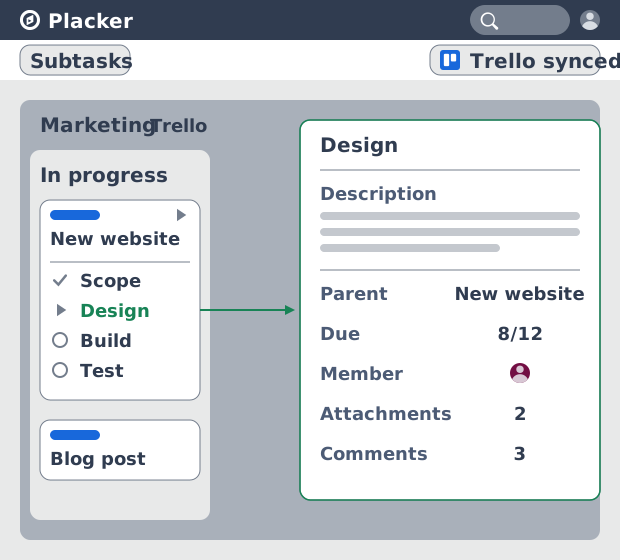
On a Trello board, a checklist item is a line with a checkbox. It can't carry a due date, an assignee, an attachment, or a comment, so anything that needs those becomes a separate card you link by hand. With parent-child cards the subtask is a real card with all of those fields, and it still appears as a checklist item on the parent. The brief, the deadline and the owner live on the subtask, while the parent card still shows the list at a glance.
Rollup totals
A parent card that totals its own subtasks
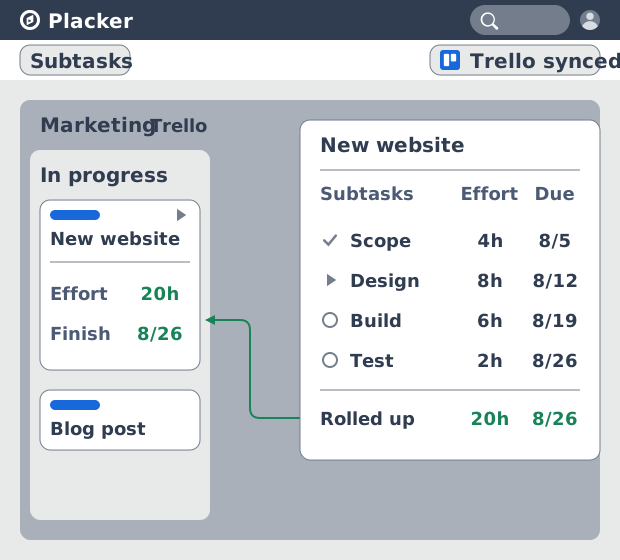
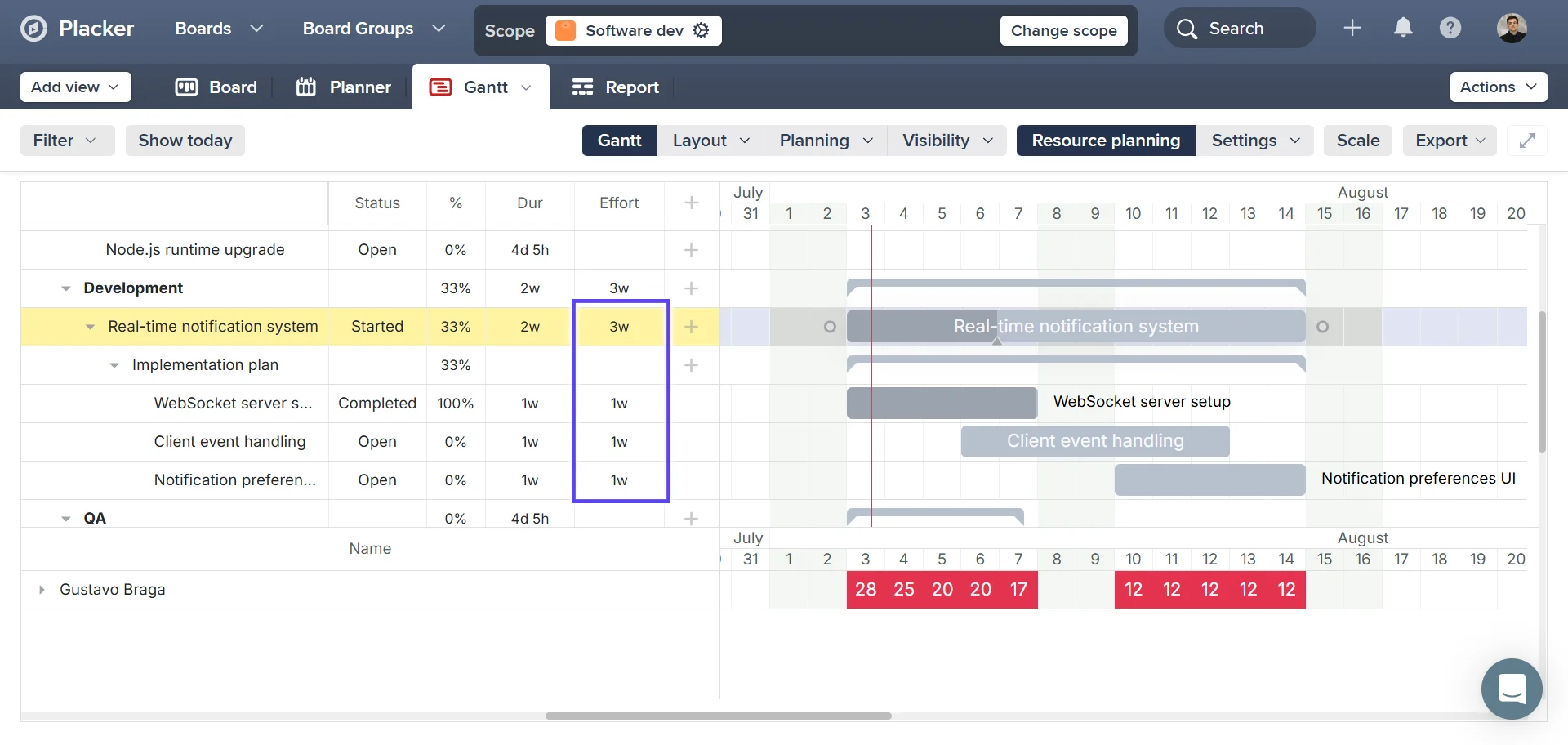
Now that each subtask carries its own dates and members, the parent card can total the work, where Trello shows a checklist only as a count of ticked boxes. Effort, dates and members roll up from each child card to the parent, so the parent on your board carries the combined estimate and the latest due date. When a subtask moves or its estimate changes, the parent updates itself, and the card a stakeholder reads on the Doing list matches the work underneath.
Subtask reporting
Subtasks that finally show up in reports
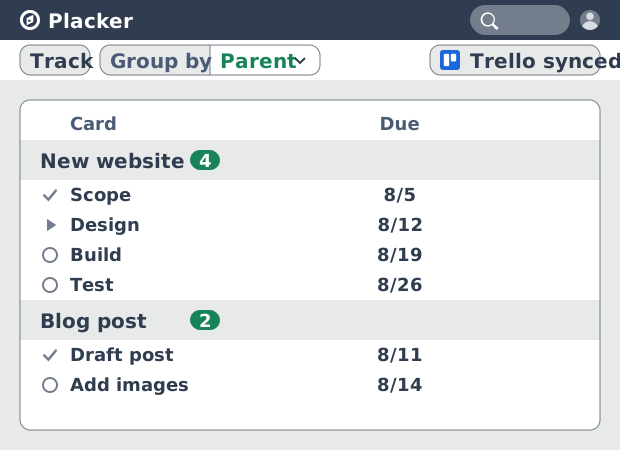
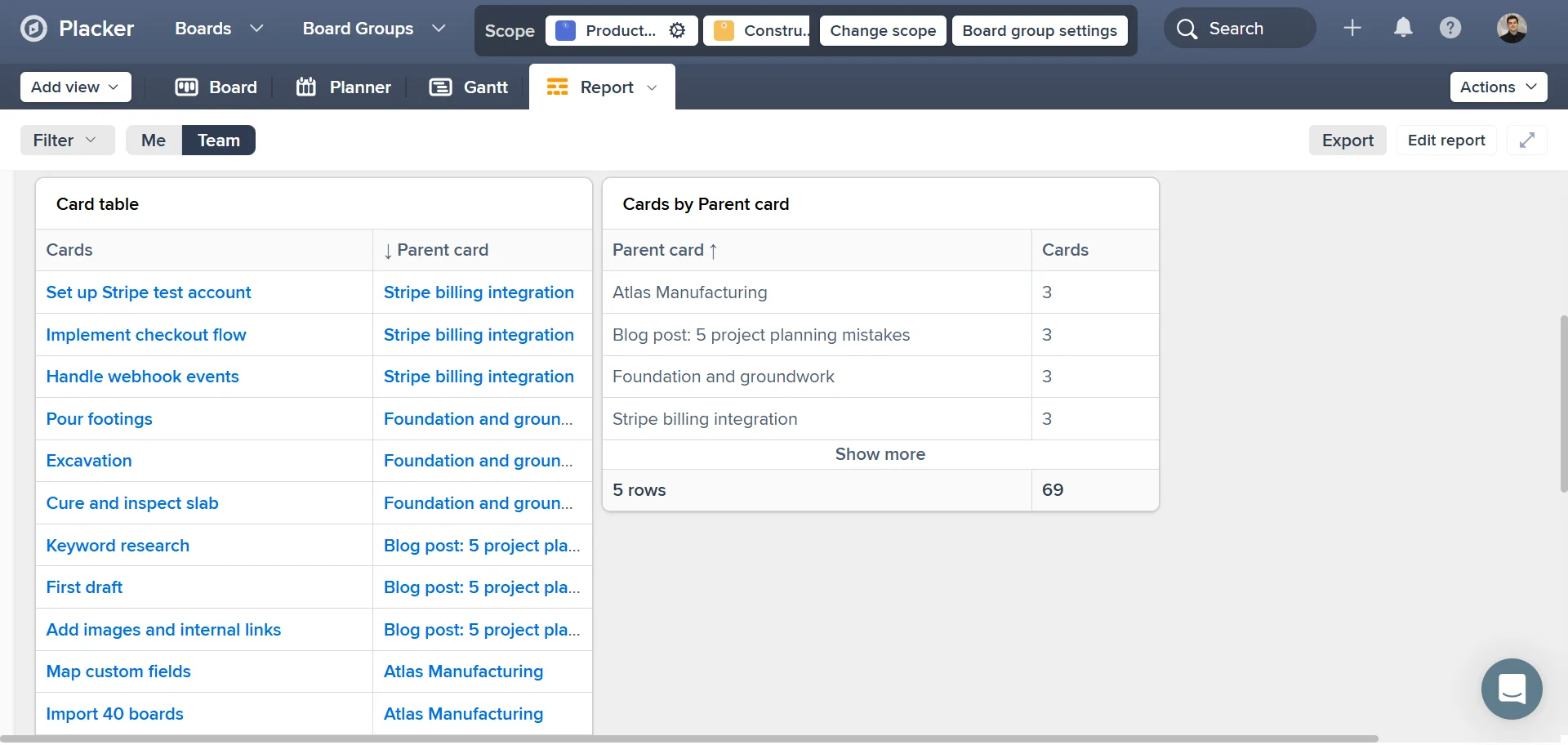
The same child cards that roll up to the parent also carry into reporting: Power-Ups that track work count cards, and a Trello checklist item is not a card, so it stays out of the report. Because a child here is a card, it appears in Placker's timeline, workload and reports like any other card on your board. Group a track view by parent to count subtasks per card, or open one parent to see its breakdown.
How It Works
You work from your Trello board with the Placker Power-Up open. Four steps turn a checklist into a tracked set of subtasks.
- 1
Open your board and the Placker Power-Up
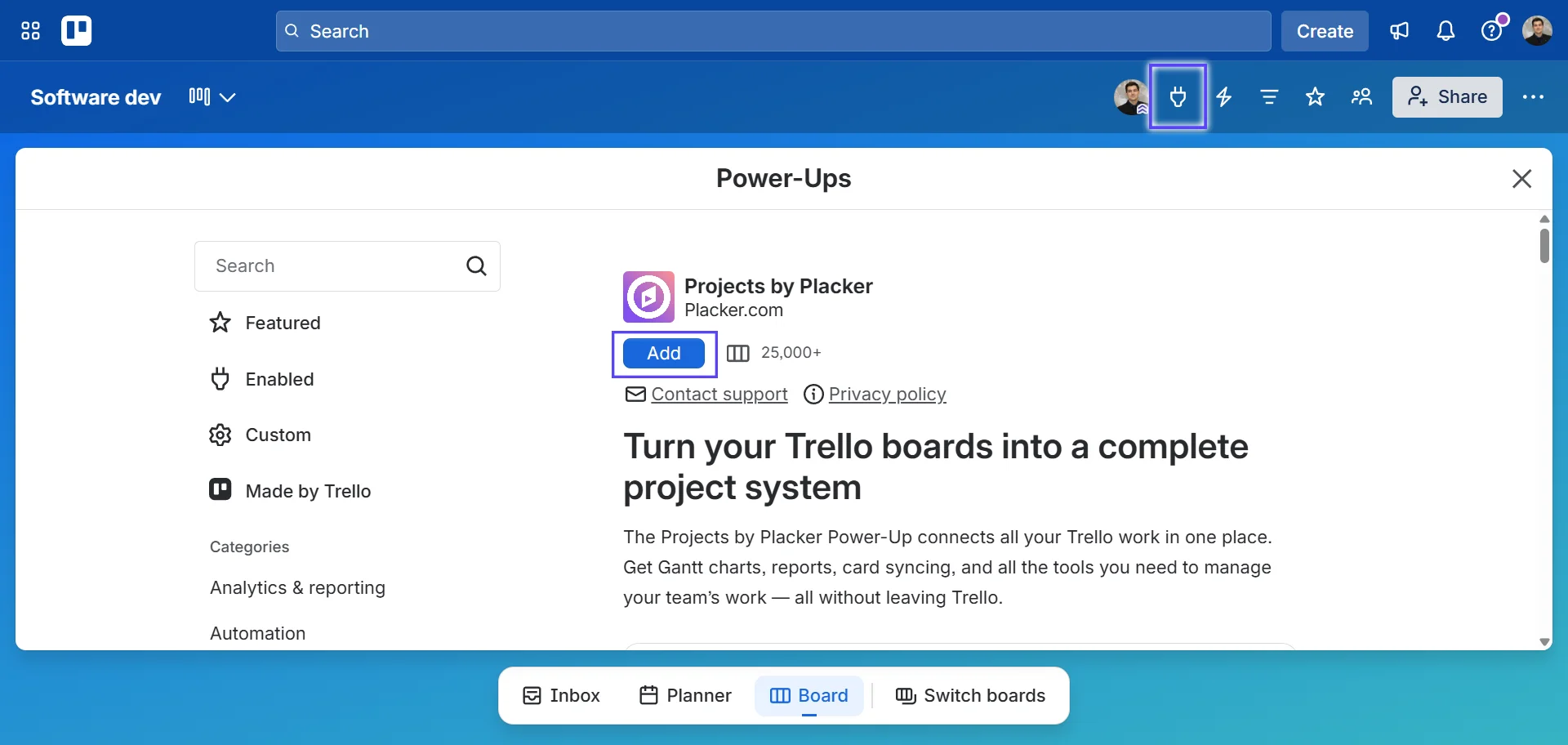
Open the Trello board you want to work on and launch Placker from the board's Power-Up button. Open a card and use the parent and child buttons on the card overview to start the hierarchy.
- 2
Turn a checklist item into a card
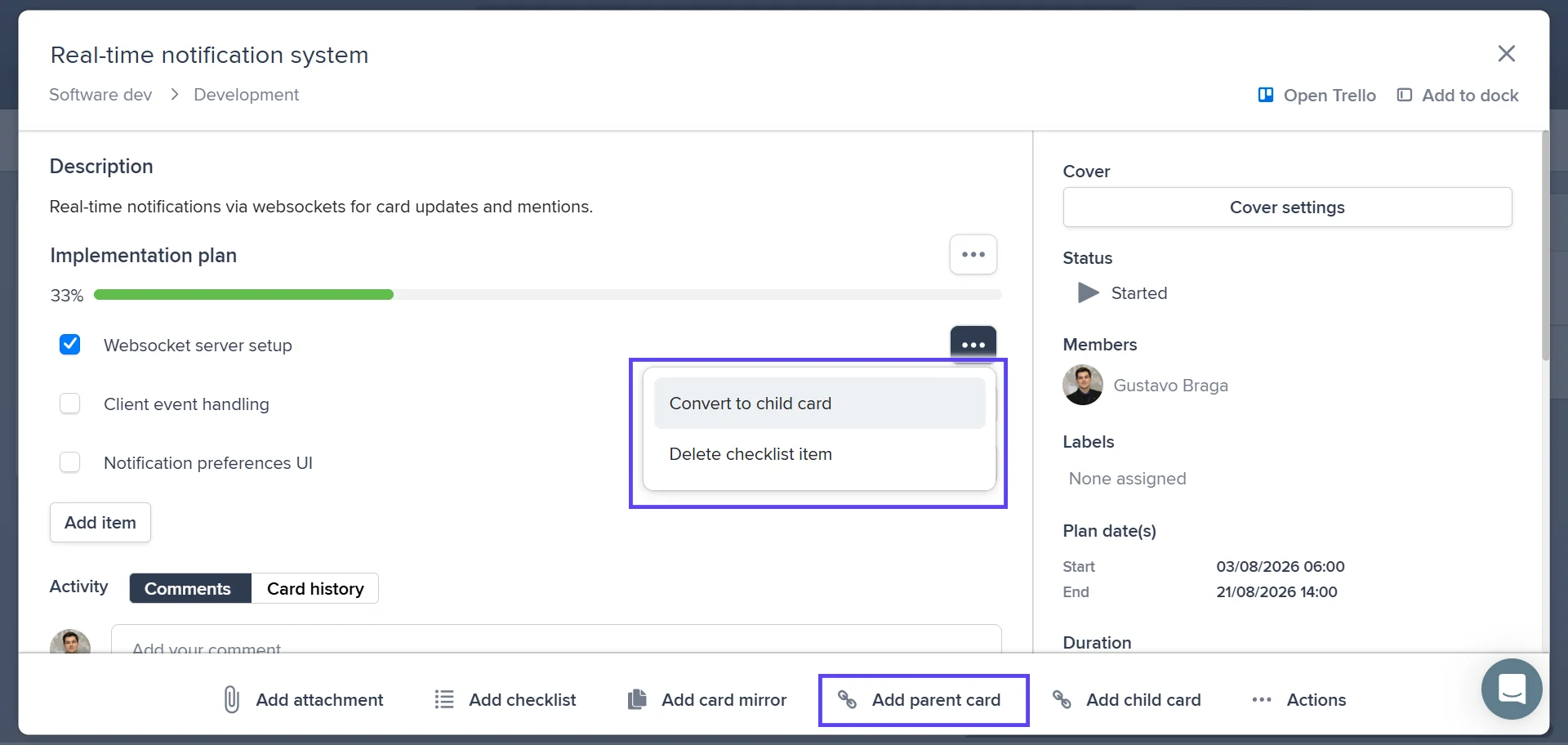
Drag a checklist item out to a card, or choose Convert to child card, or paste a Trello card URL into the checklist to link an existing card. With auto-detect on in Mirror settings, Placker recognizes the pasted link and creates the parent-child relation. The child keeps its members, due date and completion in sync with the checklist line.
- 3
Turn on effort aggregation
In Placker board settings, open the Planning tab and enable Aggregate checklist items on card level before you plan the subtask efforts. The setting adds up only efforts entered after it is on, so switch it on first.
- 4
Read the rolled-up board in card-level views
Open Placker's timeline or table view over your Trello board. Effort and dates roll up to each parent card, and you can group by parent to compare cards or zoom into one for its subtasks.
Use cases
Parent-child cards suit teams running their work on Trello boards that have outgrown plain checklists. Three setups:
An agency ops team on a campaign board
An agency runs a Trello board with lists for To Do, Doing and Done and one card per client campaign. Each campaign card holds subtasks like copy, design and ad setup as child cards, each with its own due date and owner, while the campaign card shows the combined timeline for the weekly client check-in.
A product team tracking a release
A product team keeps a release card on its Trello board and breaks it into child cards for spec, build and QA. Mirrored to cards, the subtasks show in the timeline, so the team sees the release date shift when a build subtask slips instead of finding out at the end.
A marketing team running content
A marketing lead runs a content board where each piece is a card. Larger pieces become parents with child cards for draft, review and publish, and roll-up gives the parent a real due date, so the editorial calendar reflects where each piece actually stands.
Tips & Best Practices
Practical advice to get the most out of your workflow
Give every child card a date and an estimate
The parent only rolls up what its children carry, so add a due date and an effort estimate to each subtask. Then the parent's total and latest date reflect the real state of the work rather than a guess.
Assign each child card to the person doing that piece
Since a subtask is a real card, give each one its own owner so a single deliverable can span several people. Everyone sees just their card while the parent still shows the whole item on the board.
Filter to one parent to hand each person their slice
On a busy project, filter the board to the children under a single parent so a teammate sees only the subtasks in their area. One large deliverable becomes a short, focused task list.
Track parent and child cards together on the Gantt
Once subtasks carry their own dates, the roll-up reads better as a timeline than as a number. Pair this with Gantt Chart to see each parent and its children side by side and watch the progress bar fill as children finish.
Related pages
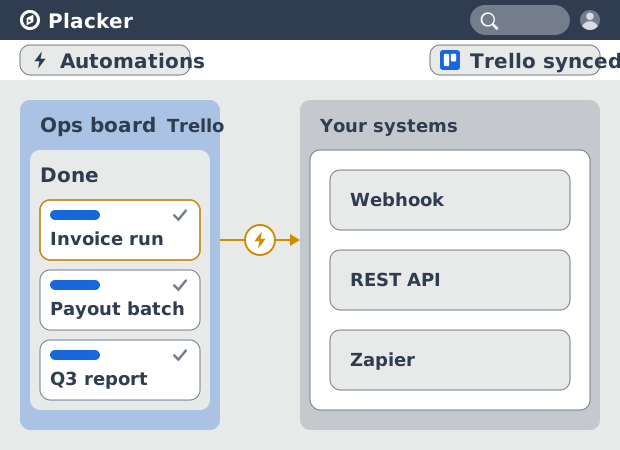
Trello integrations: two-way sync with Placker
Add two-way card sync, Google Calendar, Clockify time tracking, and webhooks to Trello with the Placker Power-Up. See how it works.
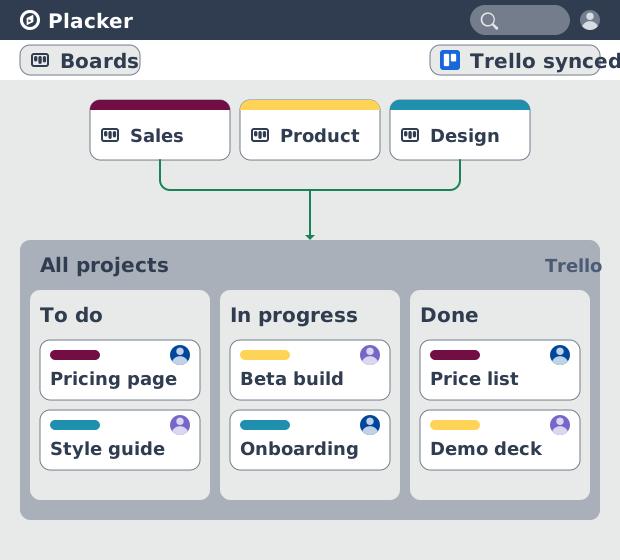
Trello board view: Kanban layouts and reports
Add Kanban structure to your Trello boards with Placker's board view. Group, swimlane, and report on the cards you already have. Add to Trello.
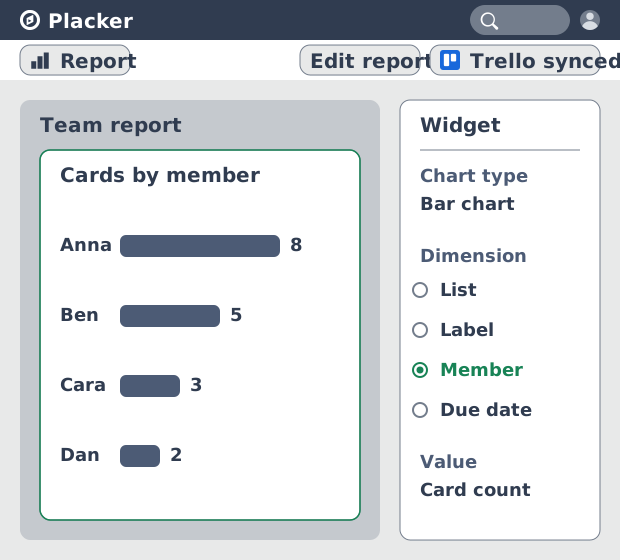
Trello dashboards and reports
Turn your Trello boards into live dashboards. Cross-board reporting, pivot tables, and scheduled PDF reports. Add Reports by Placker to Trello.
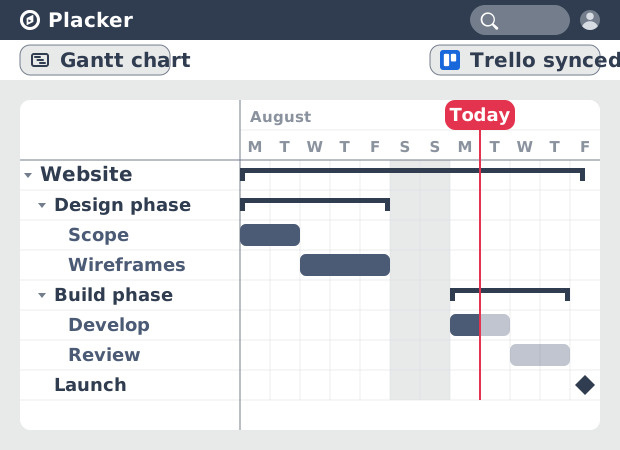
Gantt Chart for Trello with Dependencies
Add a real Gantt chart to your Trello boards. Placker turns cards with dates into a timeline with dependencies, critical path, and resource planning.
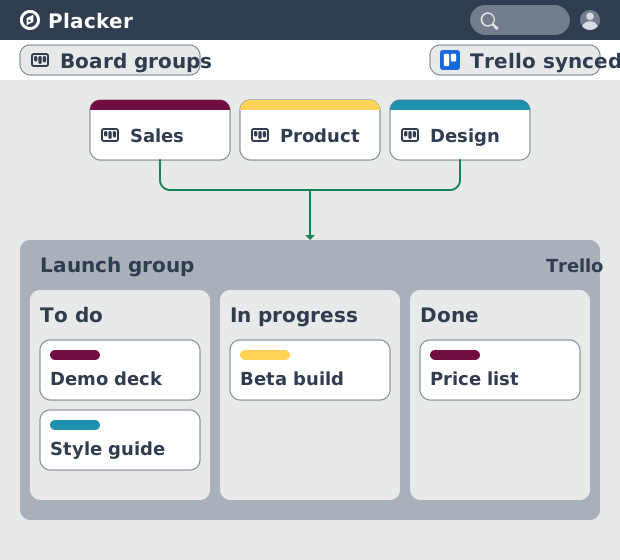
Board Groups for Trello: one combined board view
Load several Trello boards into one combined board view. Placker adds cross-board filtering, drag-and-drop between boards, and combine and split. See how.
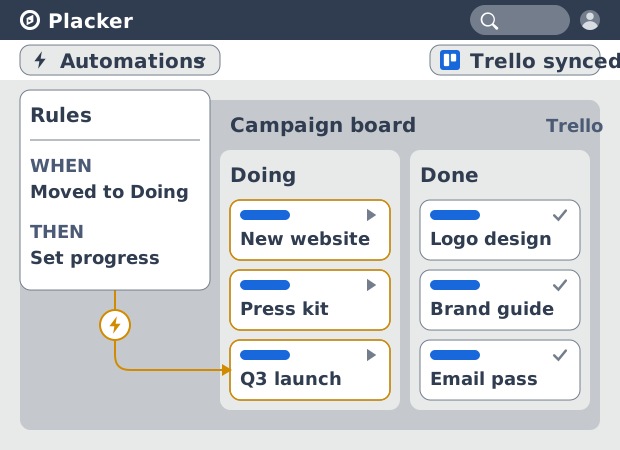
Trello automation rules: beyond Butler limits
Automate Trello boards with no monthly run cap. Placker rules mirror cards two ways and reach fields Butler can't. See how it works.
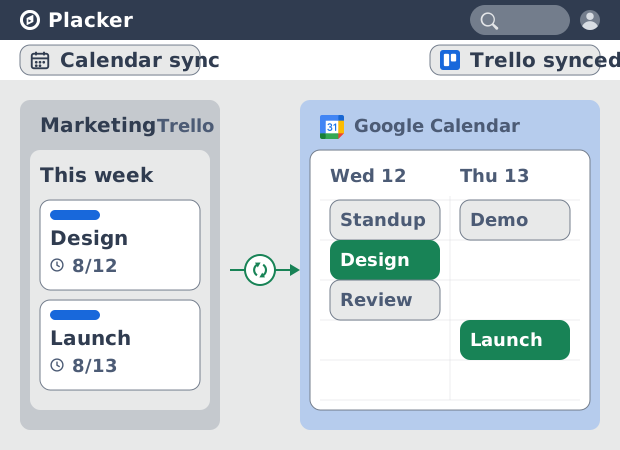
Trello Google Calendar sync: two-way & real-time
Sync Trello cards with due dates to Google Calendar both ways, in under a minute. Edit in either tool and the other updates. Add it to Trello.
Ready to supercharge your Trello boards?
Start your 15-day free trial today. No credit card required.