Build a master board for Microsoft Planner
My Tasks only ever shows your own tasks, and Portfolios needs a higher-tier licence. Placker reads every plan as one board, whatever licence your team holds.
Quick facts
Key facts about a Planner master board
What to know before you build a master board from your Planner plans:
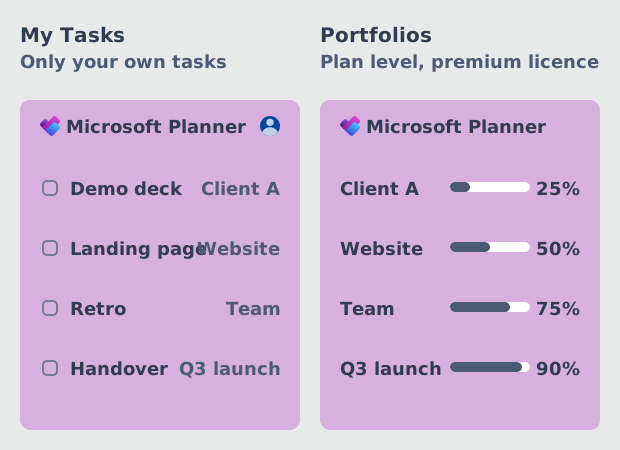
- Planner's own answers stop short. My Tasks gathers only your own tasks across plans, and Portfolios rolls plans up one row each, needs a higher-tier licence, and leaves basic plans out.
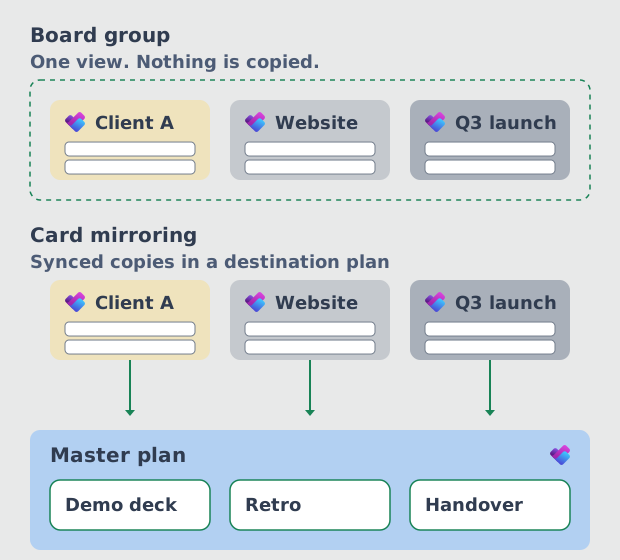
- A board group spans any licence. Point it at the plans your teams already keep and they open as one board, nothing duplicated and no task moved, whatever licence sits behind each plan.
- Buckets stack when they share a name. Buckets with a matching title collapse into one column under Board Split: Combine, a switch that lives only in the Placker web app.
- Your plans have to live in a group. Every plan must belong to a Microsoft 365 group, since private plans cannot be imported and premium plans are out of scope, so check yours before you begin.
- Mirror rules keep the plan current. Each rule watches for the condition you name, mirrors the task when it is met, withdraws it when it is not, and runs against existing tasks when you press Execute now.
Where Planner stops
Where Planner stops short of a team view
My Tasks is yours alone. Portfolios reads at plan level, behind a licence.
Microsoft Planner answers the cross-plan question twice, and neither answer hands a team a board. My Tasks collects everything assigned to you across your plans, which serves you and nobody else on the team. Portfolios groups related plans on a Roadmap at one row per plan, so you read progress at plan level and never touch a task. It also requires a higher-tier Planner and Project licence, and Microsoft does not support basic plans inside it. A team on standard licences is locked out, and a mixed estate loses its basic plans from the roll-up.
The board group route
Put every plan in one board group
One group reads your plans together, on the licences you already own.
Placker treats a set of Planner plans as one scope. Choose the plans, and they render together as a single board where every task keeps its original home, because the group is a selection and not a move. That matters inside a Microsoft 365 estate, where nobody has to surrender ownership of a plan and no plan needs a licence upgrade to appear. Setup finishes the day it starts. The second route, card mirroring, suits teams whose consolidated set has to be a plan people can be assigned into, and it works by sending synced copies to a destination plan you nominate.
Connect and build
Connect Planner, then build the group
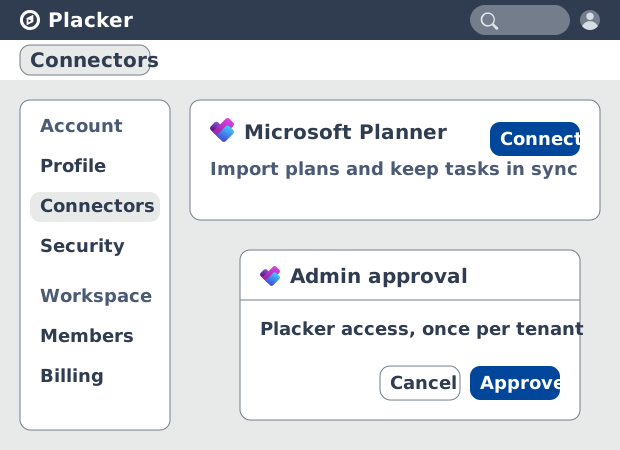
Setup starts in your Placker profile, and an administrator approves it once.
Start with Route A. Routes B and C earn their extra setup only when the consolidated set has to be a plan people can be assigned into, and C is the one that survives without a caretaker. Before any of them, two Planner-side facts decide whether you can begin at all. A Microsoft 365 administrator has to authorise Placker once for the whole tenant, and a plan has to belong to a group before it can be imported. Combine and the mirror configuration live in the Placker web app; Planner has neither.
- Route A: build a board group (recommended)
- Route B: mirror tasks onto a destination plan
- Route C: let mirror rules maintain it
In daily use
What your team sees once it is running
One board across every plan, and each group still owns its own.
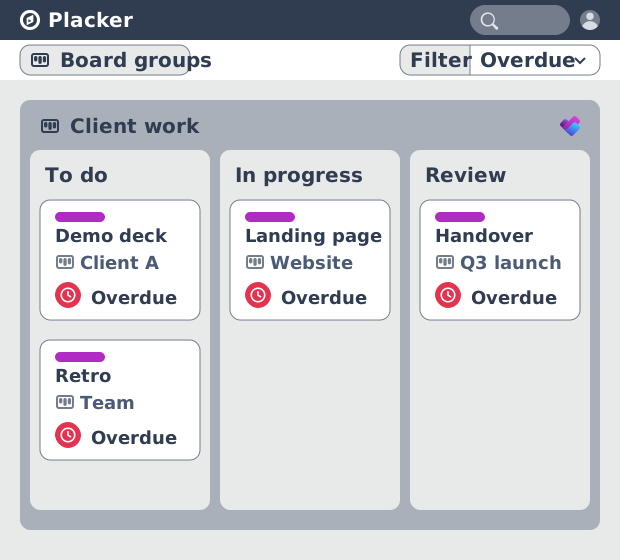
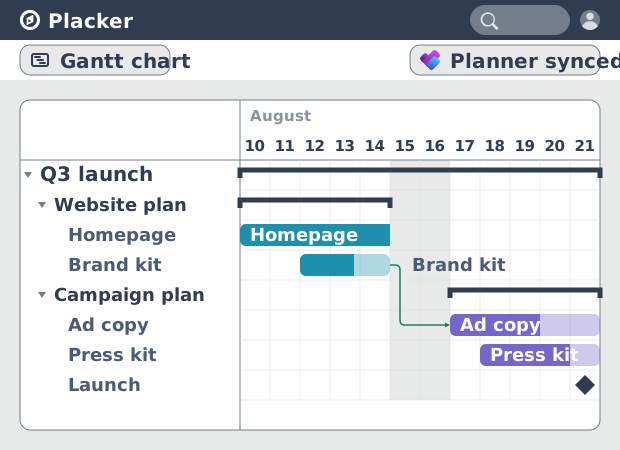
The question that used to need four plans open in four tabs now has one place to look. Ask the board for everything overdue and it returns the stragglers from every plan at once, which is how a task on a quiet plan stops going unnoticed until it hurts. Ownership has not shifted anywhere. Each Microsoft 365 group still runs its own plan, its own buckets and its own membership, and no task moved to make this work. Point the same scope at the cross-plan timeline or the cross-plan report and you have the roll-up Planner reserved for a higher licence.
The master board you built across plans
Every plan in one board, and every task still owned by the plan it came from.
Every plan on one board
No task changed hands. Each one is still a task on its original Planner plan, and the plan name rides on the task front, so nobody has to guess which team's work they are reading.
Buckets that stack instead of repeating
Combine turns four Intake buckets into one Intake column, so the group reads as a single board instead of four plans standing shoulder to shoulder.
Group boundaries left intact
Visibility of a group and access to its plans are two different permissions. Open your group to a colleague and they still see only the plans their Microsoft 365 membership entitles them to.
Tips & Best Practices
Practical advice to get the most out of your workflow
Ask your Microsoft 365 administrator before anyone signs up
The connector needs tenant approval once, and until it is granted nobody on the team can link Planner at all. Raise it on day one so the request is not the thing holding your build up.
A private plan cannot be imported
Placker reads plans that belong to a Microsoft 365 group. Where a plan you need is private, move it into a group in Planner first, then import it. Premium plans stay out of scope either way.
Comments travel one way with Planner
A comment you write in Placker is created on the Planner task. A comment written in Planner does not come back, because Microsoft leaves comments out of the change feed Placker reads. Pick one side for the discussion and keep it there.
Two directions, two speeds
An edit you make in Placker lands in Planner straight away. An edit made in Planner arrives on a sync cycle, so give a Planner-side change a moment before you decide it failed.
One master board can span Planner and Trello
Mirror rules run between Planner plans, and also between a Planner plan and a Trello board. A team carrying both tools gets one consolidated board instead of one per tool.
Related pages
The Planner capabilities behind each route, each one covered in full on its own page.
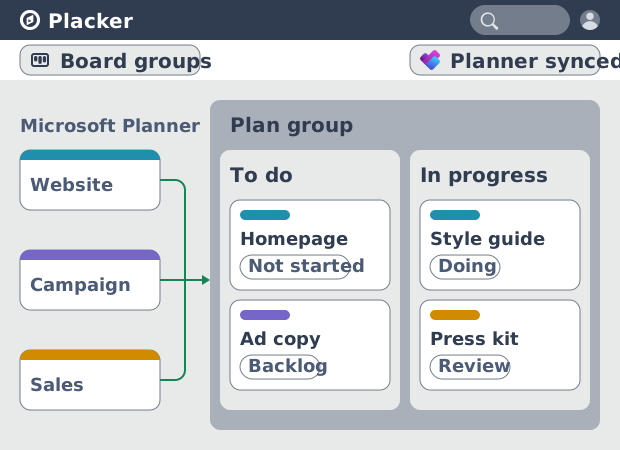
Board Groups for Microsoft Planner
Open several Planner plans as one board, on whatever licence each plan sits on.
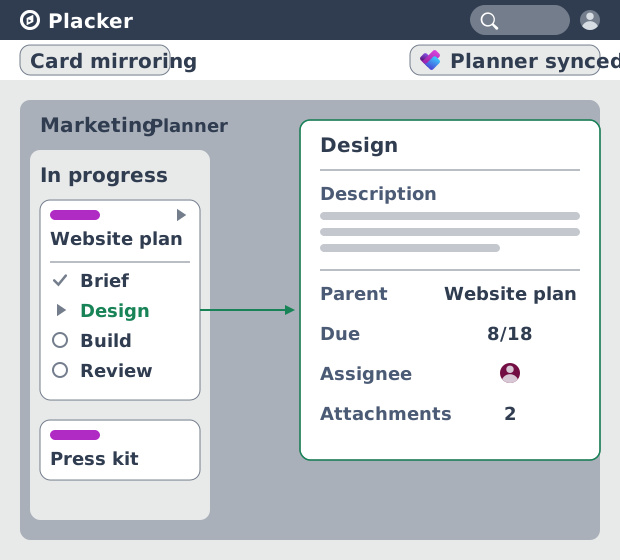
Parent-Child Cards for Microsoft Planner
How a Planner task stays in step with its synced copy on another plan.
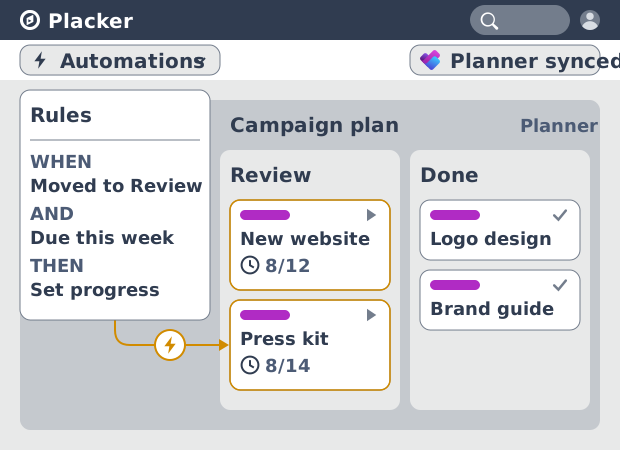
Automation & Workflow Rules for Microsoft Planner
The full trigger and action set behind Route C, reverse actions included.
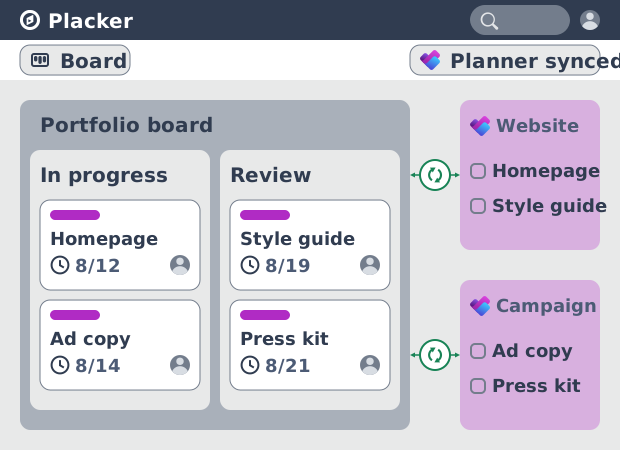
Advanced Board for Microsoft Planner
The layouts, filters and views a grouped Planner scope opens in.
Integrations for Microsoft Planner
What the Planner connector syncs, and the permissions your administrator approves.
Ready to get started?
Easy to setup, no credit card required, start your trial today!