Subtasks in Microsoft Planner, without the premium plan
In Microsoft Planner, real subtasks belong to the premium plan; a basic plan gives only a checklist, with no assignee, due date, or roll-up. Placker brings parent-child tasks to Planner: a subtask becomes a full task with its own dates and members that still rolls up to its parent.
Quick facts
Parent-Child Tasks for Microsoft Planner
Real subtasks and card-level reporting for any Microsoft Planner plan. Here is what you get:
- Subtasks without the premium plan. Placker gives any connected Planner plan a real parent-child structure that Microsoft otherwise reserves for its premium plan.
- Child cards with their own detail. Each child card carries its own assignee, dates, description, and attachments while still ticking off on the parent.
- Roll up across every level. Effort, dates, and members flow up the hierarchy automatically, however deep the work nests.
- Card-level reporting for Planner. Because track views and reports read cards, mirrored subtasks appear in them, bringing the card-level reporting Placker offers on Trello to Microsoft Planner.
Real subtasks
Subtasks in Microsoft Planner that behave like real tasks
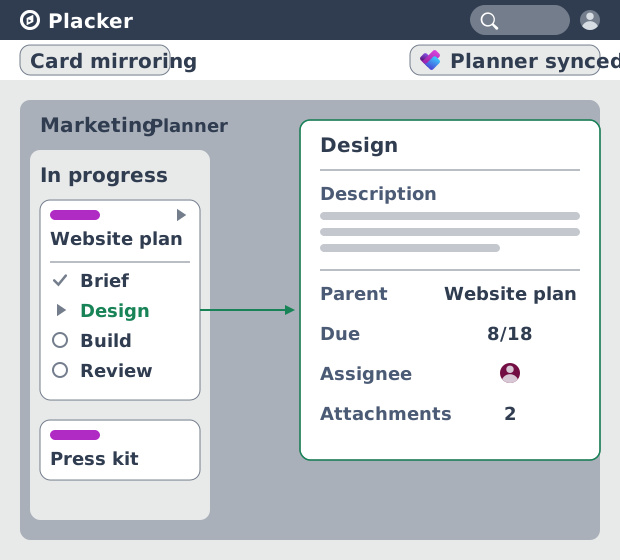
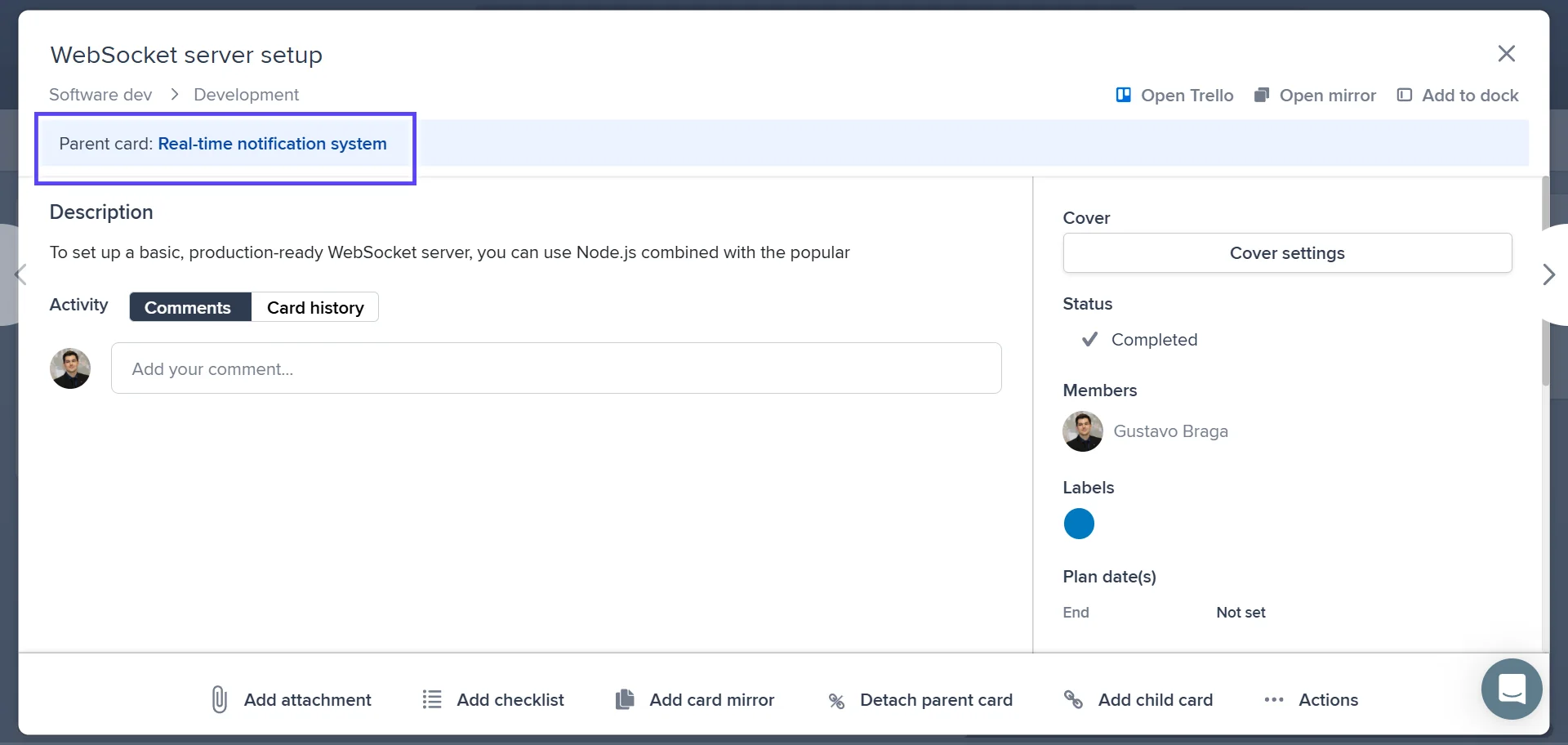
On a basic Microsoft Planner plan, breaking a task down means a checklist, and a checklist item never shows in a bucket, takes an assignee, or carries a due date. Parent-child tasks make each subtask a task with a description, attachments, an assignee and dates, and it still appears as a checklist item on the parent task. The detail that had nowhere to go on a checklist now lives on the subtask, and you didn't move to a premium plan to get it.
Rollup totals
A parent task that totals the work beneath it
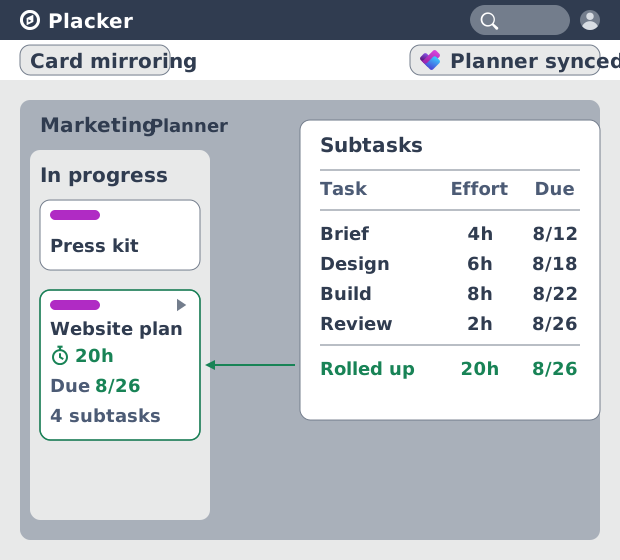
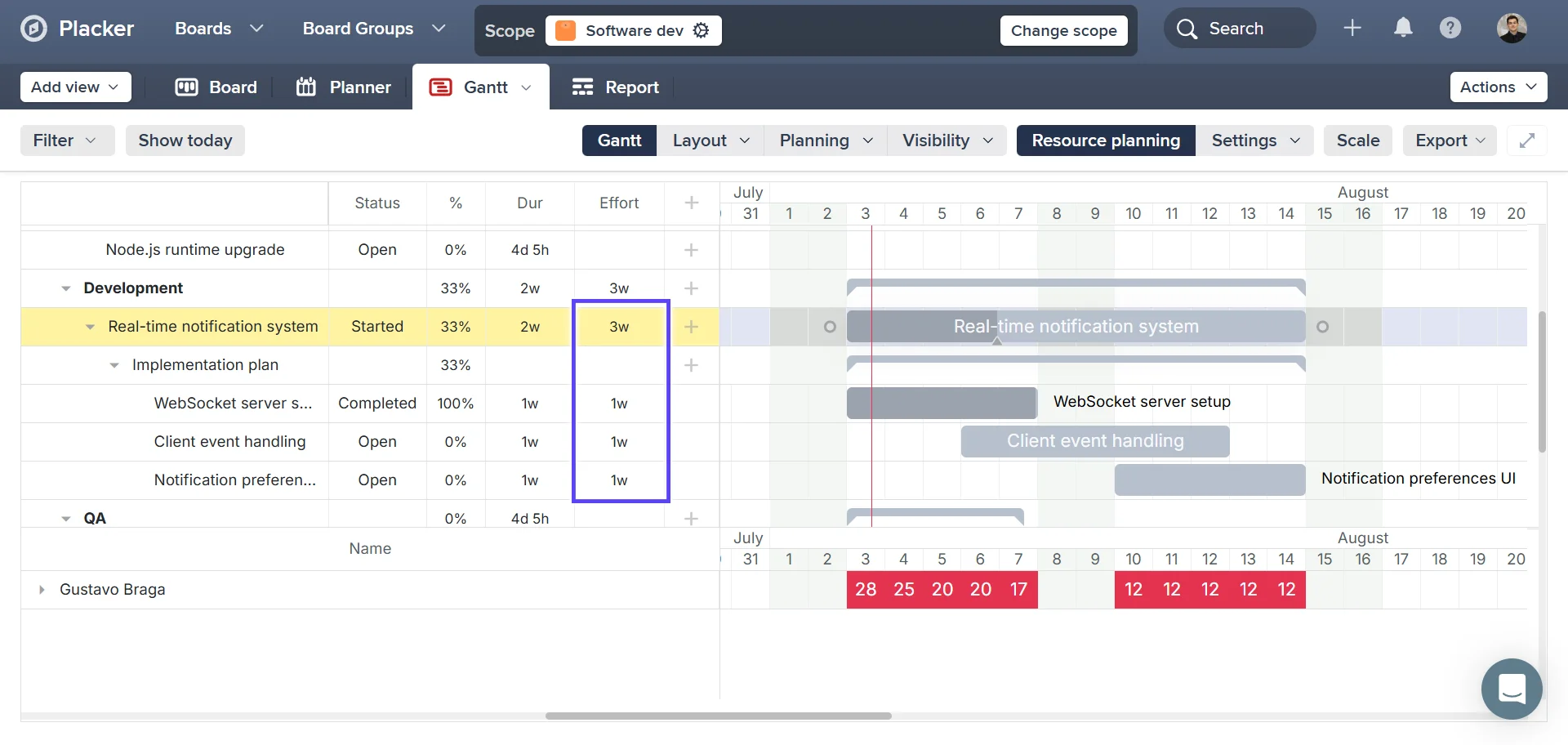
Because each subtask now carries its own effort and dates, the parent can add them up, where Microsoft Planner shows a task's checklist only as a progress count. Effort, dates and members roll up from each child to the parent task, so the task in your bucket carries the combined estimate and the latest due date. Change a subtask and the parent updates on its own, which keeps the plan honest without anyone re-adding the numbers.
Subtask reporting
Reporting across plans, the same as everywhere else
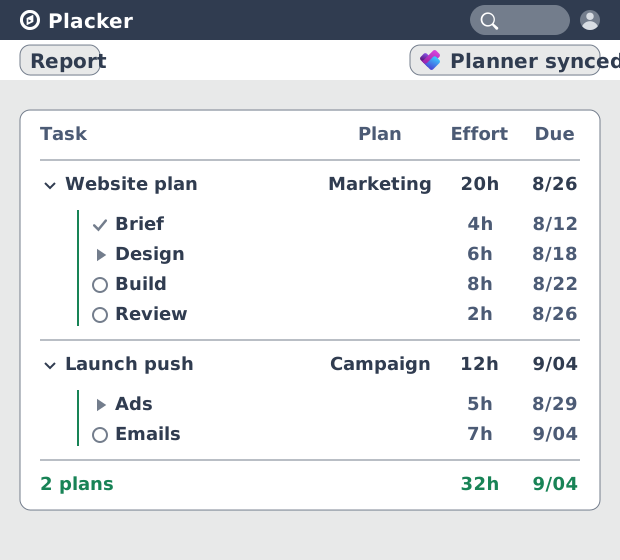
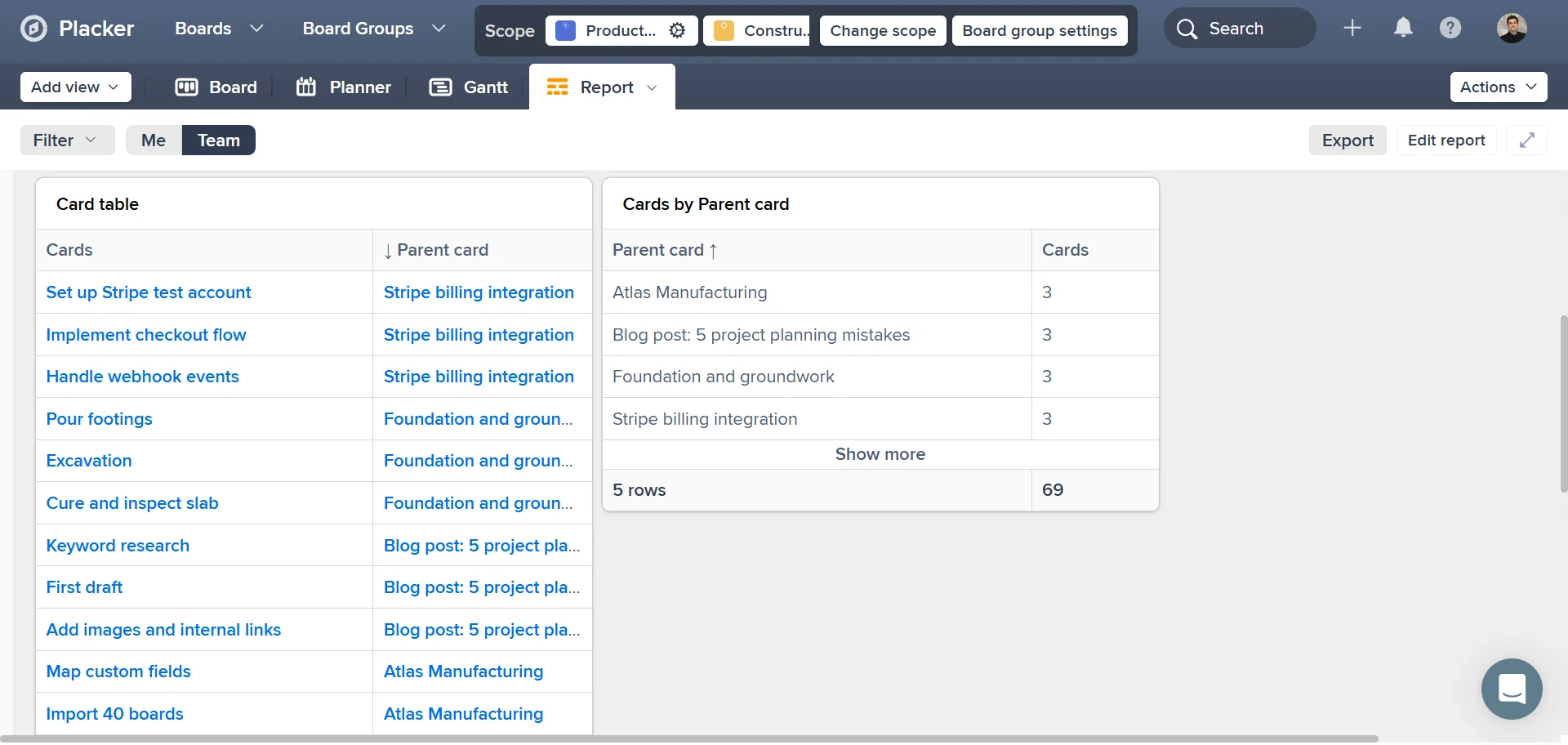
That roll-up doesn't stop at the parent task: because each subtask is a task, it shows on the timeline and reports across your plans, and the same totals give leadership a portfolio view. That reaches past a basic plan, which caps the number of tasks it holds and offers little reporting on the work inside a task. This is the same task-level reporting you get on Trello and standalone, now over Microsoft Planner.
How It Works
Placker connects to your Microsoft Planner plan and adds the hierarchy on top. Four steps take a flat task into a tracked breakdown.
- 1
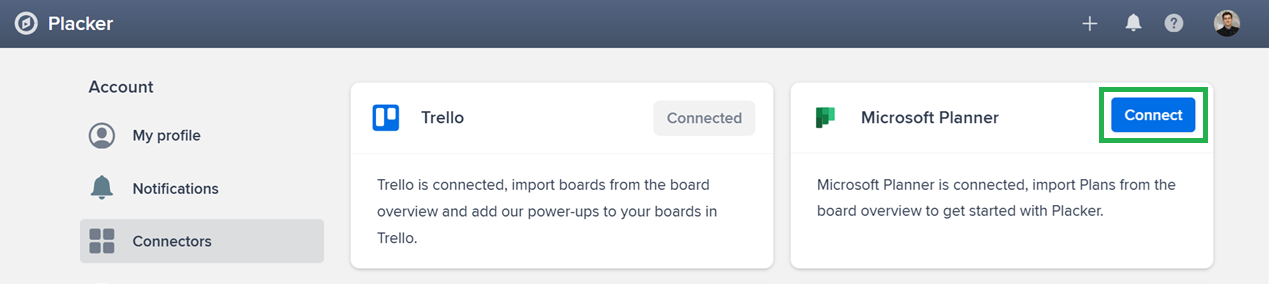
Connect your plan to Placker
Open the Microsoft Planner plan you want to work with. Your buckets and tasks load into Placker, where the parent-child features apply.
- 2
Create a parent task and its children
Open a task and use the parent and child buttons on the task overview, or drag a task into another task's checklist to make it a child. You can also group the board layout by parent and drag tasks into place.
- 3
Add detail and turn on aggregation
Give each child its own assignee, dates and description. In board settings, open the Planning tab and enable Aggregate checklist items on task level before you plan the subtask efforts, since it counts only efforts entered after it is on.
- 4
Track the plan in task-level views
Open Placker's timeline or table view across your plans. Effort and dates roll up to each parent task, and you can group by parent to compare tasks or open one for its subtasks.
Use cases
Parent-child tasks fit teams running Microsoft Planner inside Microsoft 365 that need more structure than a basic plan gives. Three setups:
An enterprise PMO standardising plans
A PMO runs a Microsoft Planner plan per project across departments, each plan tied to a Microsoft 365 group. Parent tasks hold subtasks for each phase, with assignees and dates, and roll-up gives the PMO a comparable status across plans without asking each team for a separate update.
An IT team running a rollout
An IT team manages a hardware rollout in a plan with buckets for Backlog, In progress and Done. Each site becomes a parent task with child tasks for procurement, install and sign-off, so the team tracks a site's real due date instead of a checklist that only counts boxes.
A Microsoft 365 team coordinating in Teams
A team that lives in Microsoft Teams keeps its Microsoft Planner plan in a channel tab. Breaking large tasks into child tasks with their own owners means each person sees their assignments, while the parent task shows the combined timeline that surfaces back in Teams and Outlook.
Tips & Best Practices
Practical advice to get the most out of your workflow
Assign every child task its own owner and due date
Unlike a checklist item, each child task takes its own assignee and dates, so set them on every subtask. When each child is owned and dated, the parent's rolled-up totals and due date actually reflect who is doing what and when it lands.
Turn a checklist item into a child task when it needs an owner
The moment a checklist item needs its own assignee, due date, or attachments, make it a child task instead. It keeps showing as a checklist item on the parent, but now it carries detail and rolls its effort and dates up like any other task.
Filter to one parent to focus a team on its subtasks
Filter by a parent task to show only its children on the board or timeline, so a team working one deliverable isn't distracted by the rest of the plan. On a Gantt Chart that same filter isolates the deliverable's summary bar and everything under it.
Show parents in your buckets and keep children underneath
Because a parent shows in the bucket while its children nest beneath it, put the parent on the board and manage subtasks from its panel. Your buckets stay readable at one card per deliverable, even when the work underneath runs to dozens of tasks.
Related pages
Microsoft Planner integrations: two-way sync
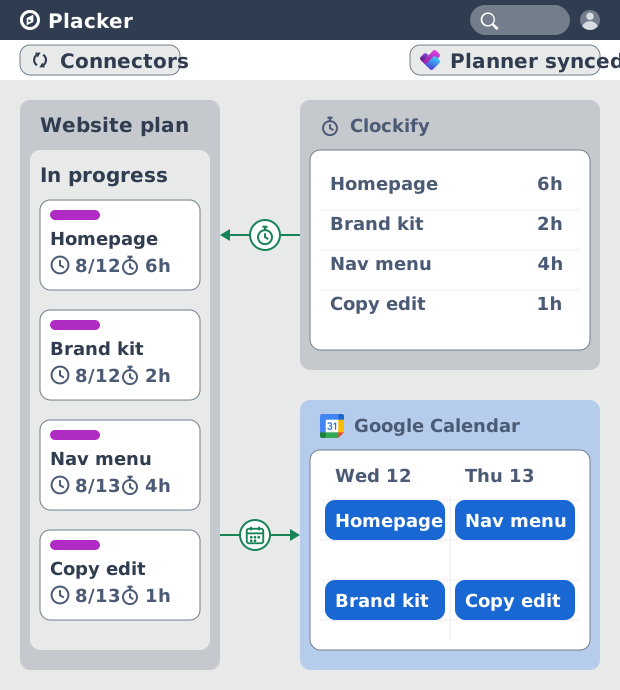
Sync Microsoft Planner plans two ways with Placker and add the calendar, time tracking, and automation Planner lacks. See how it works.
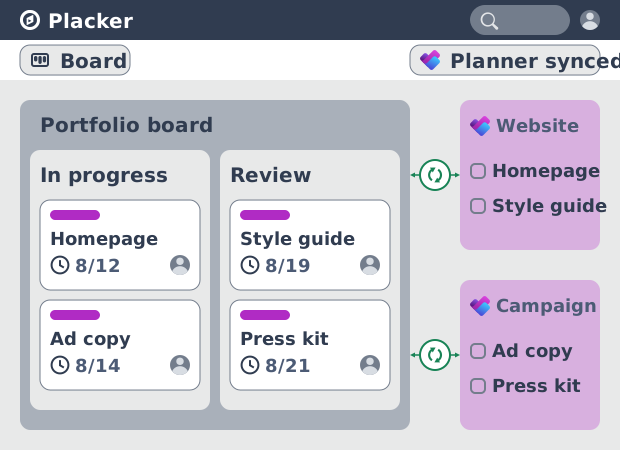
Microsoft Planner board view: layouts and reports
Add custom grouping, swimlanes, and Kanban reports to your Microsoft Planner board view. Placker reads your plans, no rebuild. Start a free trial.
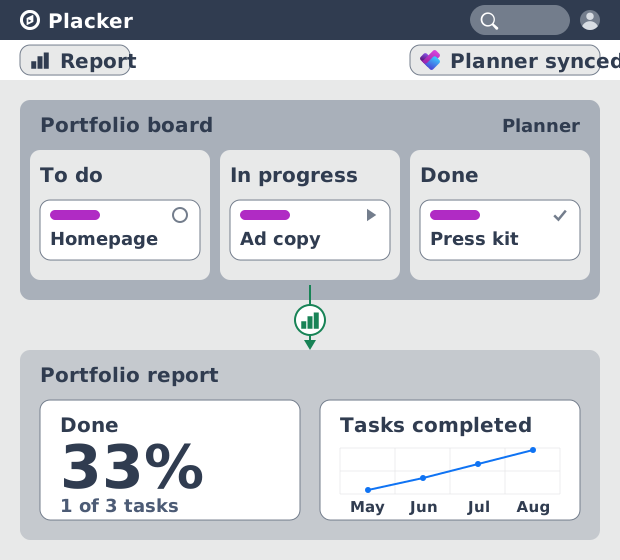
Microsoft Planner dashboards & reports
Report across Microsoft Planner plans without Power BI. KPI widgets, pivot tables, portfolio dashboards, and scheduled PDF reports. Start a free trial.
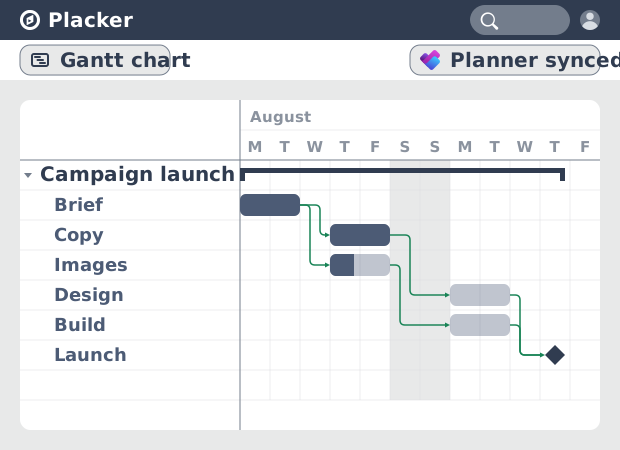
Microsoft Planner Gantt Chart: Add Dependencies
Microsoft Planner has no true Gantt chart. Placker turns Planner tasks into a timeline with dependencies and a critical path. Start free.
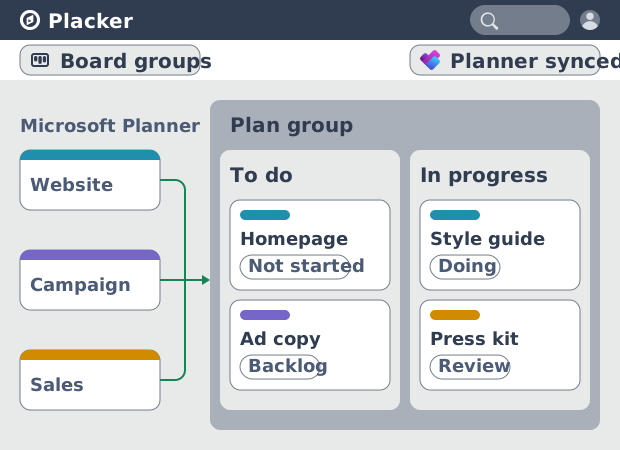
Microsoft Planner: see many plans in one view
See tasks from several Microsoft Planner plans in one board view, no Project Plan 3 or 5 license needed. Placker works on every tier. See how it works.
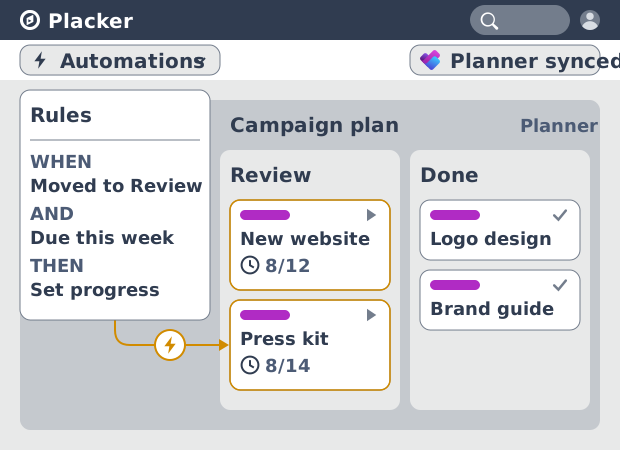
Microsoft Planner automation, no Power Automate
Add conditional automation to Microsoft Planner without Power Automate. Placker runs visual rules on your plans and tasks, plus recurring cards. See how.
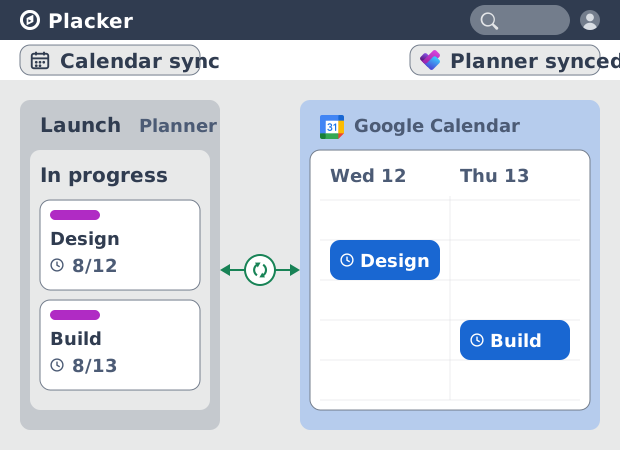
Microsoft Planner Google Calendar sync (2-way)
Microsoft Planner has no native Google Calendar sync. Placker syncs your tasks to Google Calendar, both ways, in minutes. Start free trial.
Ready to get started?
Easy to setup, no credit card required, start your trial today!