One Microsoft Planner board view with grouping, swimlanes, and reports
Microsoft Planner gives every plan a board, but it groups only by bucket and a few preset fields, with no swimlanes, no way to combine plans, and no flow metrics. Placker reads your Planner plans and adds custom grouping, swimlanes, a due-date layout, and reporting, with no plan rebuild.
Quick facts
Advanced Boards for Microsoft Planner
Turn Microsoft Planner tasks into an advanced board that goes well beyond buckets. Here is what you get:
- Past Planner's buckets. Group Planner tasks by member, label, custom field, or due date and add horizontal swimlanes Planner can't.
- Every plan on one board. Combine all your plans into a single board and filter by assignment, label, or due date across them.
- Your work or the team's. Toggle between just your own tasks and the full team, and hide empty buckets to cut the noise.
- Live views, no export. Built-in Kanban and sprint report views read straight from your Planner data with nothing to export.
- Track flow, rebalance work. Operations teams, IT service desks, and delivery PMOs see where work stalls and shift it before it piles up.
Multiple plans
Load multiple Planner plans into one view
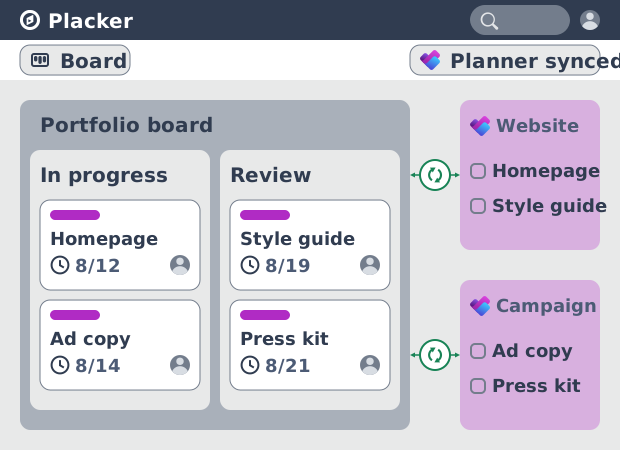
Microsoft Planner shows one plan at a time, so work that spans teams lives in as many tabs as you have plans. Load several Planner plans into a single board view: the tasks combine into one board while every task stays where it is in Planner. That gives you portfolio visibility across projects and shows who is doing what on every plan, all without changing how any team works.
Groups and filters
Group and filter your Microsoft Planner board view
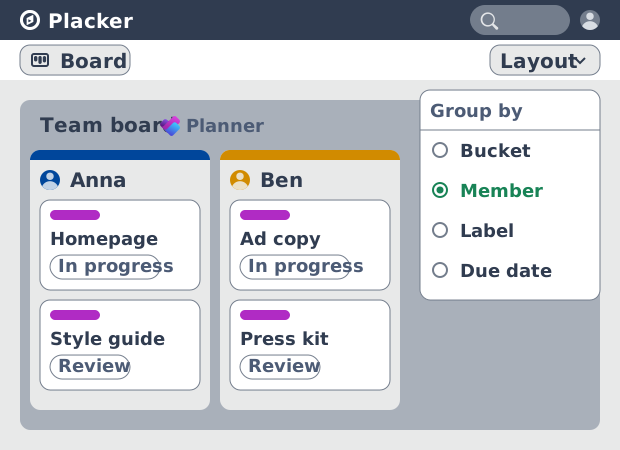
That single board doesn't have to keep Planner's buckets and preset groupings. Group the same tasks by member, label, progress, or a custom field, split them into horizontal swimlanes, or filter down to what is due this month. None of this changes your buckets or moves a task in Planner; the layout sits on top of the plans you already use, so one board answers who is carrying what and what is due next.
Custom sorting
Sort Planner tasks by effort, story points, or dates
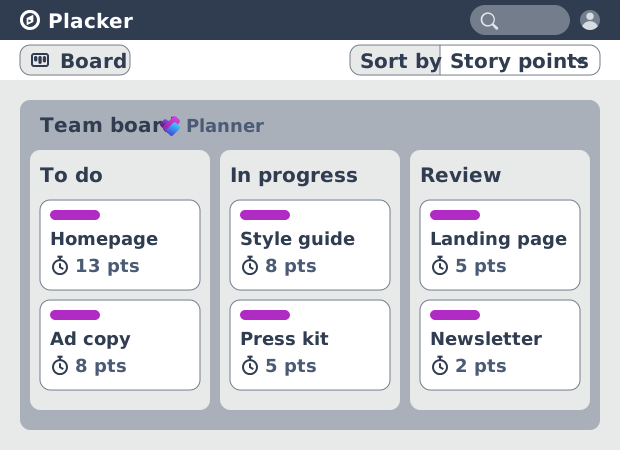
Knowing who is carrying what is one thing; knowing what to do first is another. In Planner, the order of a bucket is the order someone dragged the tasks into. Sort each list instead by attributes such as effort, story points, due dates, and any custom fields you add in Placker, so the most important work sits at the top of every list. Prioritization becomes something the board does for you: rank by what matters, pick from the top, and re-sort as estimates and dates change.
How It Works
Bring a Microsoft Planner plan into Placker's board view in four steps.
- 1
Connect Microsoft Planner
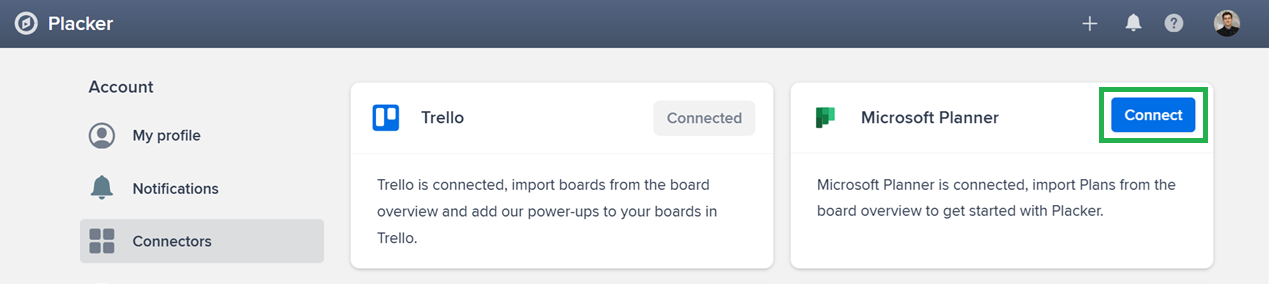
Open your profile in the top right, go to Connectors, and link your Microsoft 365 account. An administrator authorizes Placker for your tenant the first time, then everyone on the tenant can connect.
- 2
Import your plans
On the overview, click Add board, choose Planner as the connector, and select up to 5 plans to import. Plans need to belong to a Microsoft 365 group.
Screenshot to be added
- 3
Open the board view and set what each task shows
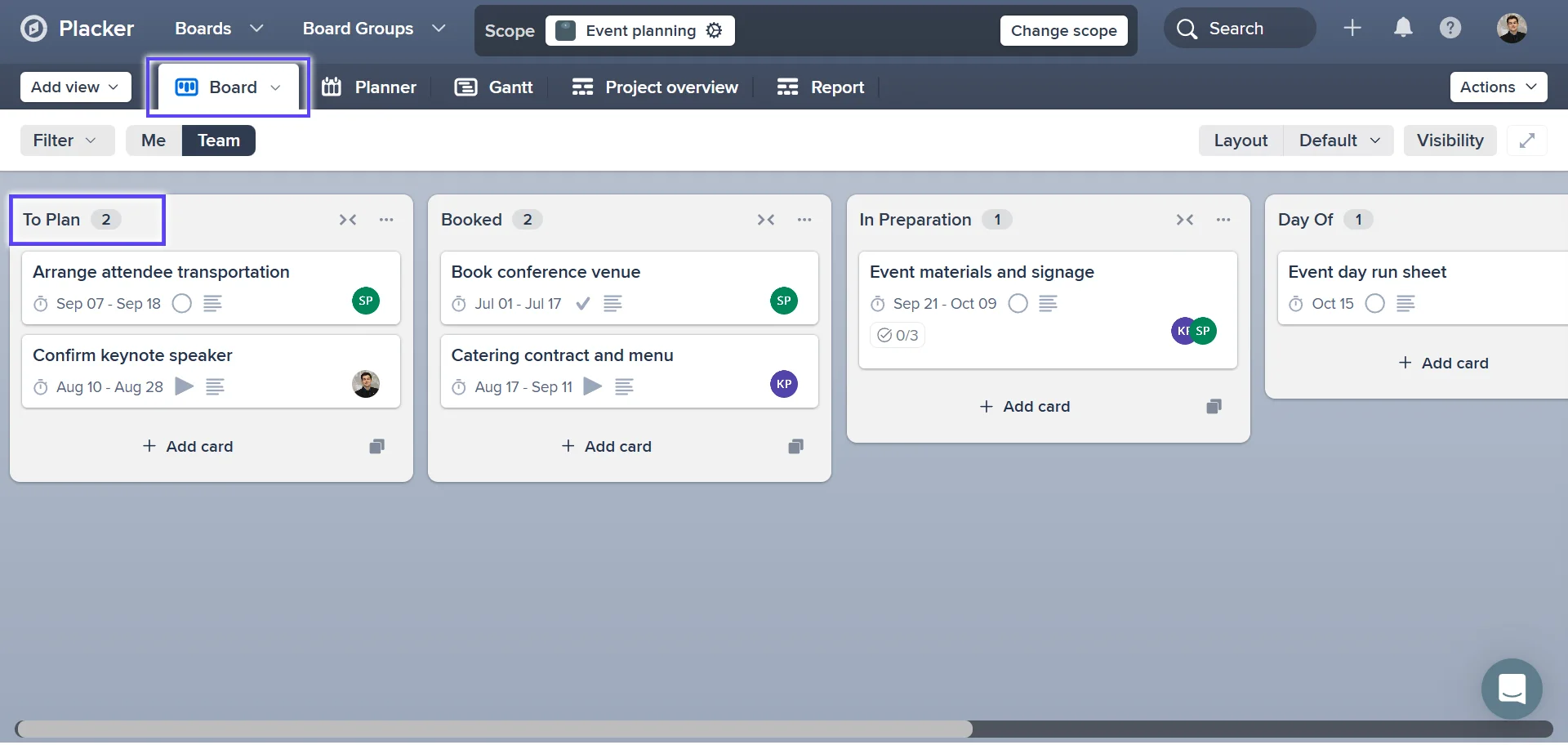
Open the imported plan in board view. Your buckets appear as columns, and your tasks appear inside them. Choose what each task front shows: duration, assignments, and your own text, number, or date fields.
- 4
Pick a layout and read the flow
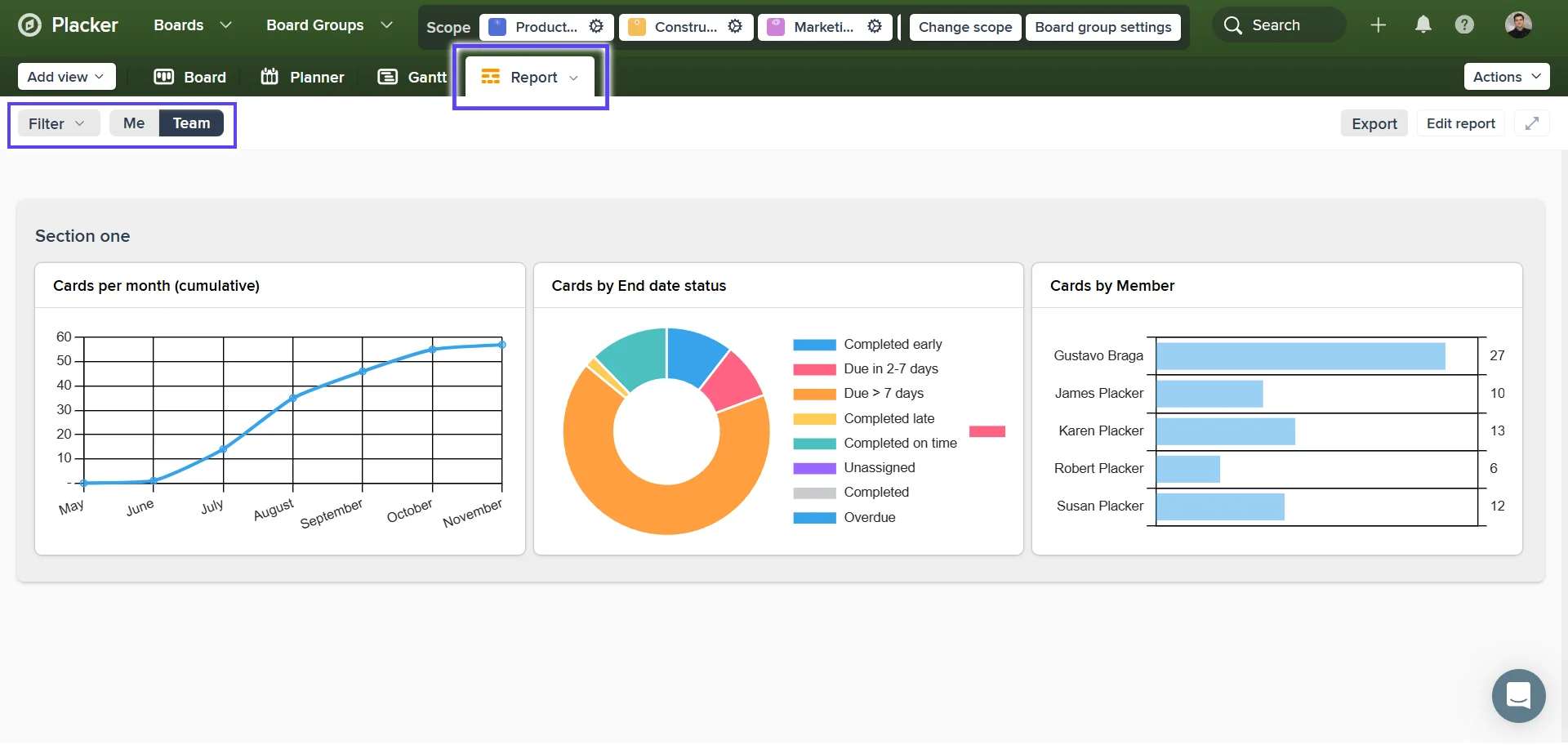
Group the board by member, label, or a custom field, add swimlanes, or open the Planner layout by due date. Filter by assignment or date range, then open the report views to see tasks per stage and lead time.
Use cases
Where teams use Placker's board views to organize and track work across their Planner plans.
Enterprise team on Microsoft 365
An operations team runs a Planner plan with buckets from intake to done. They group the board by assignee to see who is overloaded before pulling in the next request, and filter to tasks due this week for the start-of-week stand-up.
IT service desk
A support team tracks a request plan in Planner. Swimlanes split the board by priority, and the Kanban process report shows where tasks stall between triage and resolution, so the queue is rebalanced before it breaches a service-level target.
PMO running a delivery program
A program manager tracks a release plan through stages. They watch lead time per stage to find the handoff that slows delivery, and switch to the due-date layout to read what is coming before the next steering review.
Tips & Best Practices
Practical advice to get the most out of your workflow
Move from the combined board to a timeline when dates get tight
Once several plans share one board, open those same tasks in a Gantt Chart to see how deadlines and dependencies line up across projects. Use the board for daily flow and the timeline for planning ahead.
Run your daily stand-up straight from the board
Drag tasks between columns as your team reports progress. Each move writes the new status back to Microsoft Planner instantly, so the plan is up to date the moment the meeting ends.
Group by member, then sort each column by due date
Group the board by member so every person gets a column, then sort each column by due date or effort. One layout then shows both who owns what and what each person should pick up next.
Save a named board view for each meeting you run
Create separate saved views for stand-ups, capacity reviews, and leadership reporting. Each remembers its own filters and grouping, so you switch context in one click instead of rebuilding the board every time.
Related pages
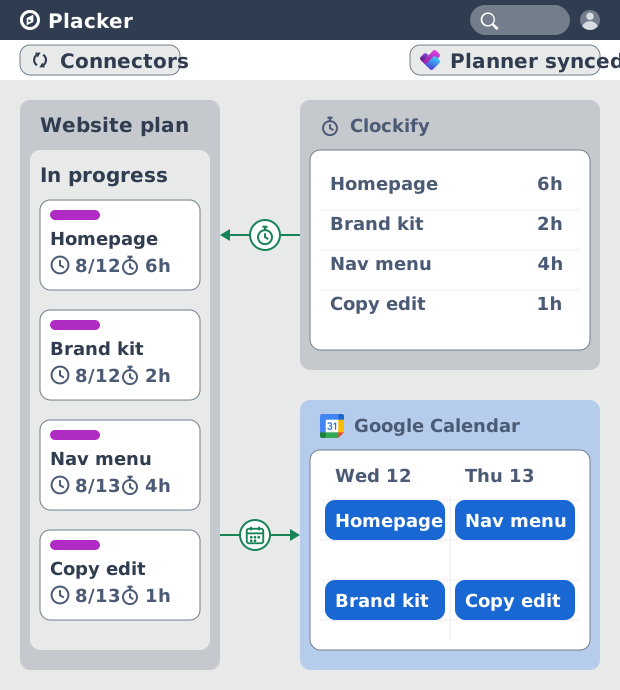
Microsoft Planner integrations: two-way sync
Sync Microsoft Planner plans two ways with Placker and add the calendar, time tracking, and automation Planner lacks. See how it works.
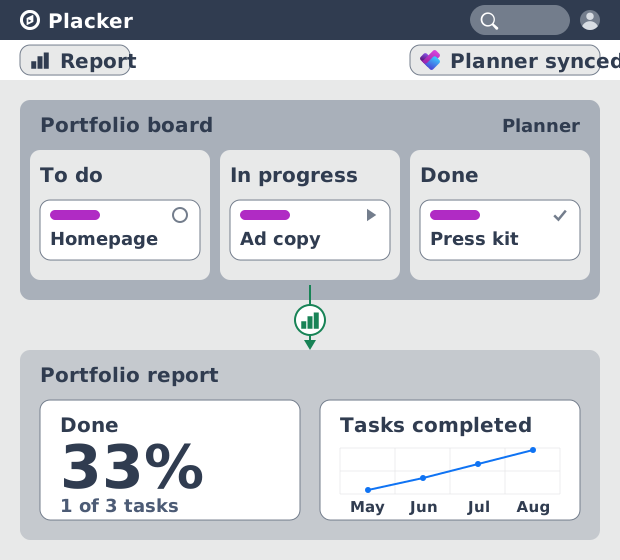
Microsoft Planner dashboards & reports
Report across Microsoft Planner plans without Power BI. KPI widgets, pivot tables, portfolio dashboards, and scheduled PDF reports. Start a free trial.
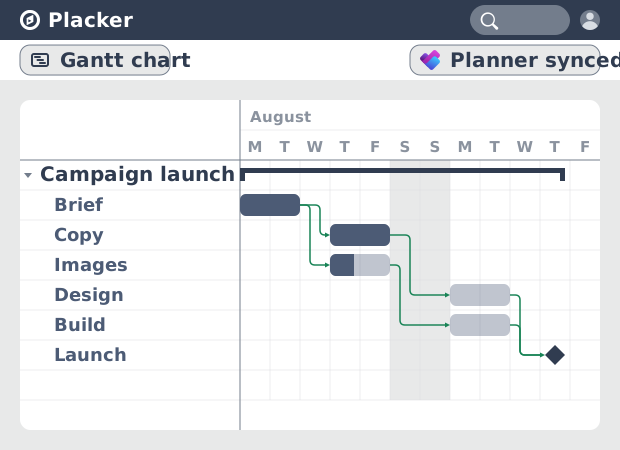
Microsoft Planner Gantt Chart: Add Dependencies
Microsoft Planner has no true Gantt chart. Placker turns Planner tasks into a timeline with dependencies and a critical path. Start free.
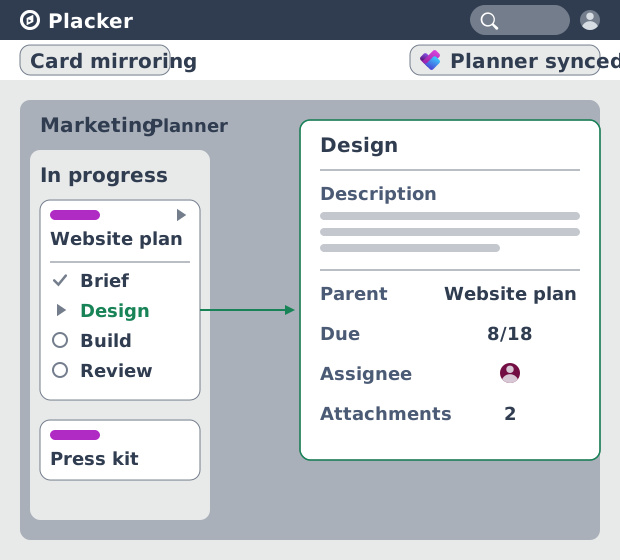
Subtasks in Microsoft Planner: Parent-Child Tasks
Add real subtasks to Microsoft Planner without premium. Parent-child tasks give each subtask an assignee and dates, and roll effort up.
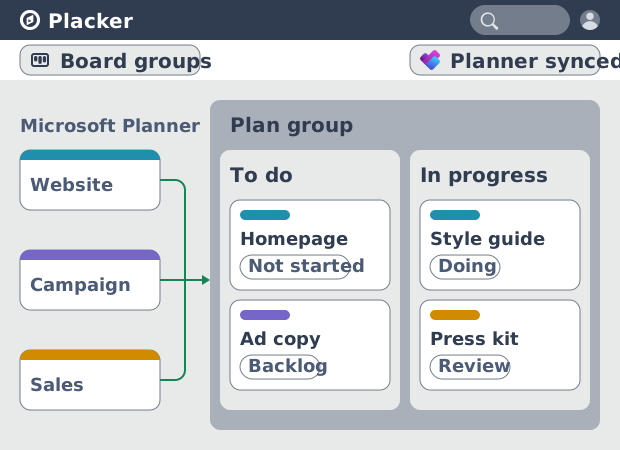
Microsoft Planner: see many plans in one view
See tasks from several Microsoft Planner plans in one board view, no Project Plan 3 or 5 license needed. Placker works on every tier. See how it works.
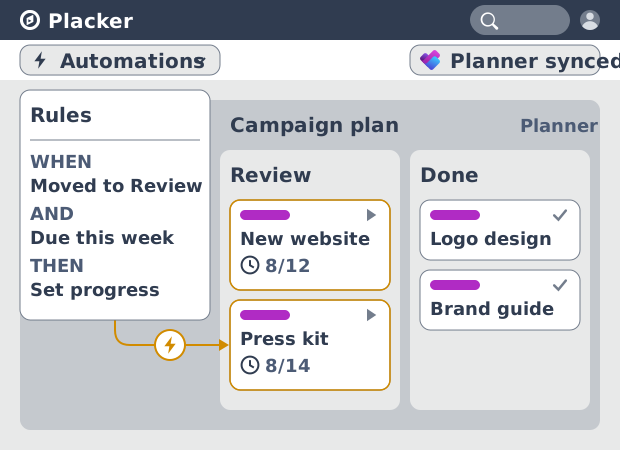
Microsoft Planner automation, no Power Automate
Add conditional automation to Microsoft Planner without Power Automate. Placker runs visual rules on your plans and tasks, plus recurring cards. See how.
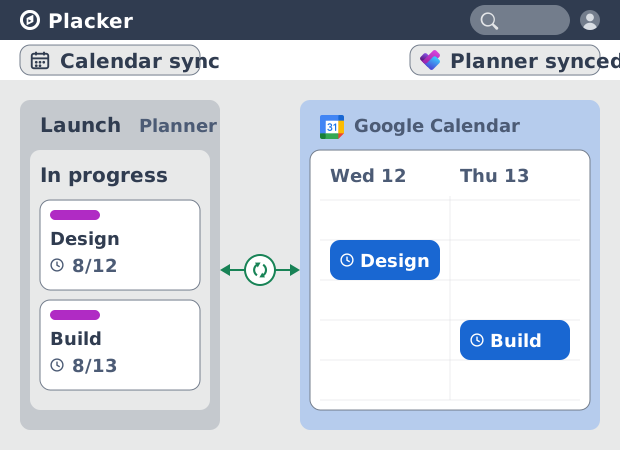
Microsoft Planner Google Calendar sync (2-way)
Microsoft Planner has no native Google Calendar sync. Placker syncs your tasks to Google Calendar, both ways, in minutes. Start free trial.
Ready to get started?
Easy to setup, no credit card required, start your trial today!