Google Calendar sync so your day shows the work, not just meetings
Placker connects the boards you plan on to Google Calendar, so every card with a due date sits next to your meetings, and any change you make in either place updates the other.
Quick facts
Google Calendar sync in Placker
Placker's Google Calendar sync runs two ways, not as a read-only feed. Here's how it works for you:
- Two ways, not read-only. Cards you schedule appear as calendar events, and edits made in Google Calendar flow back to the card.
- Updates in under a minute. Changes land almost immediately instead of waiting on a daily feed.
- Works across every board type. One connection covers native Placker boards, Trello boards, and imported Microsoft Planner plans.
- You decide what syncs. Sync a whole board or only specific members' cards, as full-day or timed events, one-way or two-way.
- Clutter stays out. Completed, archived, and unassigned cards are left off your calendar.
Two-way calendar sync
Placker Google Calendar sync keeps deadlines and meetings together
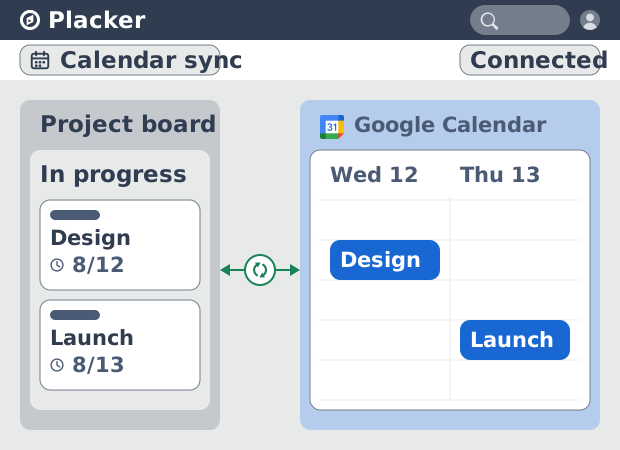
Each dated card writes to your linked Google Calendar, and calendar changes read back. Drag an event to a new time and the card's due date moves with it. You plan against one set of hours instead of reconciling a board and a calendar by hand.
Near real-time updates
A calendar you can schedule against
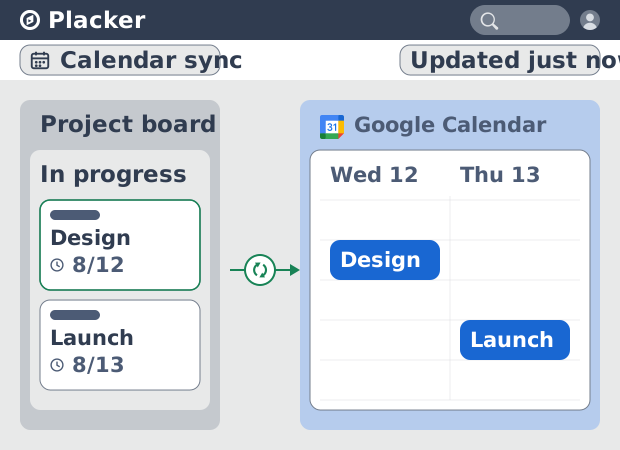
That single calendar is only worth planning against if it is current, and changes land in under a minute, so it shows your board's real state. iCal feeds from native tools refresh about once a day and can lag by hours. With near real-time updates, the times you block are the times that hold.
Configurable scope and direction
Sync that fits how your team works
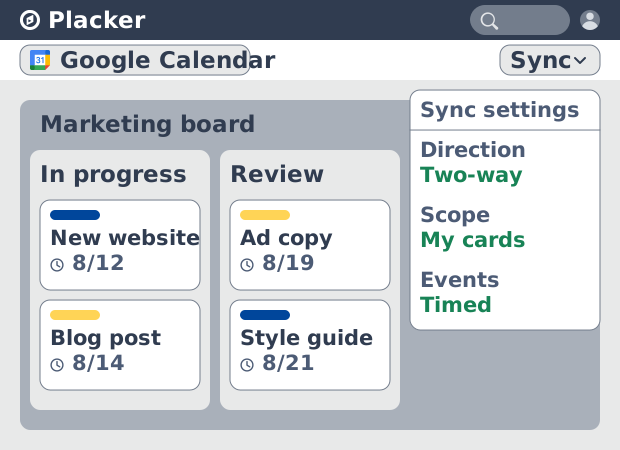
What reaches that dependable calendar is up to you: in each board's Sync settings, set direction, scope, and event style. You can limit a shared board to one member's cards, and separately choose to show timed events for work that needs a slot or automatically clear completed and archived cards. The sync carries what each person needs and nothing else.
How It Works
Connecting a board takes four steps from your Placker profile.
- 1
Connect Google in your profile
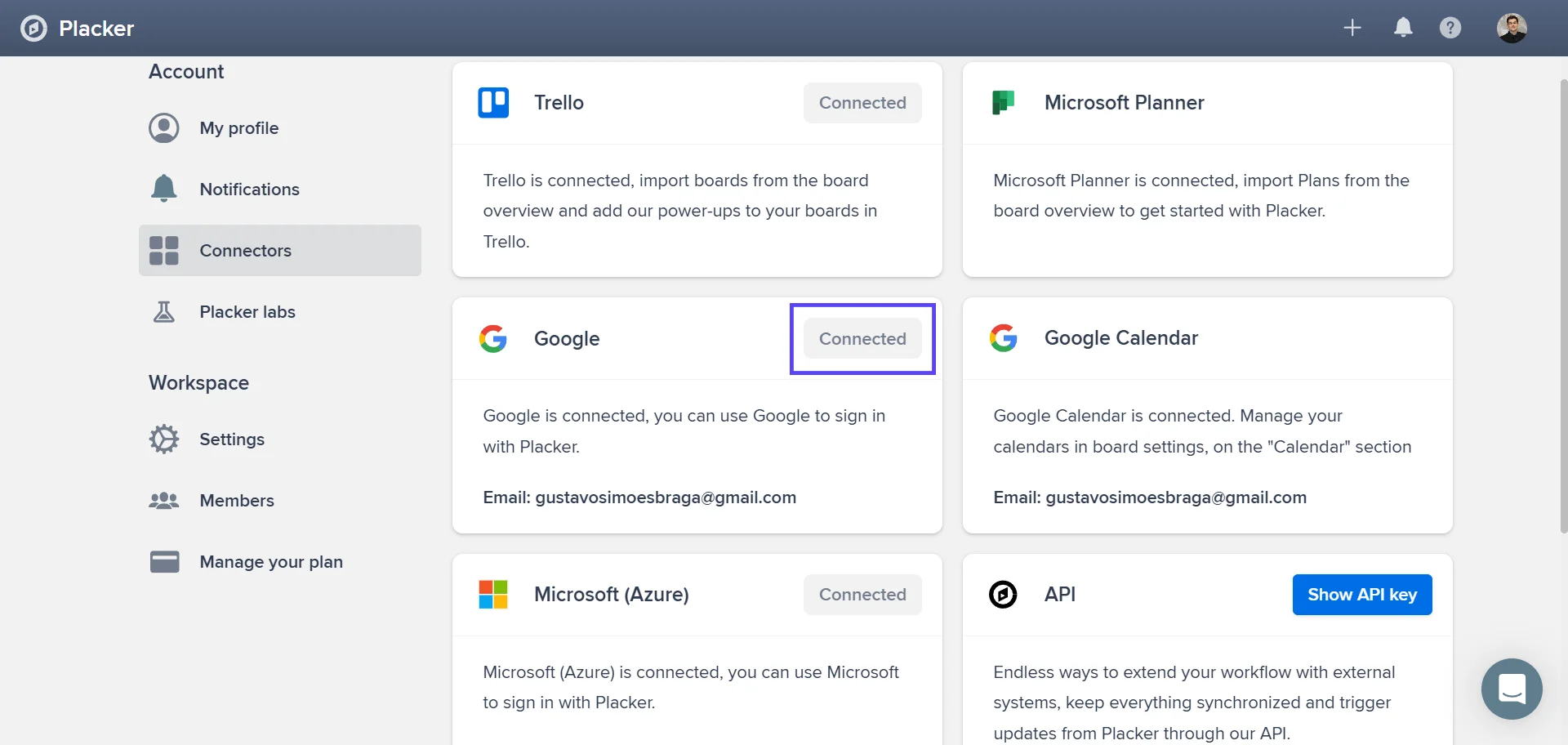
Open your Placker profile, go to Connectors, and connect the Google account that holds the calendar you want to use.
- 2
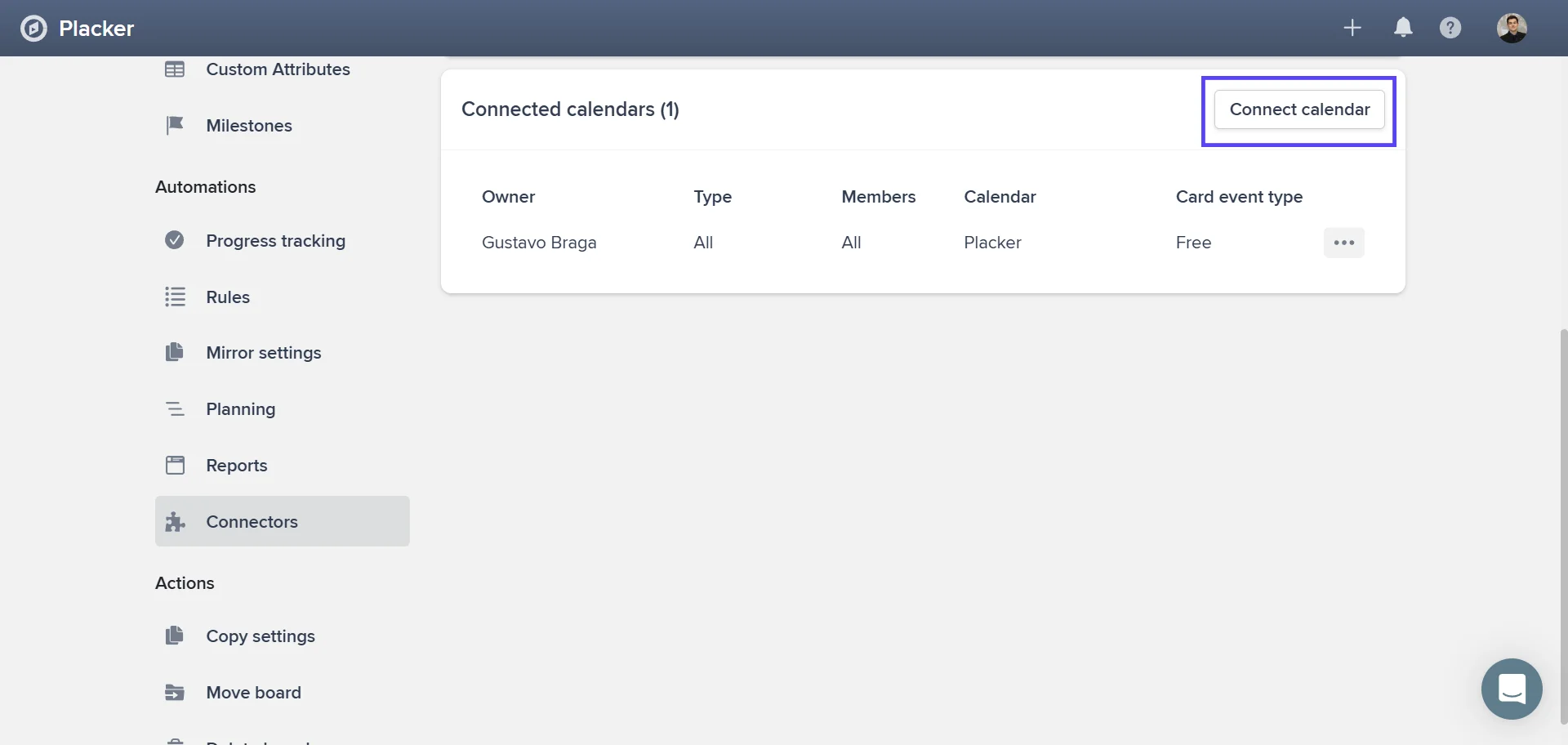
Link a calendar to your board
Open the board's settings, go to the Connectors tab, choose Connect calendar, then pick the Google Calendar to link.
- 3
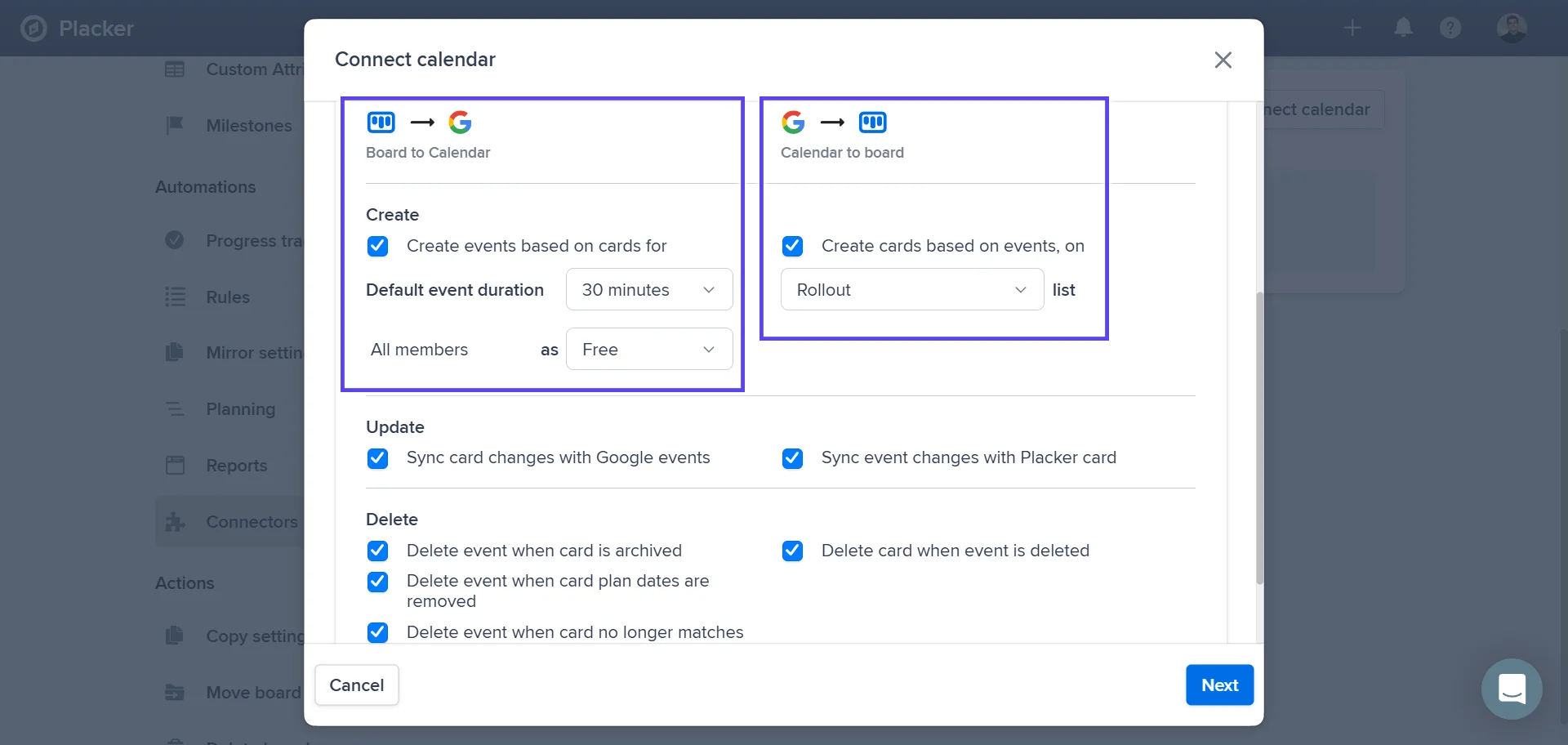
Set direction and scope
Choose one-way or two-way sync, decide whether all cards or only specific members' cards sync, and set full-day or timed events.
- 4
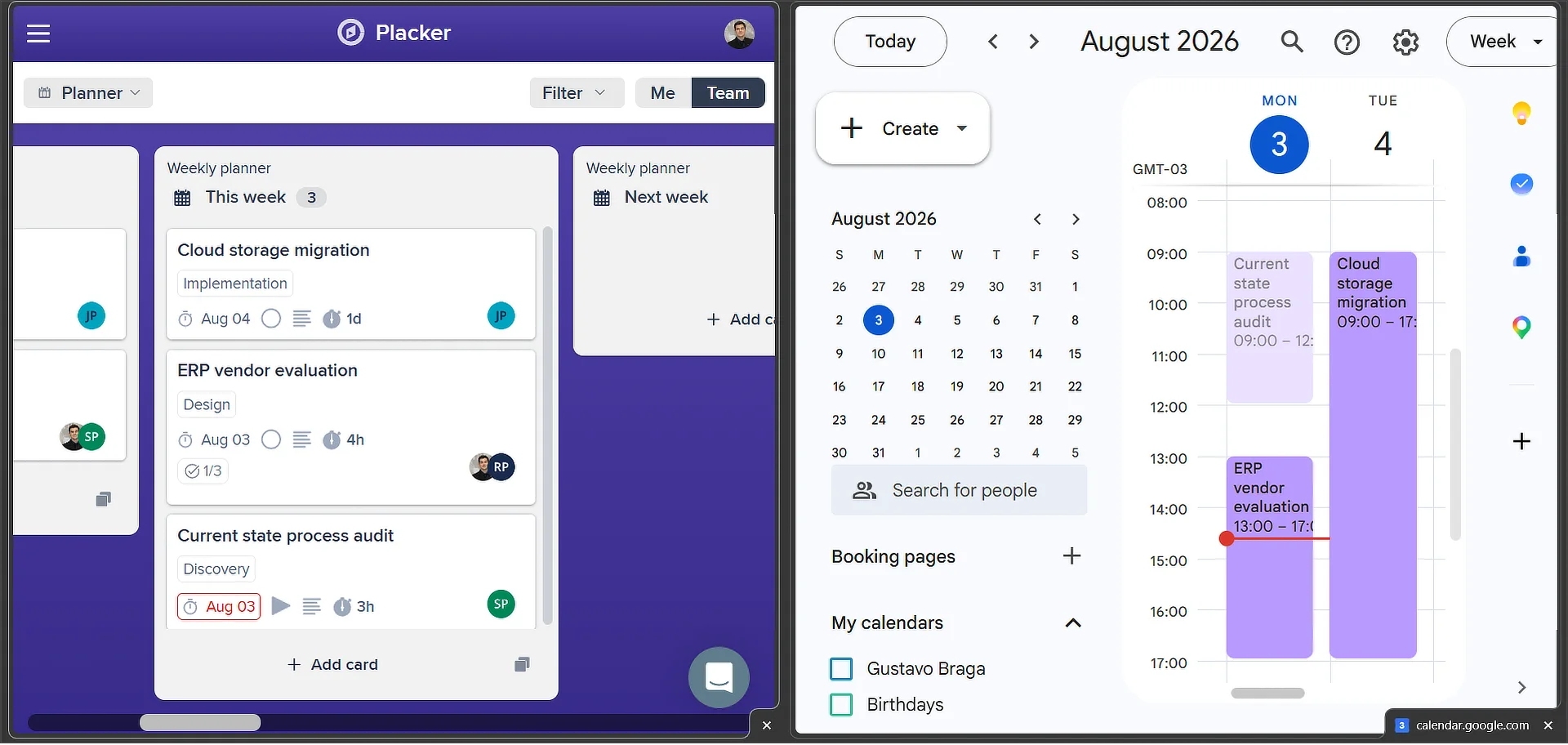
Add dates and watch them sync
Give cards a due date, and a start date for a timed block. They appear in Google Calendar in under a minute, and edits in either tool keep both current.
Use cases
Where teams use Google Calendar sync to see project deadlines alongside the rest of their day.
Programme manager with cross-project calendar
A programme manager syncs all Placker task due dates to a shared Google Calendar to get a cross-project deadline view without switching tools. When one project's milestones shift, the calendar updates immediately, making schedule conflicts visible before they become a problem.
Team with personal deadline sync
A team connects Placker to Google Calendar so every assigned task appears in each member's personal calendar alongside meetings. People plan their days using their calendar rather than checking Placker separately, reducing missed tasks.
Manager with client-facing calendar
A client-facing manager publishes a filtered Google Calendar of key milestones and delivery dates synced from Placker. Clients subscribe to the calendar to follow progress without needing access to the project board.
Tips & Best Practices
Practical advice to get the most out of your workflow
Set a due date to see cards in your Google Calendar
Add a due date to any Placker card and it appears in your Google Calendar automatically, keeping your project deadlines and daily schedule perfectly in sync.
The dates that fill your calendar also build your Gantt
The same start and due dates that place a card on Google Calendar also plot it on the Gantt Chart, so scheduling a card once feeds both your daily calendar and your full project timeline.
Scan your combined calendar before promising a deadline
With tasks and meetings on one calendar, look at the target week before you commit to a date, so you don't stack a new deadline onto a week that is already full.
Limit and auto-clear the sync so your calendar stays readable
In the sync settings, limit a shared board to just your own cards and let completed or archived cards clear automatically, so your calendar shows only the work you still need to act on.
Related pages
Placker integrations: sync your project tools
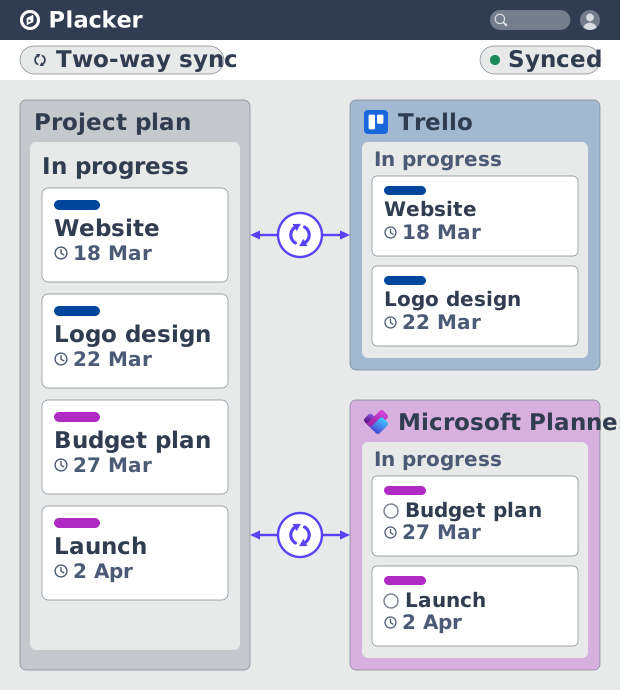
Placker integrations sync Trello, Microsoft Planner, Google Calendar, Clockify, and Zapier two ways, keeping one plan across every tool. See how it works.
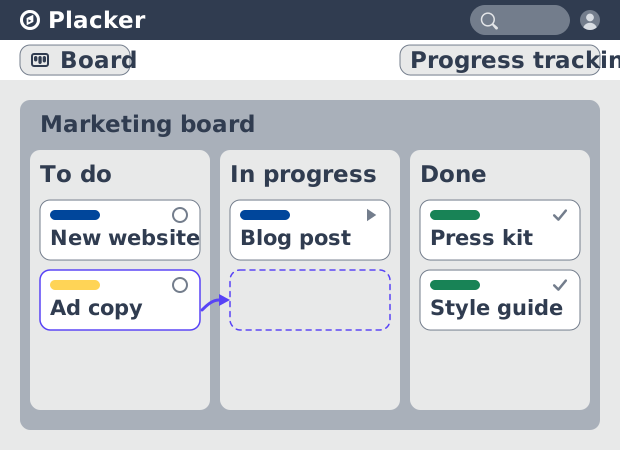
Board views: one board, any view
See all your work as cards moving across lists in Placker. Group by member, swimlane, or due date, and track flow with Kanban reports. See how it works.
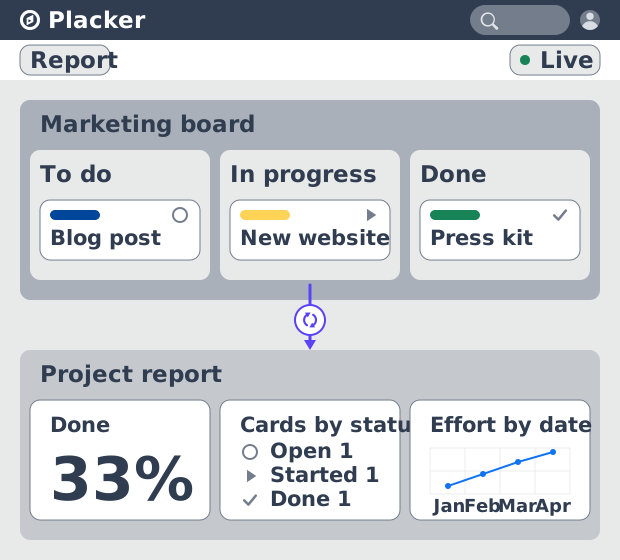
Project dashboards and reports
Build live project dashboards from your tasks. KPI widgets, pivot tables, portfolio roll-ups, and scheduled PDF reports. Start a free Placker trial.
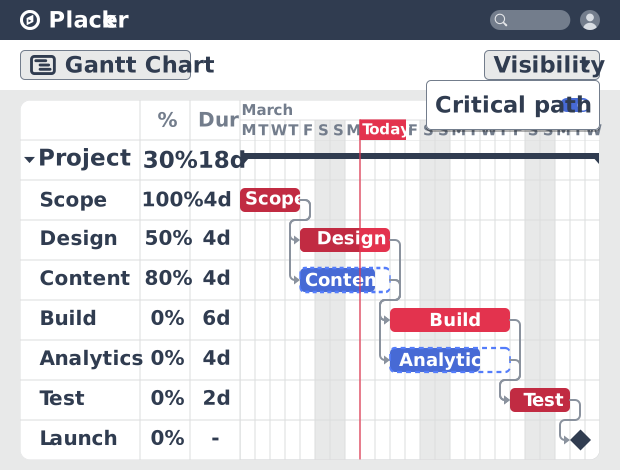
Gantt chart software with auto-scheduling
Plan projects on a visual timeline with Placker's Gantt chart software. Set dependencies, auto-schedule dates, and track the critical path.
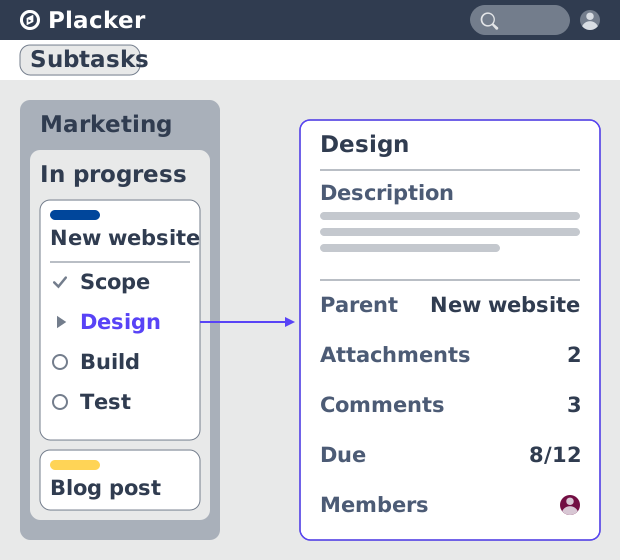
Parent-Child Cards in Placker | Subtasks that roll up
Parent-child cards in Placker give every subtask a full card and roll effort, dates and members up to the parent. Read the total on top.
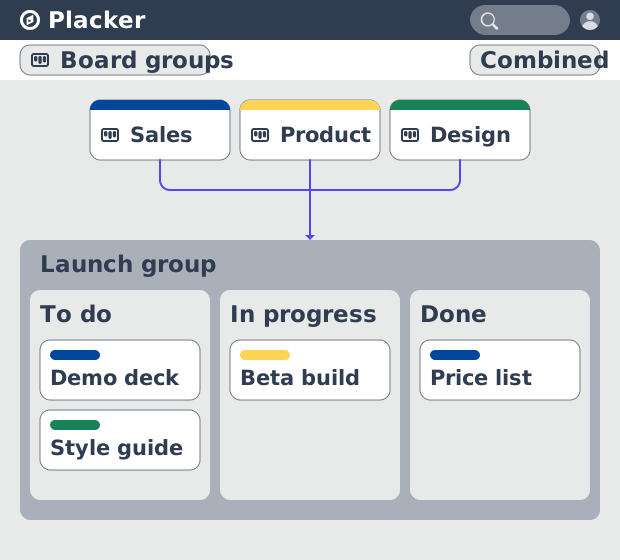
Board Groups: many boards, managed as one
Board Groups let you manage many boards as one workspace: plan, filter, and report across all of them, and save reusable groups. Start a free trial.
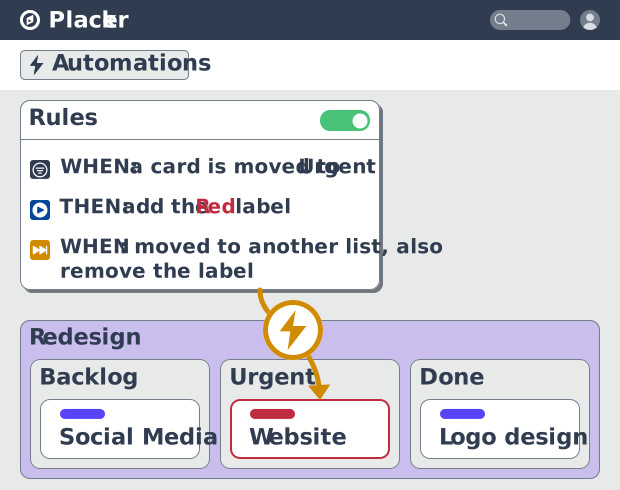
Project board automation rules, no-code
Automate project boards with condition-based rules. Placker mirrors, moves, assigns, and updates cards when work changes. See how it works.
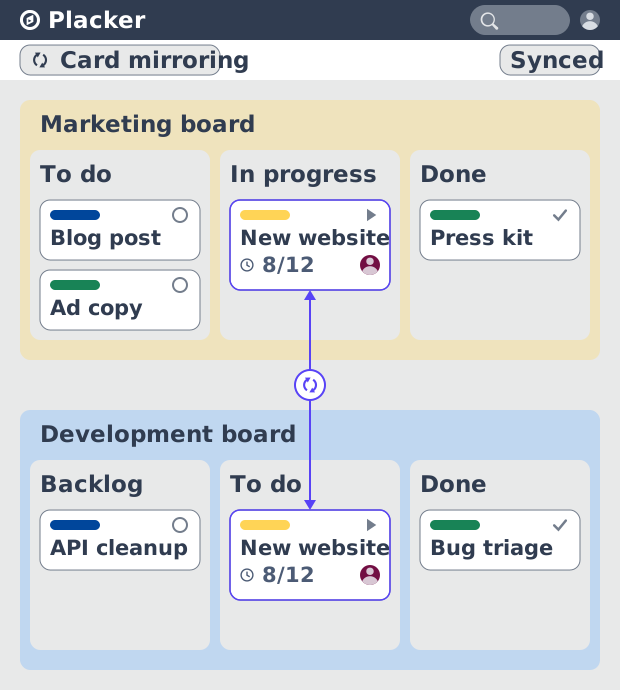
Card Mirror & sync in Placker: 2-way card sync
Card Mirror and sync keeps one task live across every Placker board. Edit a card once and status, dates and members update in seconds. Start a free trial.
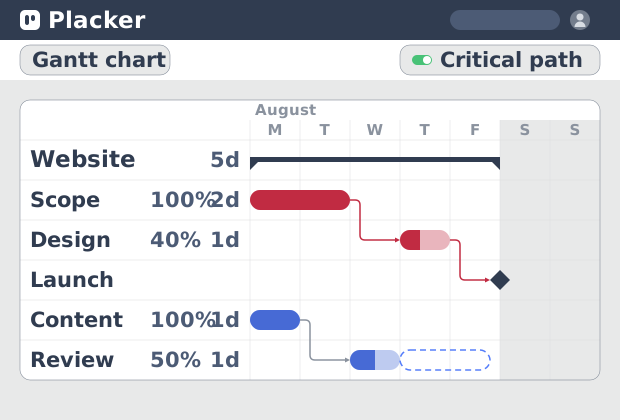
Critical path Placker: Gantt chart CPM analysis
Critical path in Placker finds the tasks that control your deadline and flags them on the Gantt, updating live as dependencies shift. Start a free trial.
Ready to get started?
Easy to setup, no credit card required, start your trial today!