Auto-scheduling for Microsoft Planner on a standard M365 plan
Dependencies in MS Planner require expensive advanced plans. Placker brings full auto-scheduling to any standard M365 plan: four dependency types, Gantt scheduling, and automatic cascade updates.
Quick facts
Date planning for MS Planner
Link your Planner tasks once and let the dates stay in sync on their own:
- Change one date, move the rest. Set predecessor-successor links between Planner tasks and Placker recalculates every dependent date automatically.
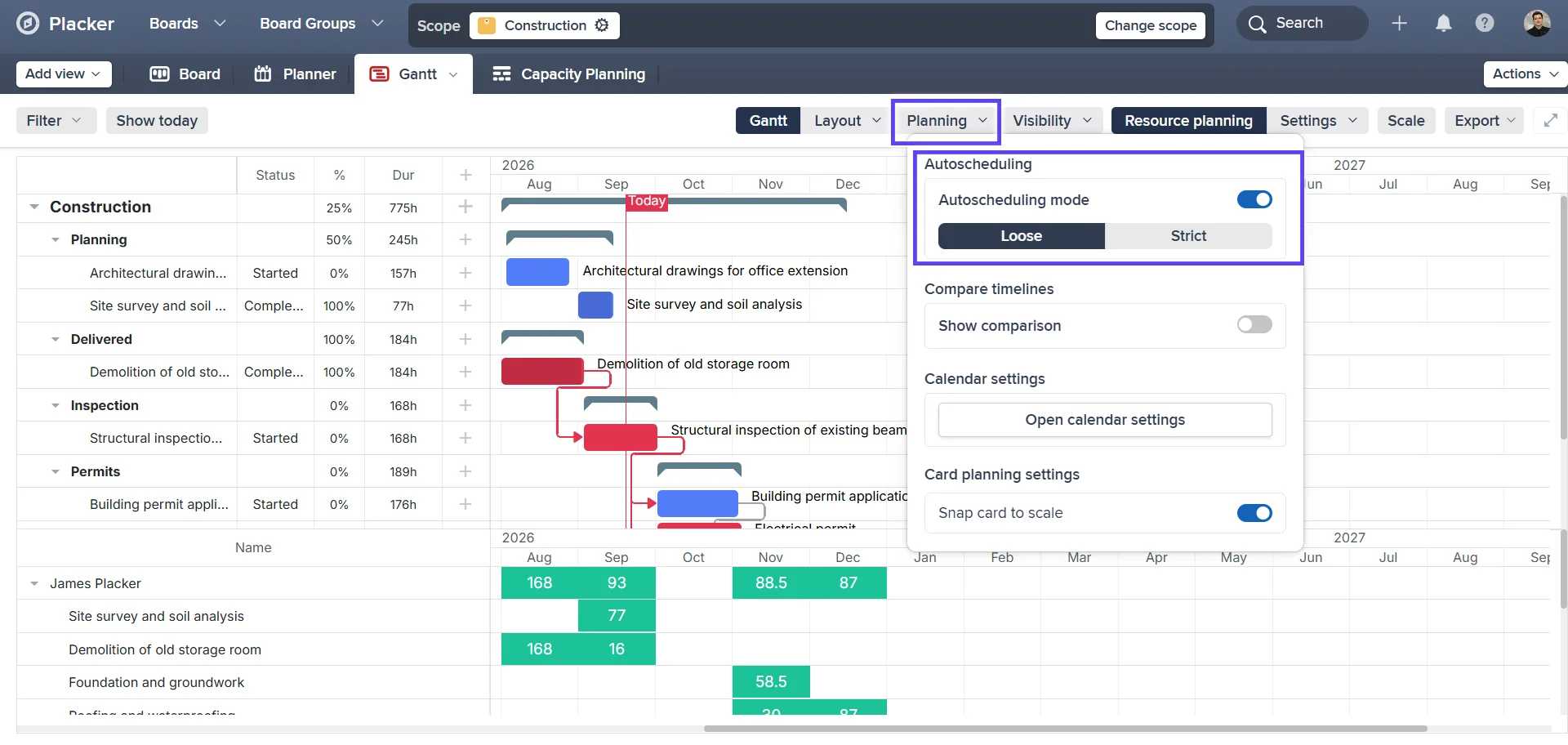
- Loose or Strict scheduling. Loose mode reschedules only the tasks that depend on a change, while Strict mode also pulls tasks earlier when a predecessor finishes ahead.
- Cross-plan dependencies in one view. Link tasks across different Microsoft Planner plans and the cascade carries changes from one plan into another automatically.
- Pin any task to hold its dates. Pinning a task keeps auto-scheduling from moving it, so milestones, client commitments, and external deadlines stay anchored while the cascade moves around them.
Dependency propagation
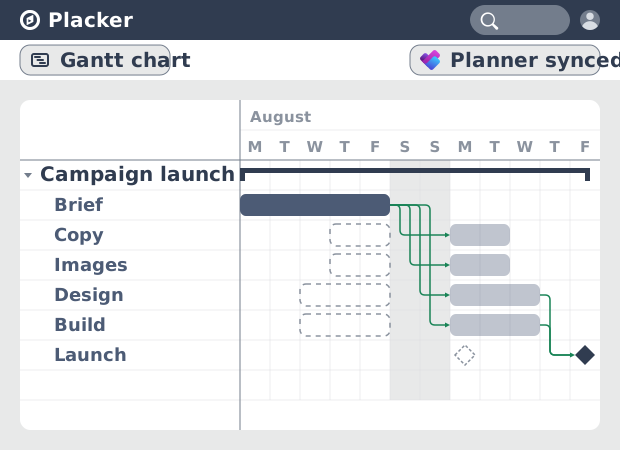
When one task slips, all linked tasks update
Standard MS Planner plans don't include task dependencies. Linking tasks and viewing timelines is a Planner Premium feature on Project Plan 3, an additional fee per user per month on top of any M365 subscription. Placker's MS Planner integration adds all four dependency types (FS, FF, SS, SF) to your existing plans the moment you connect them.
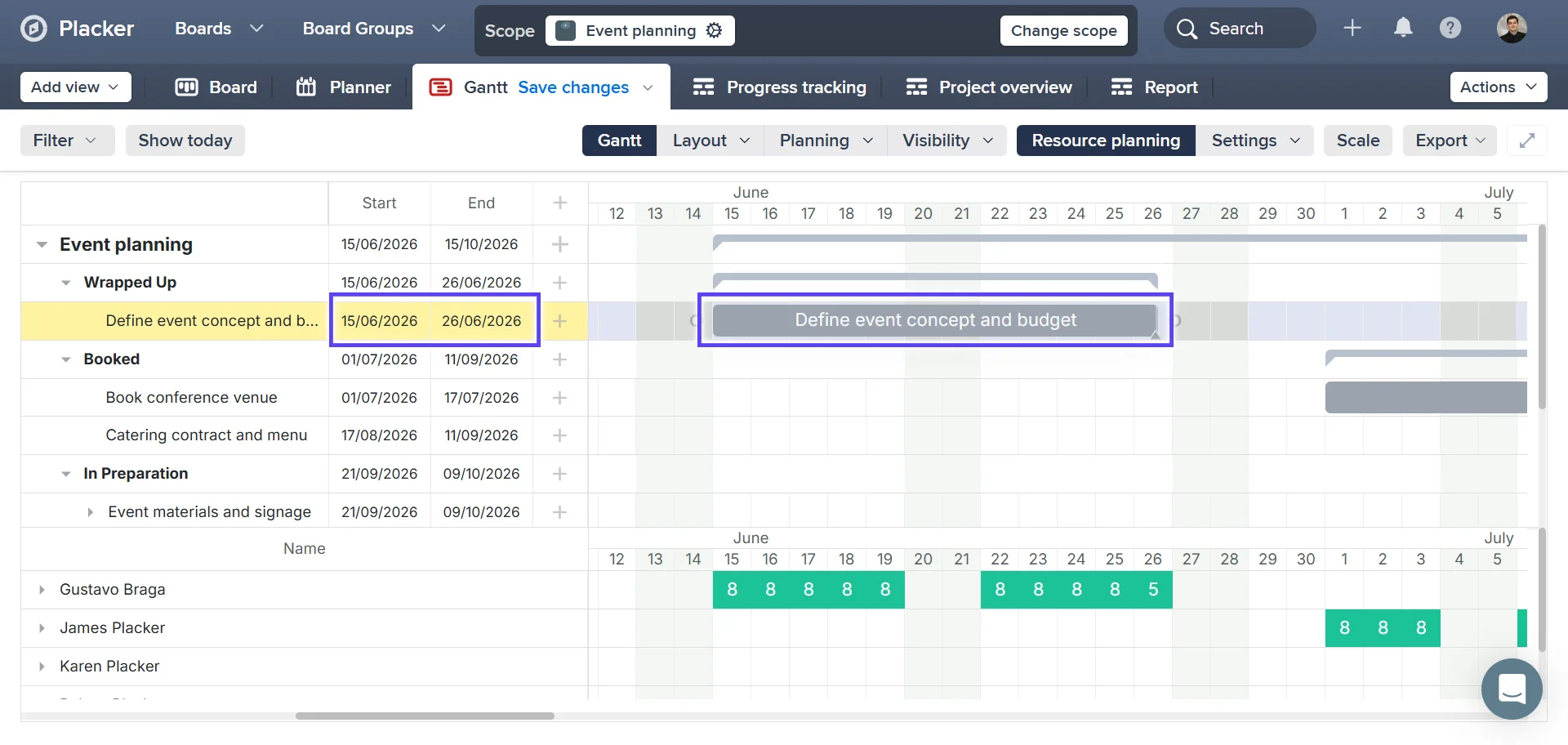
When you change a predecessor task's due date in the Placker Gantt view, every downstream task updates automatically. Your schedule stays internally consistent without manual date edits across tasks or buckets.
Scheduling modes
Control how tightly the plan reacts to changes
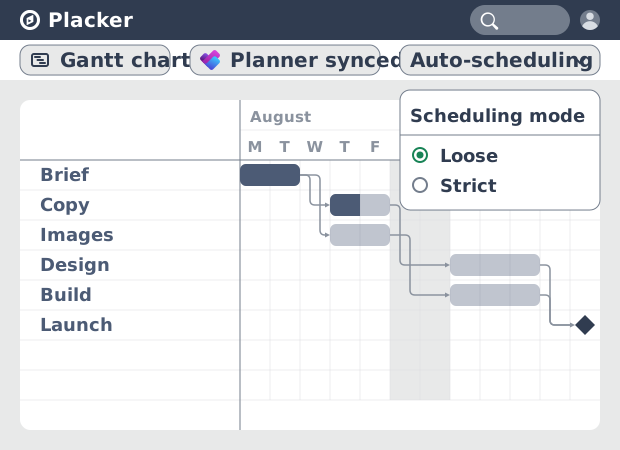
Loose mode (the default) reschedules only when a dependency is actually violated. It doesn't shift tasks unnecessarily, which is useful when you want the plan to absorb small delays without triggering a full-chain update.
Strict mode pulls every dependent task forward to its earliest available start as soon as a predecessor completes. Float gets recovered automatically. Both modes work across all your MS Planner plans in Placker, and you can switch between them at any time.
Task locking
Pin milestone dates while the plan adjusts around them
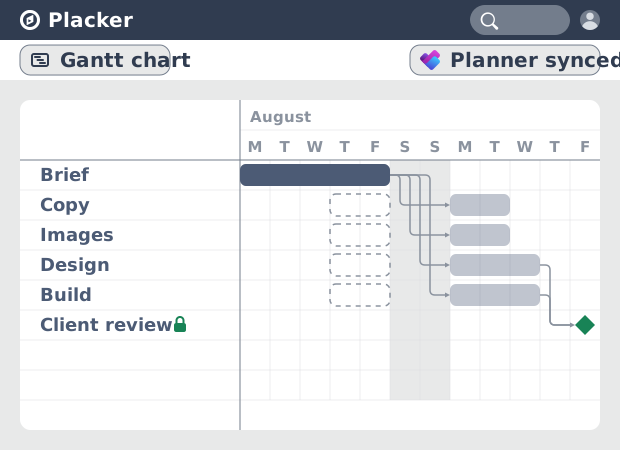
Not every task should move. Compliance deadlines, client handoffs, and fixed release windows have dates that cannot slip. Marking a task as 'Do not auto-schedule' excludes it from the cascade. The plan adjusts around it; the pinned task stays put.
Lag time lets you add a buffer between a predecessor's end and a successor's start, useful when tasks need a review period or material delivery before work begins. Overlap lets a successor start before its predecessor finishes, modelling fast-tracking within the Placker Gantt.
How It Works
Link your Planner tasks once and let Placker keep every date in sync, in four steps.
- 1
Link tasks with dependencies
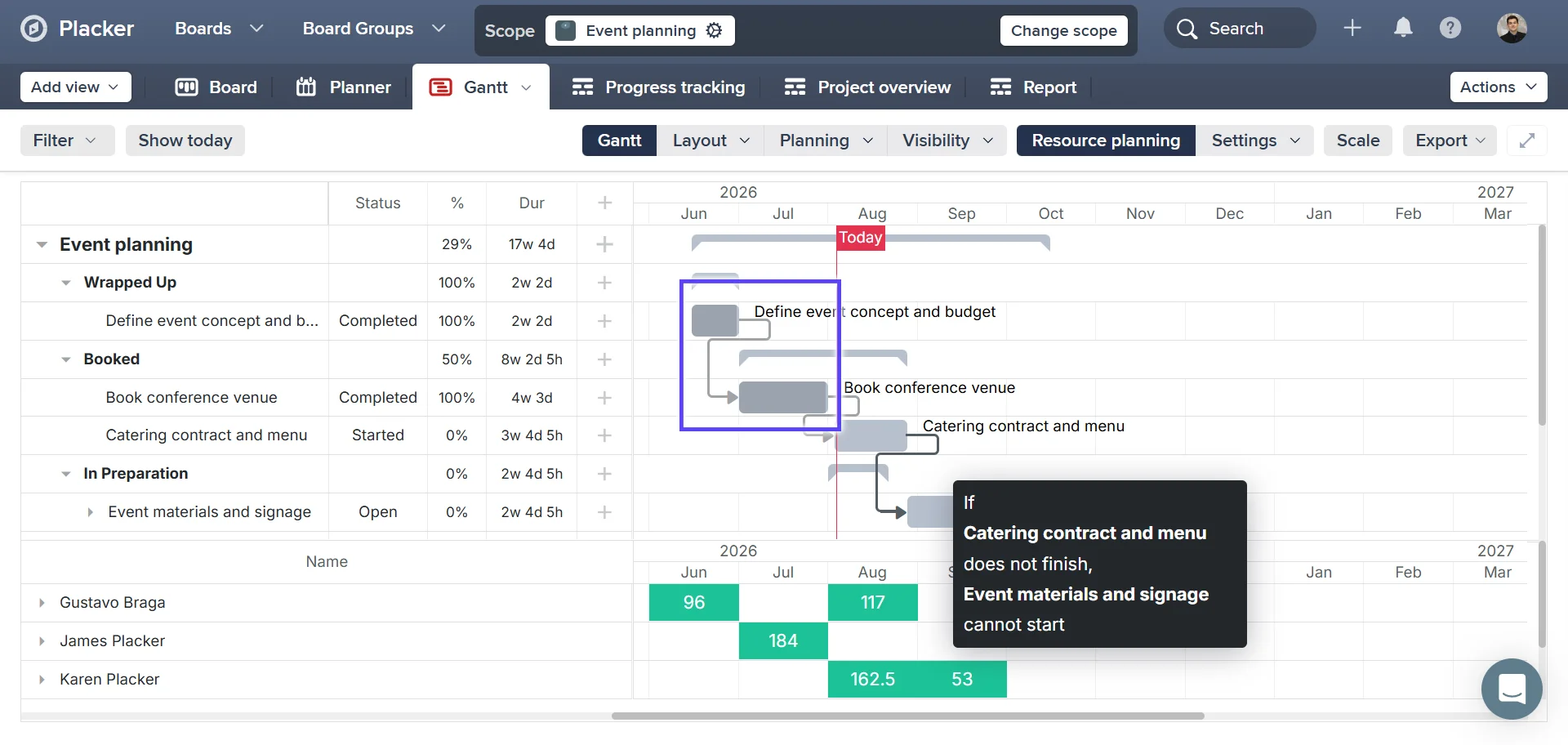
Connect Planner tasks with Finish-to-Start, Finish-to-Finish, Start-to-Start, or Start-to-Finish dependencies — a gap in standard Planner plans, which Placker adds the moment you connect them.
- 2
Choose a scheduling mode
Pick Loose mode to reschedule only when a dependency is actually violated, or Strict mode to pull every dependent task forward automatically and recover float as predecessors complete.
- 3
Change a date and watch the plan adjust
Update a predecessor task's due date in the Gantt view. Every downstream task updates automatically, keeping the schedule internally consistent without manual edits.
Use cases
Where teams rely on auto-scheduling to keep their Planner schedule up to date as work shifts.
PM finding the earliest finish date
A project manager turns on auto-scheduling in Placker to let the engine calculate the earliest possible completion date for a Microsoft Planner project given current task durations and dependencies. The result replaces a manually maintained schedule that always drifted from reality.
Team recovering from a delay
When a key task slips by three days, a team lead clicks 'reschedule' in Placker and the auto-scheduler pushes all dependent Planner tasks forward automatically. A recovery plan that would take an hour to rebuild manually is ready in seconds.
Manager preventing resource conflicts
A project manager uses auto-scheduling to let Placker sequence tasks so no team member is double-booked on the same day. The scheduler respects capacity constraints and fills gaps in each person's calendar rather than creating an overpromising plan.
Tips & Best Practices
Practical advice to get the most out of your workflow
Use Auto-scheduling to generate a full Microsoft Planner project timeline automatically
Instead of manually setting dates on every task, run Placker's Auto-scheduling to calculate the complete project schedule based on durations and dependencies. Build a realistic timeline in seconds.
Set up task dependencies in the Gantt view before running Auto-scheduling
Auto-scheduling sequences your Microsoft Planner tasks in dependency order. Draw the dependency arrows in Placker's Gantt view first, then run Auto-scheduling to get a fully ordered, realistic schedule.
Re-run Auto-scheduling when a Microsoft Planner task is delayed
When a task takes longer than planned, update its dates and run Auto-scheduling again. Placker recalculates the rest of the project timeline immediately, so you always know the updated end date without doing the maths yourself.
Set accurate task durations before running Auto-scheduling
The quality of your Auto-scheduled timeline depends on the accuracy of your task durations. Before running it, set realistic durations on your Microsoft Planner tasks to get a schedule that reflects what's actually achievable.
Related pages
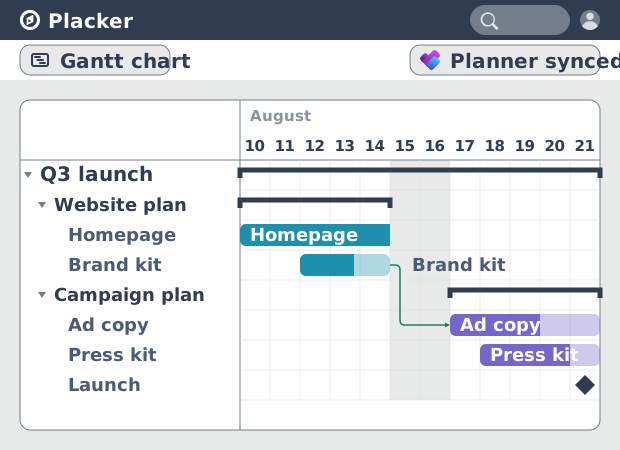
Microsoft Planner integrations: two-way sync
Sync Microsoft Planner plans two ways with Placker and add the calendar, time tracking, and automation Planner lacks. See how it works.
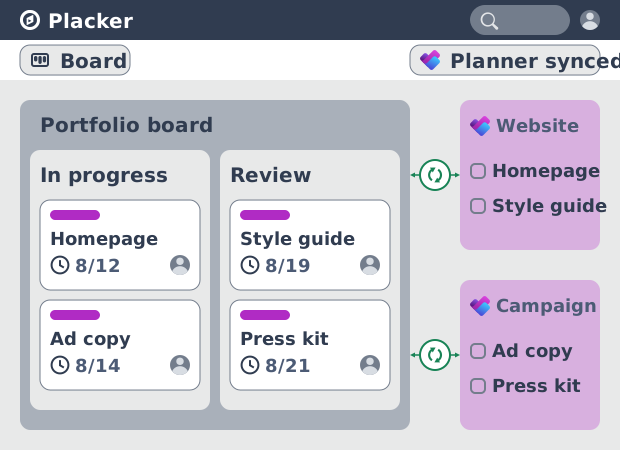
Microsoft Planner board view: layouts and reports
Add custom grouping, swimlanes, and Kanban reports to your Microsoft Planner board view. Placker reads your plans, no rebuild. Start a free trial.
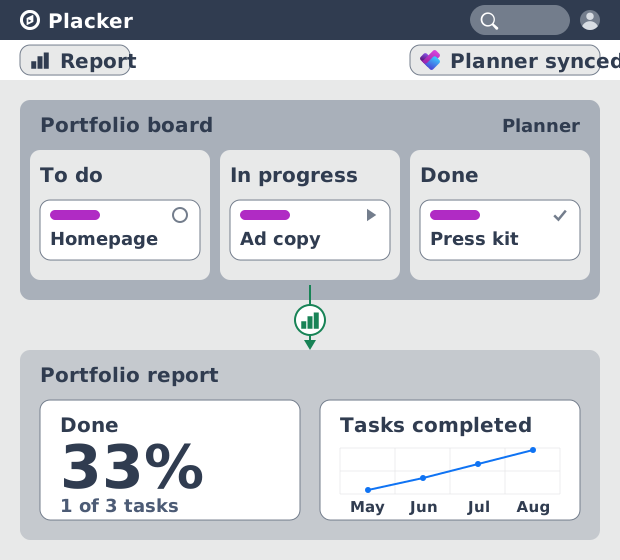
Microsoft Planner dashboards & reports
Report across Microsoft Planner plans without Power BI. KPI widgets, pivot tables, portfolio dashboards, and scheduled PDF reports. Start a free trial.
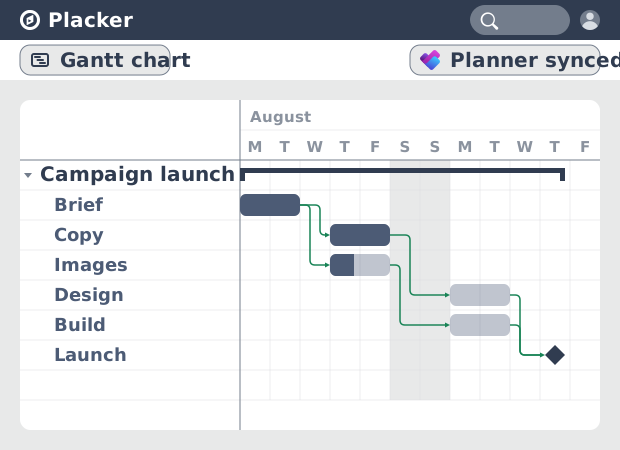
Microsoft Planner Gantt Chart: Add Dependencies
Microsoft Planner has no true Gantt chart. Placker turns Planner tasks into a timeline with dependencies and a critical path. Start free.
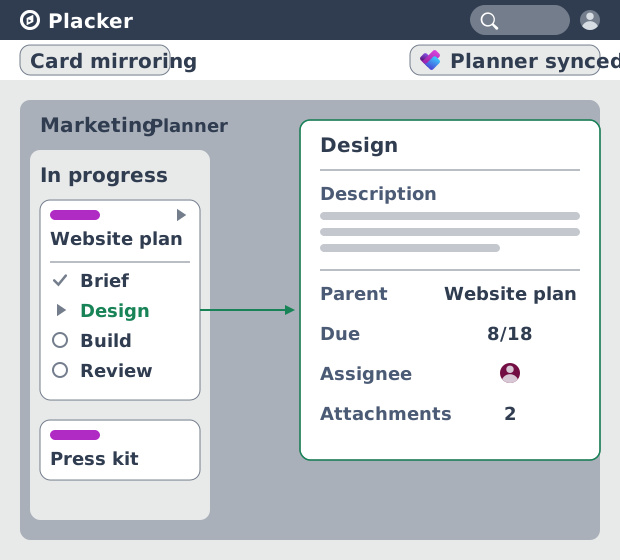
Subtasks in Microsoft Planner: Parent-Child Tasks
Add real subtasks to Microsoft Planner without premium. Parent-child tasks give each subtask an assignee and dates, and roll effort up.
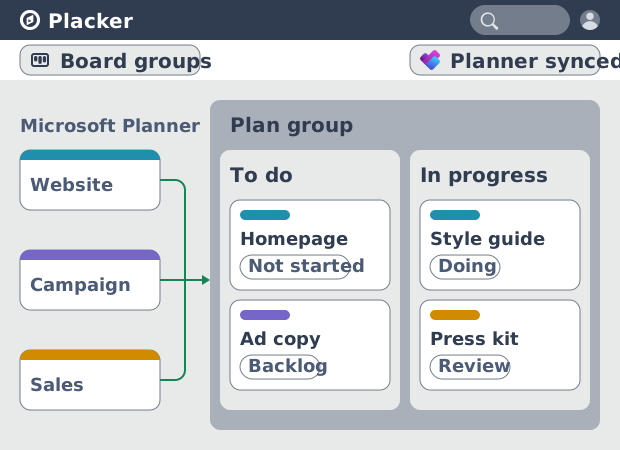
Microsoft Planner: see many plans in one view
See tasks from several Microsoft Planner plans in one board view, no Project Plan 3 or 5 license needed. Placker works on every tier. See how it works.
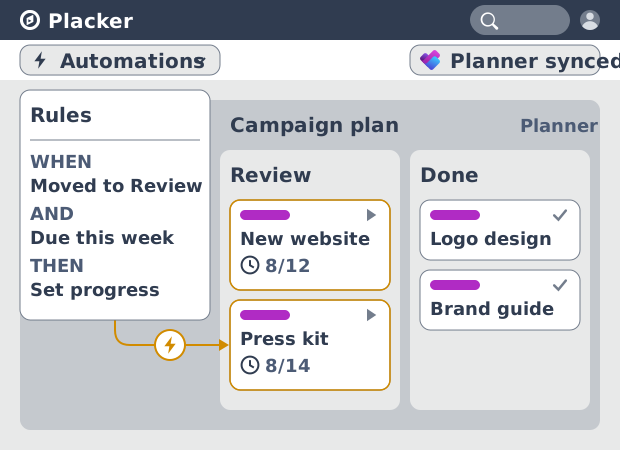
Microsoft Planner automation, no Power Automate
Add conditional automation to Microsoft Planner without Power Automate. Placker runs visual rules on your plans and tasks, plus recurring cards. See how.
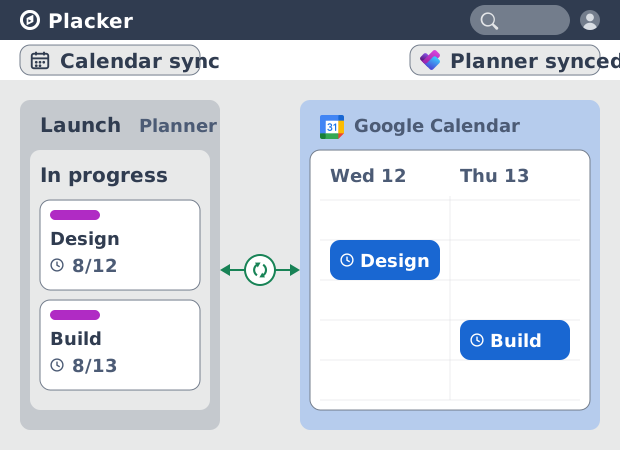
Microsoft Planner Google Calendar sync (2-way)
Microsoft Planner has no native Google Calendar sync. Placker syncs your tasks to Google Calendar, both ways, in minutes. Start free trial.
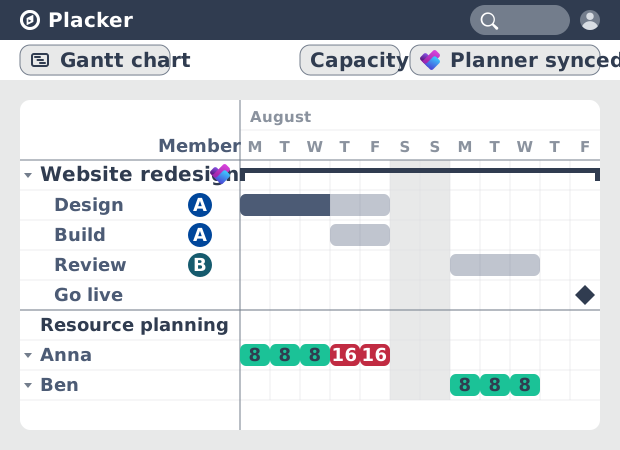
Resource Planner for MS Planner: Workload
See committed hours across Planner plans, not just task distribution. Placker adds FTE reports, overallocation alerts, and capacity planning to MS Planner.
Critical Path for Microsoft Planner: Gantt & CPM
Add critical path analysis to Microsoft Planner. Placker calculates float and flags critical tasks in red on a Gantt chart. Start free.
Ready to get started?
Easy to setup, no credit card required, start your trial today!