Auto-scheduling for Trello, without updating cards by hand
Trello boards have no native way to link cards as predecessors and successors. When a card slips, every dependent card needs a manual date update. The Placker Power-Up adds auto-scheduling to your Trello boards so you can link cards and let the engine propagate changes automatically.
Quick facts
Predecessor-successor links in Placker Gantt
Link your Trello cards once and let the dates keep themselves in order:
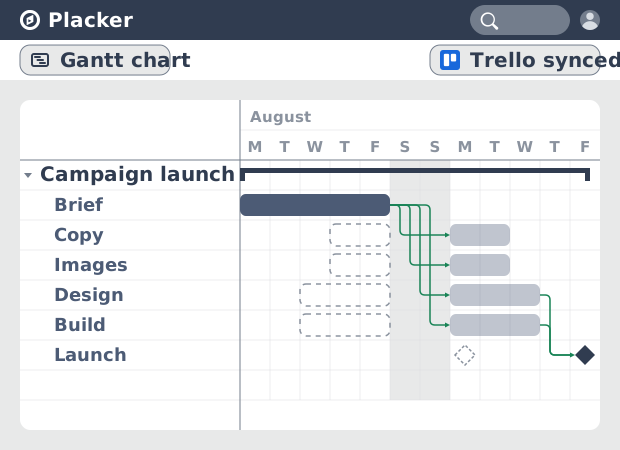
- Change one date, move the rest. Link predecessor and successor Trello cards in the Gantt and a change at the front of the chain moves every dependent card that follows.
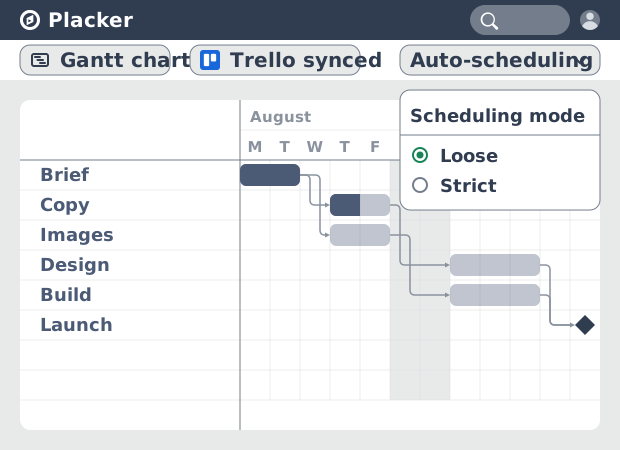
- Loose or Strict scheduling. Loose mode moves only the cards that depend on a change, while Strict mode also pulls cards earlier when a predecessor finishes ahead.
- One timeline across boards. Pull cards from multiple Trello boards into a single Gantt and let the cascade cross board boundaries as if they were one project.
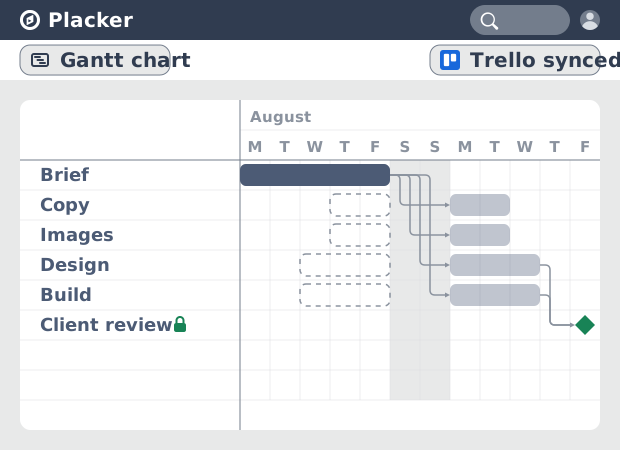
- Pin the cards that can't move. Pinning a card keeps auto-scheduling from changing its dates, so milestones, client deadlines, and external commitments stay put while the cascade works around them.
Dependency propagation
Dependency propagation (Trello)
Connect Trello cards with predecessor-successor dependencies in the Placker Power-Up. All four dependency types are supported: Finish-to-Start, Finish-to-Finish, Start-to-Start, and Start-to-Finish. When a predecessor card is delayed, the Placker scheduling engine recalculates all downstream card dates automatically. Every card in the dependency chain adjusts in a single pass.
Your team always works from an accurate Trello schedule. One slipped card no longer means an afternoon of manual date updates across the board.
Scheduling modes
Scheduling modes (Trello)
Two auto-scheduling modes give you control over how the engine responds to date changes: Loose mode and Strict mode. Loose mode only reschedules when a dependency is violated. If a predecessor finishes early, successor dates stay in place. Strict mode moves dates in both directions, pushing successors out when a predecessor is delayed and pulling them forward when a predecessor finishes early.
Use Loose mode for projects where early completion does not affect the rest of the schedule. Use Strict mode when you want to recover float as soon as it becomes available and keep the tightest schedule possible.
Card pinning and lag controls
Card pinning and lag controls
Pin any Trello card to lock its dates, and add lag or overlap between any two linked cards. Pinned cards are excluded from auto-scheduling runs, so a milestone or fixed delivery date stays in place regardless of what changes upstream. Lag adds a buffer gap between a predecessor end and successor start. Overlap lets a successor begin before its predecessor has finished.
You can protect the dates that cannot move while letting the rest of the schedule flex around them. This makes it practical to model real-world constraints like approval wait times and staggered handoffs within your existing Trello board.
How It Works
Link your Trello cards once and let the dates keep themselves in order, in four steps.
- 1
Connect cards with dependencies
Link Trello cards with Finish-to-Start, Finish-to-Finish, Start-to-Start, or Start-to-Finish dependencies directly in the Placker Power-Up.
Screenshot to be added
Placker Power-Up dependency picker on a Trello card offering Finish-to-Start, Finish-to-Finish, Start-to-Start and Start-to-Finish
- 2
Choose Loose or Strict scheduling
Use Loose mode to reschedule only when a dependency is violated, or Strict mode to move dates in both directions and keep the tightest possible schedule.
Screenshot to be added
Placker auto-scheduling settings for a Trello board with the Loose and Strict scheduling modes
- 3
Delay a card and see the chain update
When a predecessor card slips, Placker recalculates every downstream card date automatically in a single pass — no manual date edits across the board.
Screenshot to be added
Placker Gantt chart for a Trello board with every downstream card date recalculated after a predecessor card slipped
- 4
Pin cards and add lag or overlap
Lock a card's dates so it's excluded from auto-scheduling, and add lag or overlap between linked cards to model approval waits or staggered handoffs.
Screenshot to be added
Placker card settings with a Trello card locked out of auto-scheduling and lag configured between linked cards
Use cases
Where teams rely on auto-scheduling to keep their plan up to date as work shifts.
PM calculating delivery date
A project manager enables auto-scheduling on a Trello project to get a data-driven answer to 'when will this be done?' The scheduler analyses task durations and dependencies and produces a realistic completion date, not the optimistic guess that usually goes into a proposal.
Team rebounding from a blocker
A team hits an unexpected blocker on a key Trello card. Using Placker auto-scheduling, they mark the task as delayed and let the engine recalculate all downstream due dates. The updated schedule is ready before the end of the standup.
Scrum master levelling the sprint
A scrum master uses auto-scheduling to spread sprint tasks evenly across team members based on capacity. The scheduler ensures no one starts the sprint with five parallel tasks while another team member has one, making the workload distribution visible before the sprint begins.
Tips & Best Practices
Practical advice to get the most out of your workflow
Use Auto-scheduling to generate a complete Trello project timeline automatically
Instead of setting dates on every card one by one, run Placker's Auto-scheduling to calculate a full project schedule based on your card durations and dependencies. A great way to create a realistic timeline from scratch.
Add task dependencies in the Gantt before running Auto-scheduling
Auto-scheduling sequences tasks based on their dependencies. Draw dependency arrows between your Trello cards in the Gantt view first, then run Auto-scheduling to produce a coherent, ordered timeline.
Re-run Auto-scheduling when your Trello project hits a delay
If a key card is delayed, update its dates and re-run Auto-scheduling. Placker recalculates the rest of the timeline automatically, so you can see the new end date and adjust priorities without manual re-planning.
Set card durations before auto-scheduling for a more accurate result
Auto-scheduling spreads tasks across the timeline based on how long each one takes. Setting realistic durations on your Trello cards before running Auto-scheduling gives you a schedule your team can actually follow.
Discover our Power-Ups
Use our Power-Ups to level up your project management game

Projects by Placker
- Description
- An all-in-one Power-Up for Trello. Combine boards, mirror cards, view tasks in a Gantt chart, generate a dashboard, and more.

Gantt Chart for Trello
- Description
- Gantt chart, Resource Planning and extended timeline view. All-in-one project management for Trello by Placker

Board Groups (By Placker)
- Description
- Combine any numbers of boards in a boardgroup to manage cards effectively across boards

Reports (by Placker) 📈
- Description
- 📈 Track and report your work across boards on real-time dashboards 📊
Related pages
Trello integrations: two-way sync with Placker
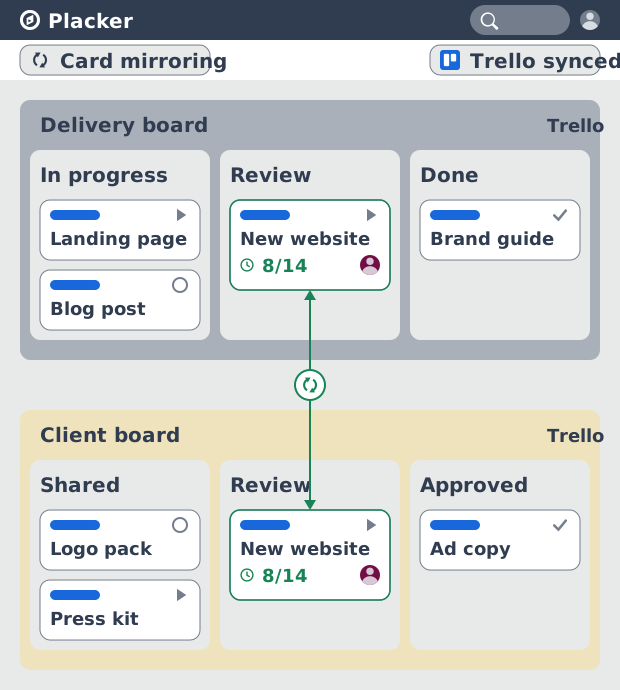
Add two-way card sync, Google Calendar, Clockify time tracking, and webhooks to Trello with the Placker Power-Up. See how it works.
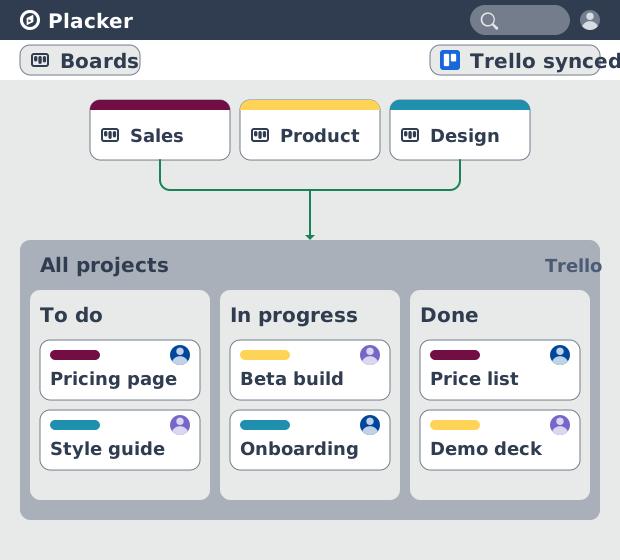
Trello board view: Kanban layouts and reports
Add Kanban structure to your Trello boards with Placker's board view. Group, swimlane, and report on the cards you already have. Add to Trello.
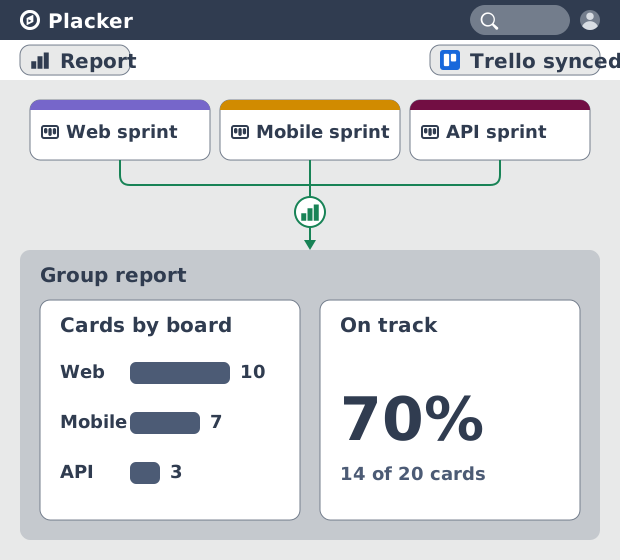
Trello dashboards and reports
Turn your Trello boards into live dashboards. Cross-board reporting, pivot tables, and scheduled PDF reports. Add Reports by Placker to Trello.
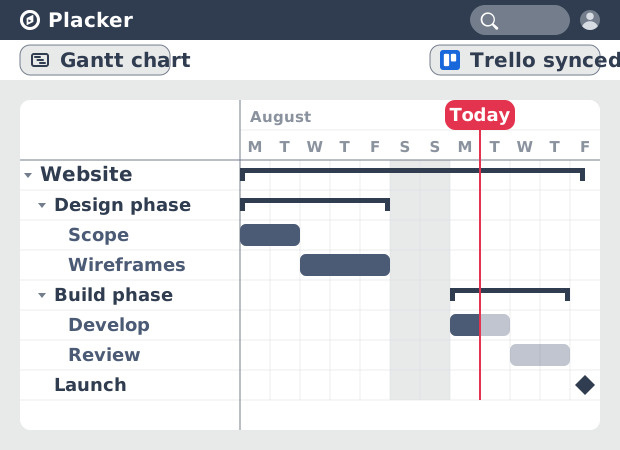
Gantt Chart for Trello with Dependencies
Add a real Gantt chart to your Trello boards. Placker turns cards with dates into a timeline with dependencies, critical path, and resource planning.
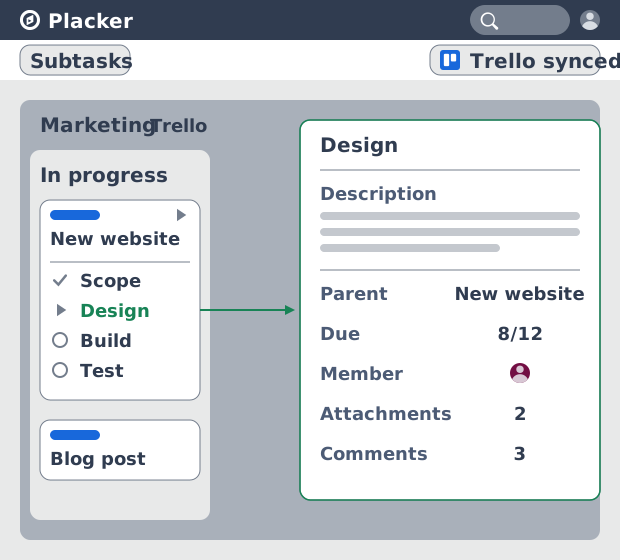
Trello Subtasks: Parent-Child Cards for Trello
Add real subtasks to Trello. Parent-child cards give each checklist item its own card and dates, and roll effort up. Add to Trello free.
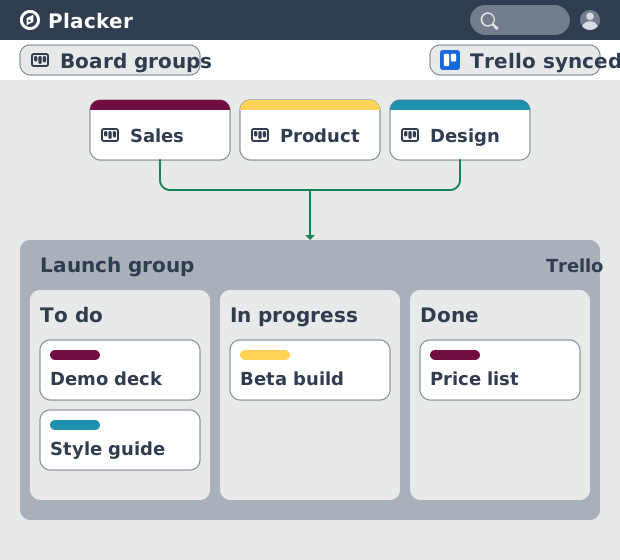
Board Groups for Trello: one combined board view
Load several Trello boards into one combined board view. Placker adds cross-board filtering, drag-and-drop between boards, and combine and split. See how.
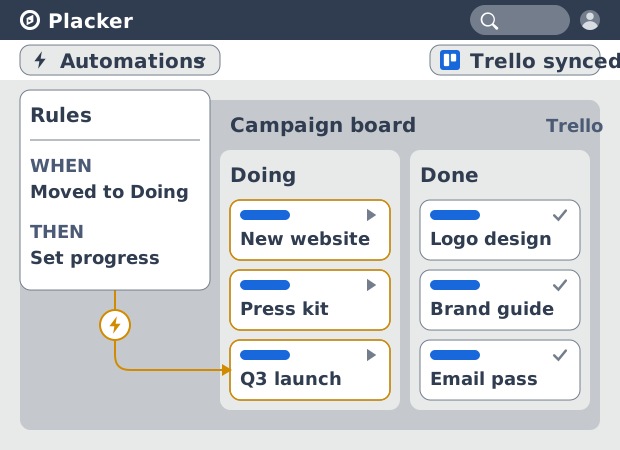
Trello automation rules: beyond Butler limits
Automate Trello boards with no monthly run cap. Placker rules mirror cards two ways and reach fields Butler can't. See how it works.
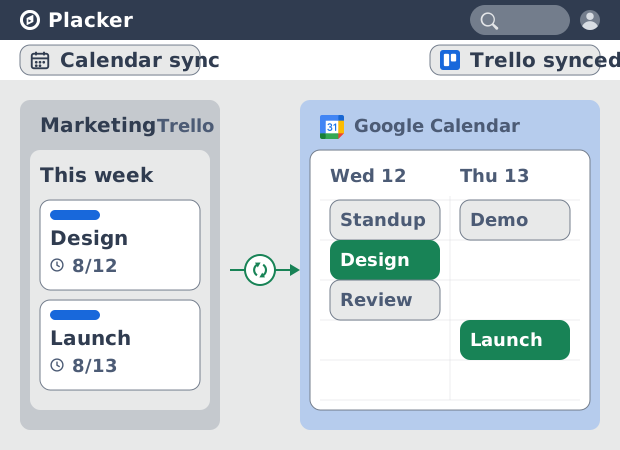
Trello Google Calendar sync: two-way & real-time
Sync Trello cards with due dates to Google Calendar both ways, in under a minute. Edit in either tool and the other updates. Add it to Trello.
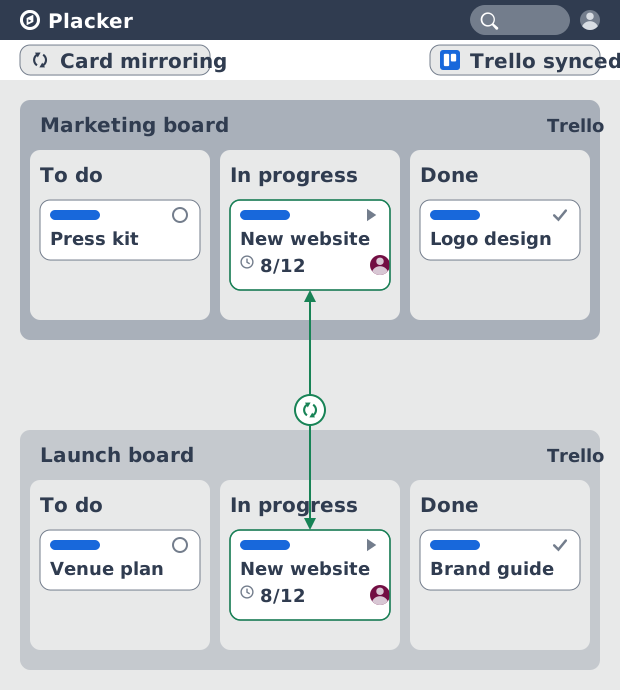
Card Mirror for Trello: 2-way sync, all fields
Mirror Trello cards across boards with 2-way sync. Placker syncs checklists, attachments, members, and dates where native mirrors stop. See how it works.
Resource Planner for Trello: Workload Management
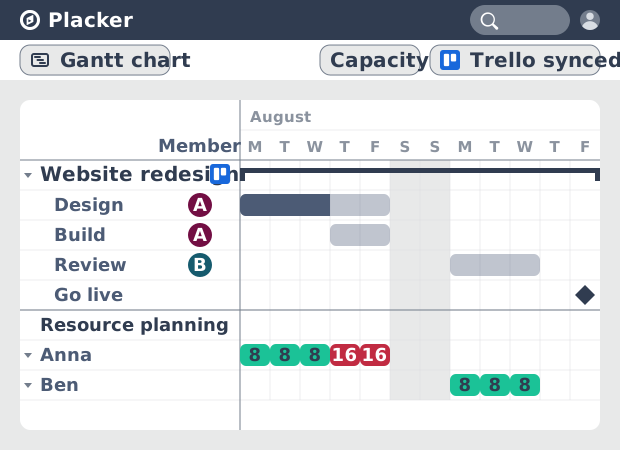
See committed hours per Trello member, not just card counts. Placker adds overallocation alerts, cross-board FTE reports, and capacity templates.
Critical Path for Trello: Gantt & CPM
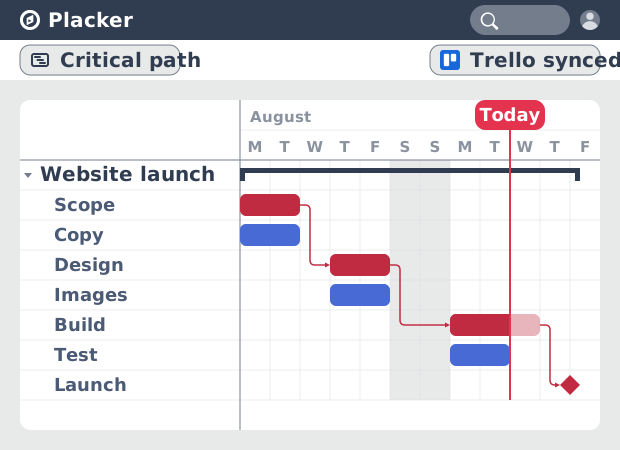
Add critical path analysis to Trello. Placker calculates float and flags critical tasks in red on a Gantt chart. Add to Trello free.
Ready to supercharge your Trello boards?
Start your 15-day free trial today. No credit card required.