Card Mirror and sync: update once, and every board agrees
When the same task lives on more than one board, every manual update is a chance for the boards to disagree. Card Mirror and sync keeps one card current everywhere it appears, so a status change on your sprint board shows up on the program board within seconds.
Quick facts
Card Mirror and sync in Placker
One linked copy of a card that stays current on every board it touches. Here is what a mirror does for you:
- Everything stays in sync. One mirror keeps title, status, plan dates, members, labels, checklists, attachments, and comments matched across every board it lives on.
- Edits flow both ways in seconds. Change any copy and the update reaches every linked card within seconds, so it does not matter which one you open.
- Rules mirror cards for you. Automation with AND/OR conditions creates or archives mirrors when a card matches a trigger, so you set it once instead of copying by hand.
- Status rolls up every level. Mirror a checklist item up to a program board and on to strategy, and traffic-light status flows across all of them so portfolio health stays current.
Two-way field sync
One update reaches every board
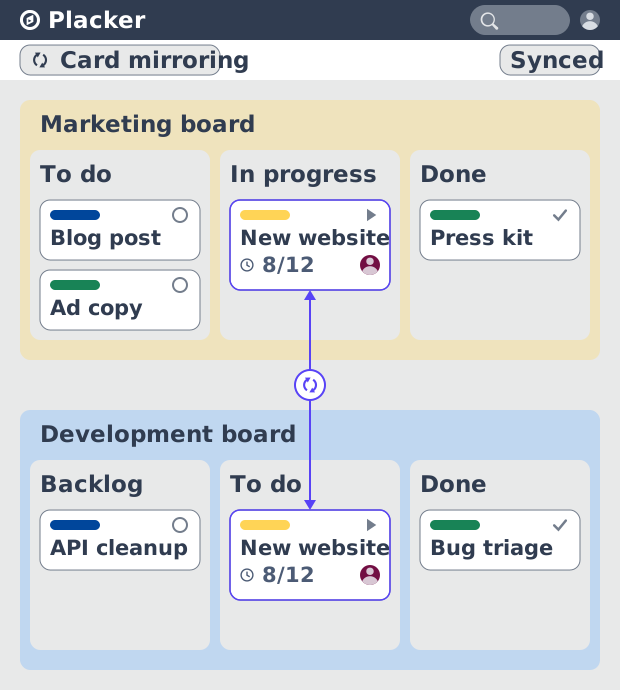
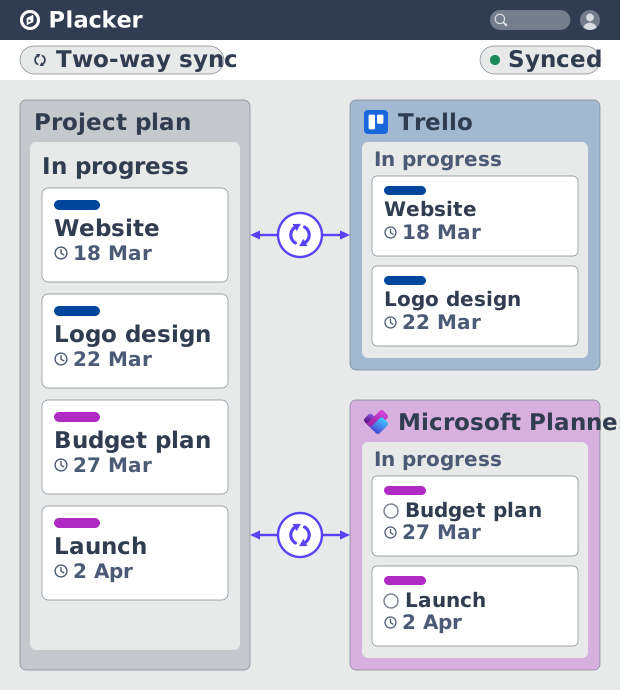
Card Mirror and sync links a card to copies on other boards and keeps their fields aligned in both directions. Edit the card once and the title, status, dates, members and checklists update everywhere the card is mirrored, instead of being retyped on each board. Your boards stop disagreeing, and the status a stakeholder reads matches the work the team is actually doing.
Client and leadership boards
Share live progress without sharing the board
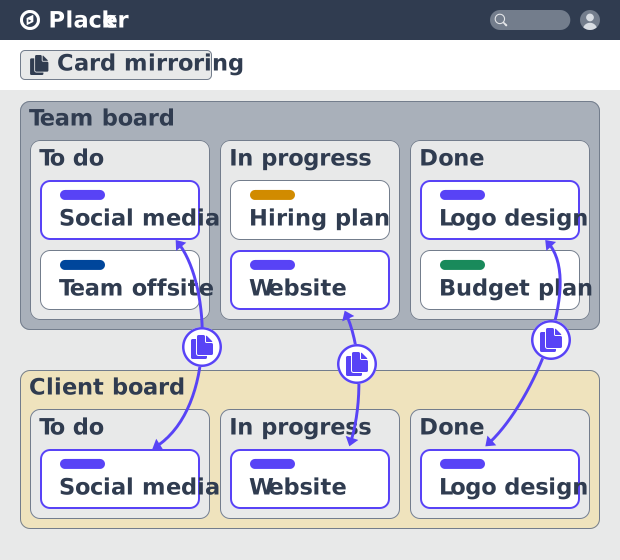
Rather than adding those stakeholders to your working board, mirror selected cards to a separate board and give them access to that board only. They see live status, dates and progress on the cards you chose, without being added to your internal board or seeing everything on it. You keep a clean client-facing or leadership board that updates itself, so status reports stop being a manual job.
Automation
Let rules create the mirrors
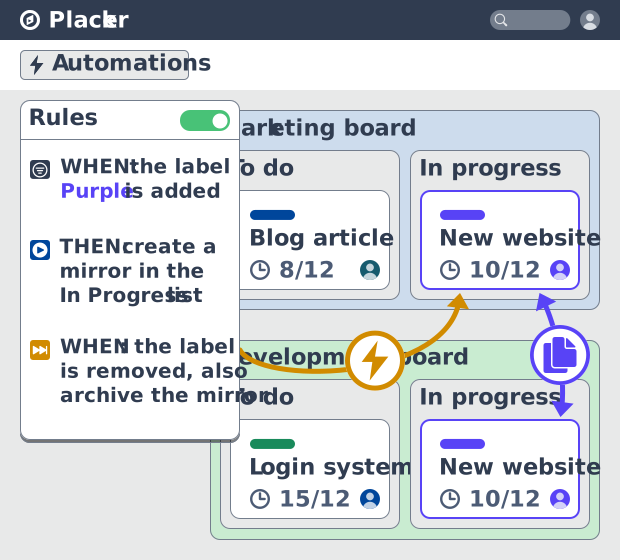
Up to now you have chosen which cards to mirror by hand; automation rules can do that for you, using AND/OR conditions and triggers such as a label being added, a card moving to a list, a member being assigned or a date changing. When a card matches, the rule creates the mirror, moves it, or archives it for you, and reverses the action when the condition no longer holds. You set this up once, and the boards stay in sync as work moves, with no one assigned to copy cards.
How It Works
Setting up a mirror takes a few minutes in the Placker board, timeline and table views. Here is the flow from first mirror to a synced portfolio.
- 1
Open two boards side by side
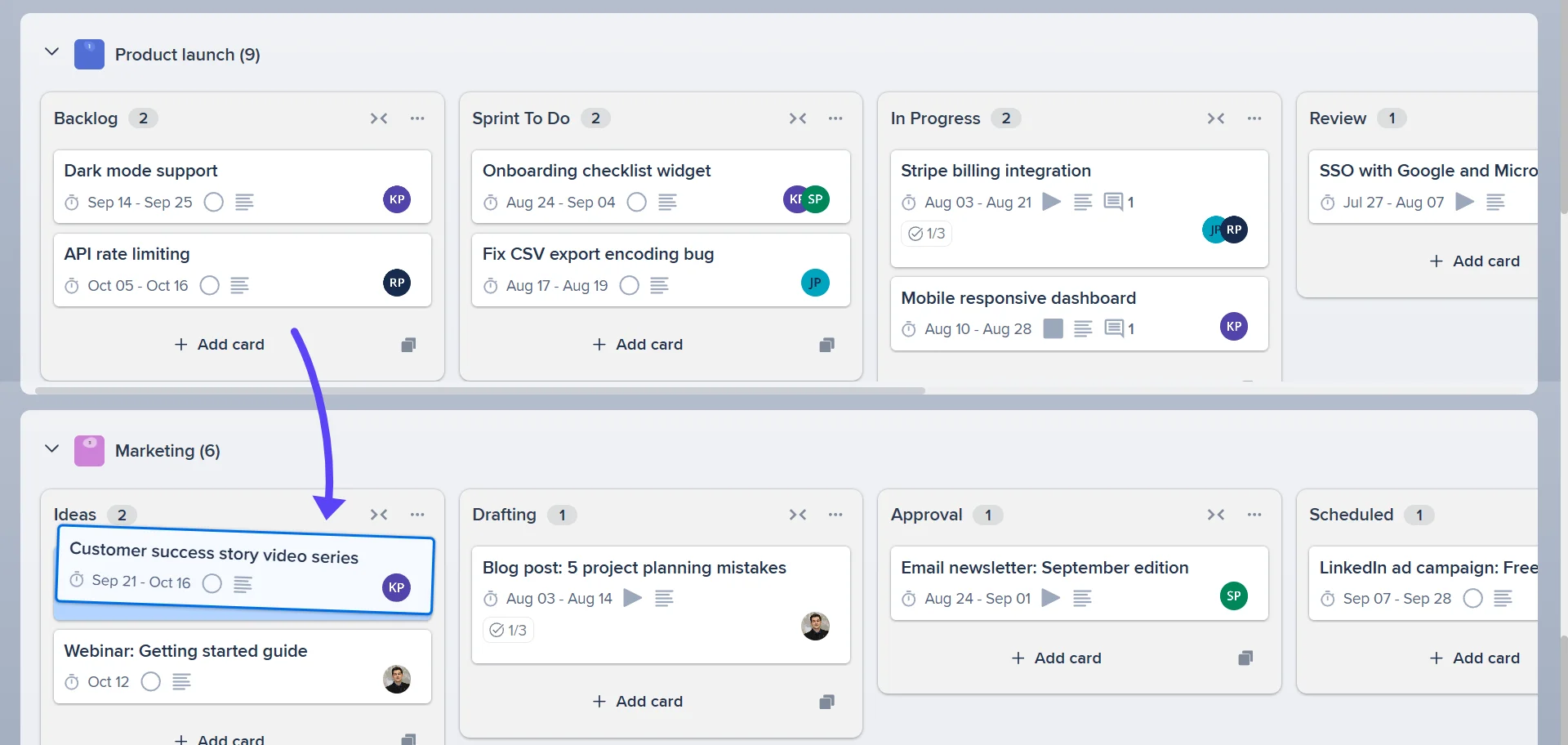
Open the boards you want to connect in board view. Drag a card from one board onto the other to create a mirror, or open a card and use Add Card Mirror without leaving the card.
- 2
Choose what syncs
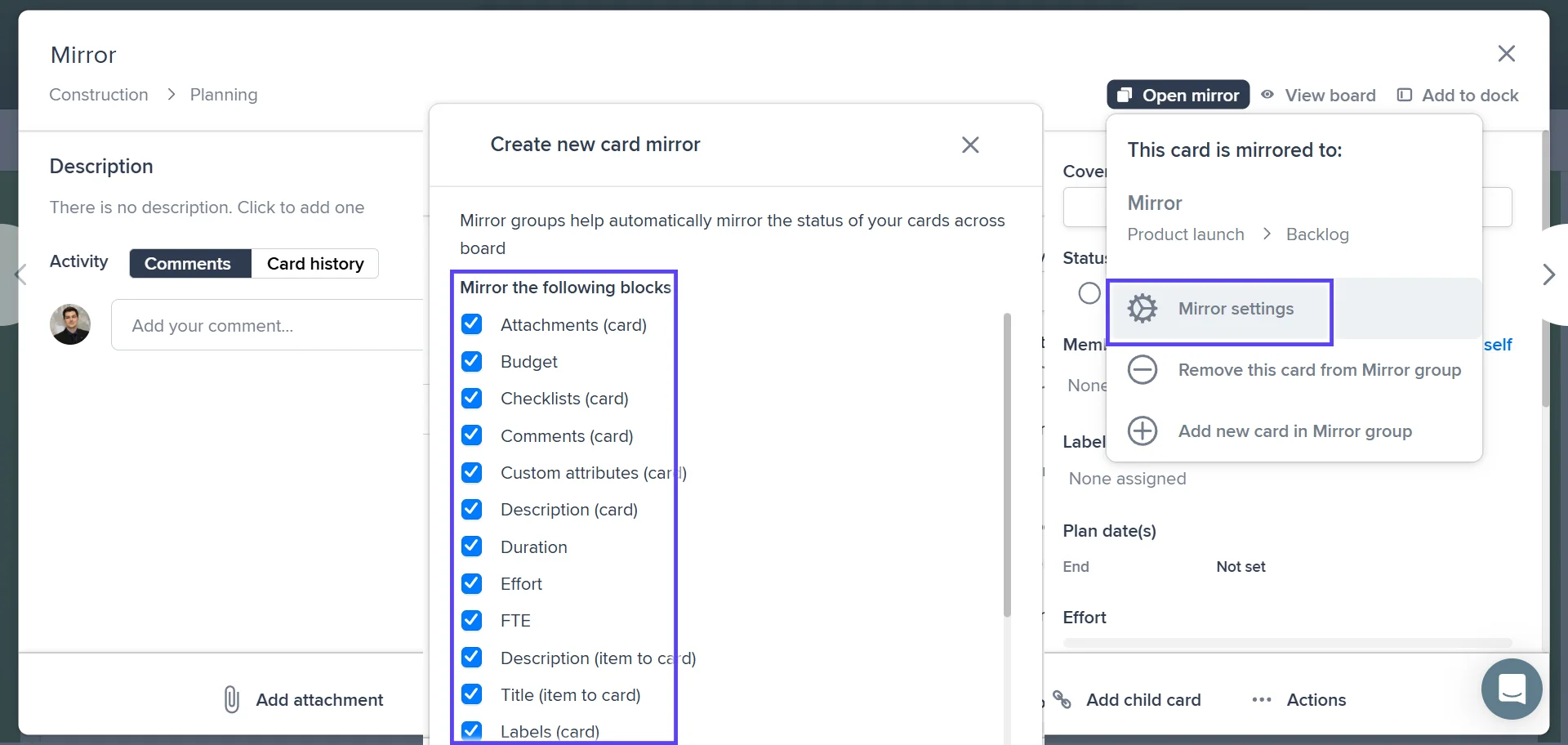
Under Mirror the following blocks, confirm which fields the mirror keeps in sync, such as status, dates, members, labels, checklists and attachments. If a label or custom attribute is missing on the target board, Placker can create it when that option is enabled in board settings.
- 3
Set a rule to automate it
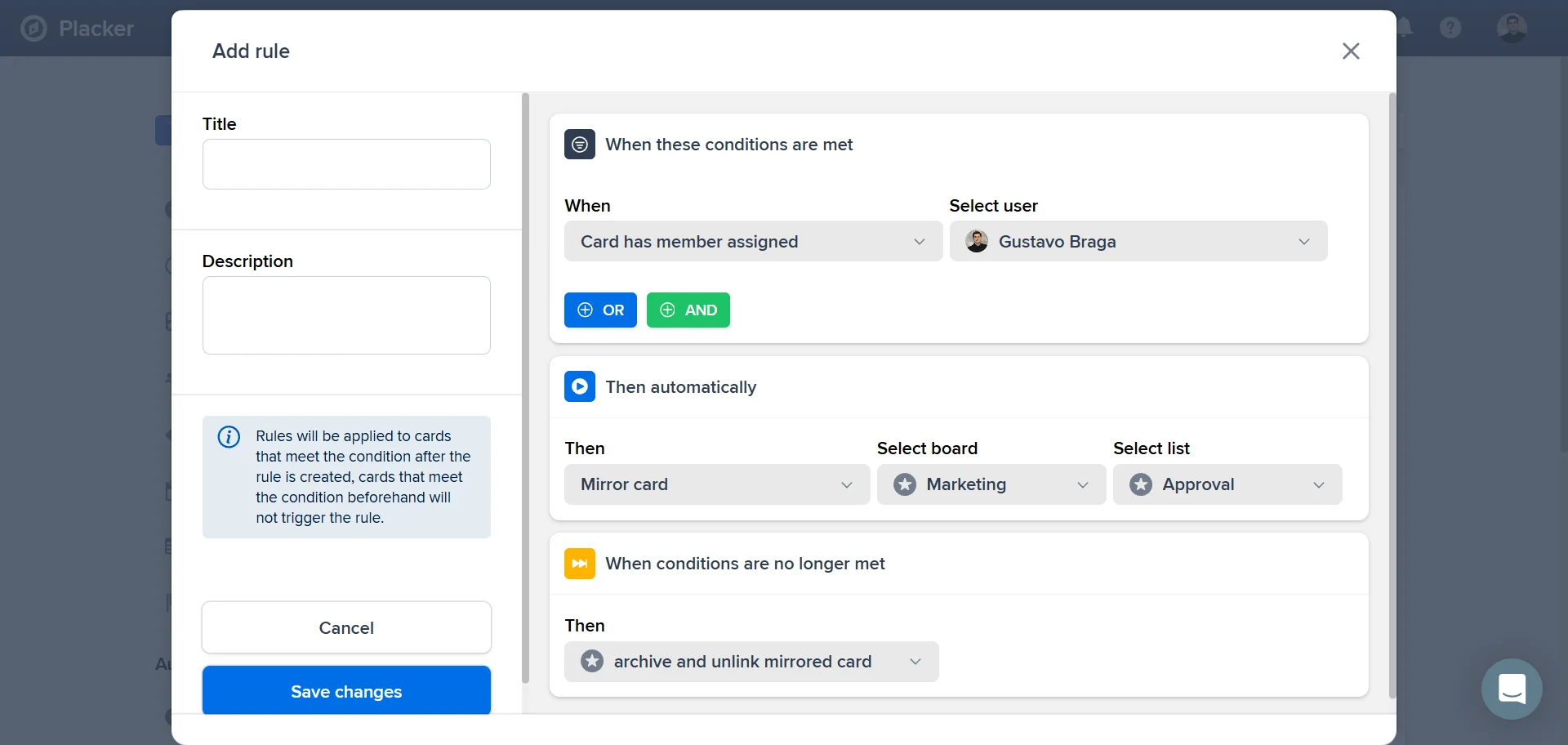
Open the rules panel and add a condition with AND/OR logic, then choose an action such as mirror the card to another list or board. New cards that match the rule are mirrored automatically. This step is optional.
- 4
Track everything in one timeline
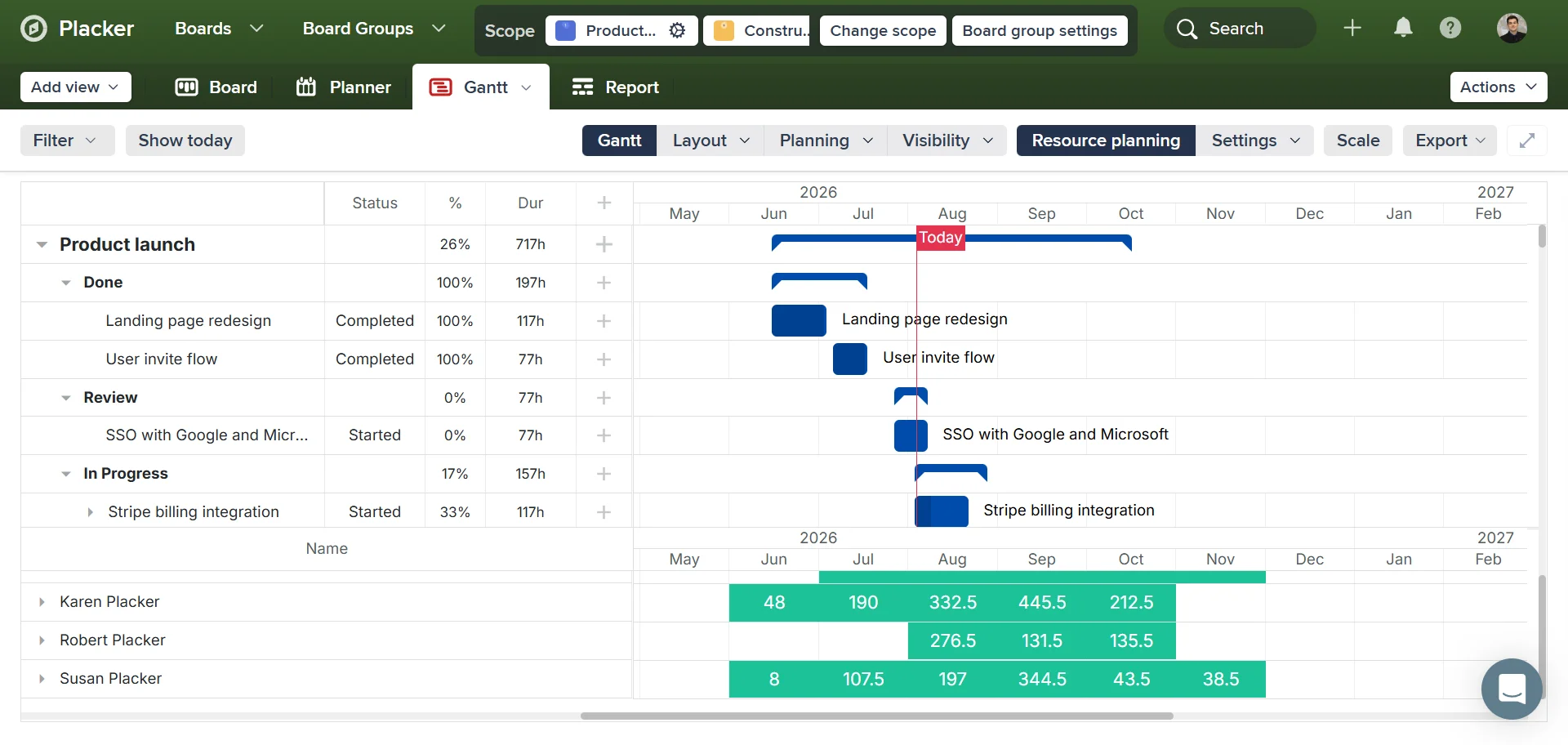
Open the Timeline or Table view to see mirrored cards across boards in one place. Traffic-light status rolls up from checklist items to program and strategy cards, so you read portfolio health at a glance.
Use cases
Where teams use Card Mirroring and sync to keep the same work aligned across boards.
Multi-team project tracking
A delivery manager mirrors a key milestone card across three team boards in Placker so each team sees the same deadline and status. Updates to the source card propagate to all mirrors, ensuring the milestone stays consistent across teams without a sync meeting.
Shared dependency board
Two product squads use a shared dependency board where blocked tasks are mirrored from each squad's working board. When the blocking squad resolves an issue, the mirror updates, and the dependent squad's card surfaces for action automatically.
Executive summary board
A project manager maintains an executive summary board with mirrored cards representing each project's top-level milestone. Executives see live status from the detailed working boards without navigating multiple projects. No one updates a status report by hand.
Tips & Best Practices
Practical advice to get the most out of your workflow
Mirror only the cards stakeholders track, not the whole board
Mirror your milestone or deliverable cards onto a program or client board, not every task. You get a clean high level board that still stays in sync, instead of a copy of your busy working board that nobody can read.
Combine mirrored cards with Reports for portfolio status
Mirror each project's deliverable cards onto one program board, then run Reports across it. You get portfolio-wide status and workload from live data, without asking every team for an update.
Give cards that live on two boards a shared label
Tag cards that belong on more than one board with a common label like cross-board. It makes them easy to spot, keeps the whole team using one convention, and gives your mirror rules a single condition to match.
Mirror a blocking card onto the team that is waiting on it
When one team's task blocks another, mirror the blocker onto the dependent team's board instead of chasing updates. Both sides watch the same live status, so the waiting team knows the moment it clears.
Related pages
Placker integrations: sync your project tools
Placker integrations sync Trello, Microsoft Planner, Google Calendar, Clockify, and Zapier two ways, keeping one plan across every tool. See how it works.
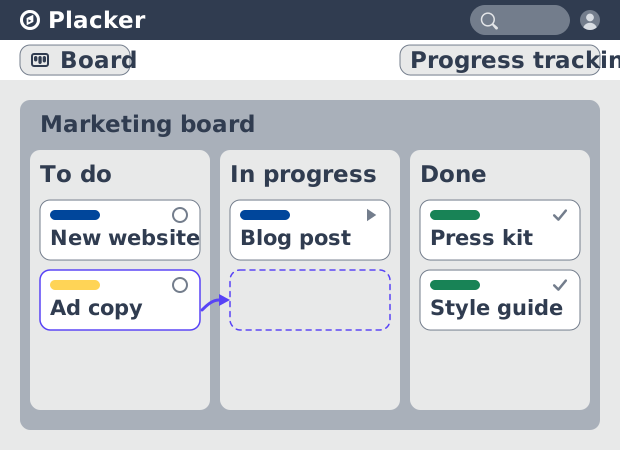
Board views: one board, any view
See all your work as cards moving across lists in Placker. Group by member, swimlane, or due date, and track flow with Kanban reports. See how it works.
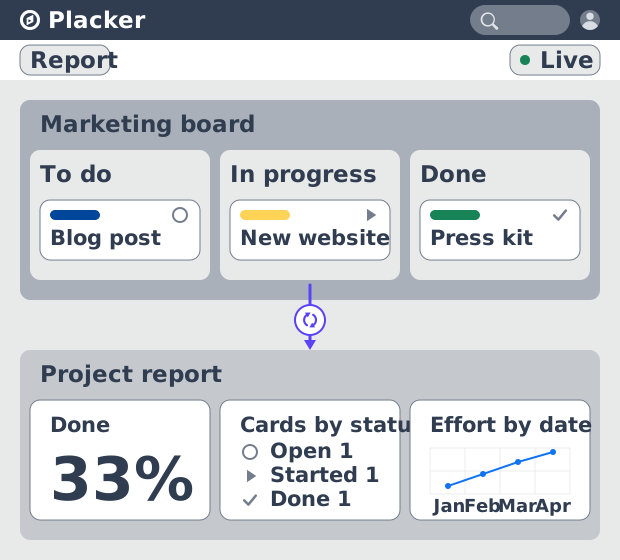
Project dashboards and reports
Build live project dashboards from your tasks. KPI widgets, pivot tables, portfolio roll-ups, and scheduled PDF reports. Start a free Placker trial.
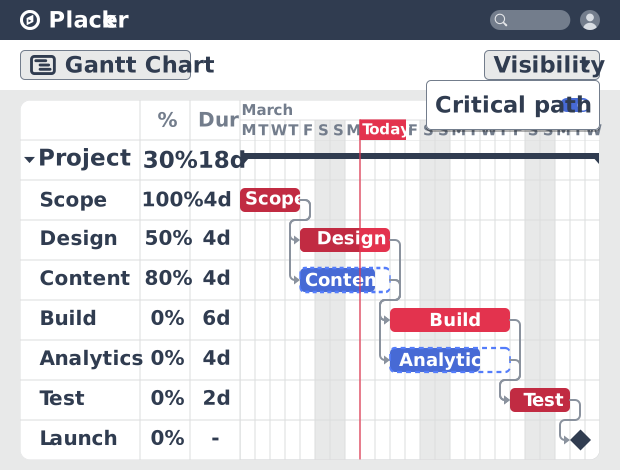
Gantt chart software with auto-scheduling
Plan projects on a visual timeline with Placker's Gantt chart software. Set dependencies, auto-schedule dates, and track the critical path.
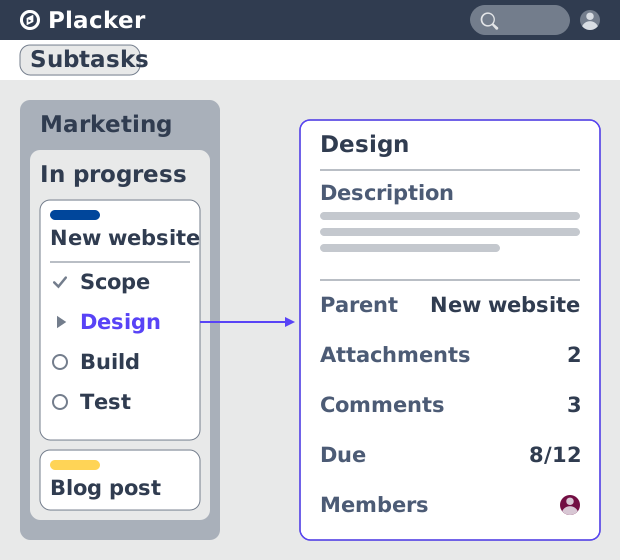
Parent-Child Cards in Placker | Subtasks that roll up
Parent-child cards in Placker give every subtask a full card and roll effort, dates and members up to the parent. Read the total on top.
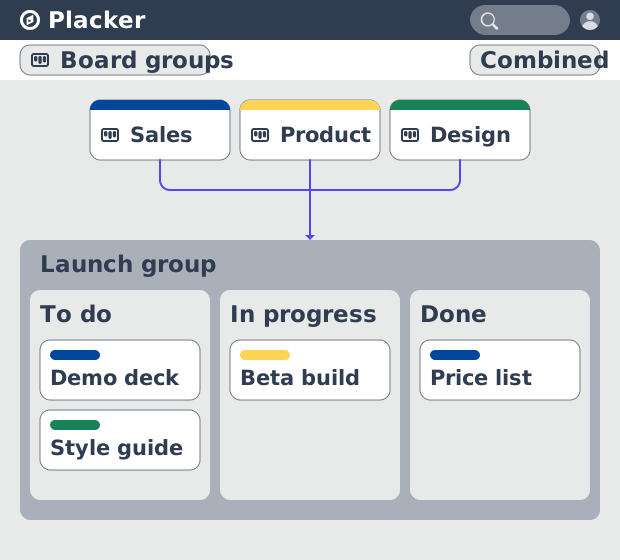
Board Groups: many boards, managed as one
Board Groups let you manage many boards as one workspace: plan, filter, and report across all of them, and save reusable groups. Start a free trial.
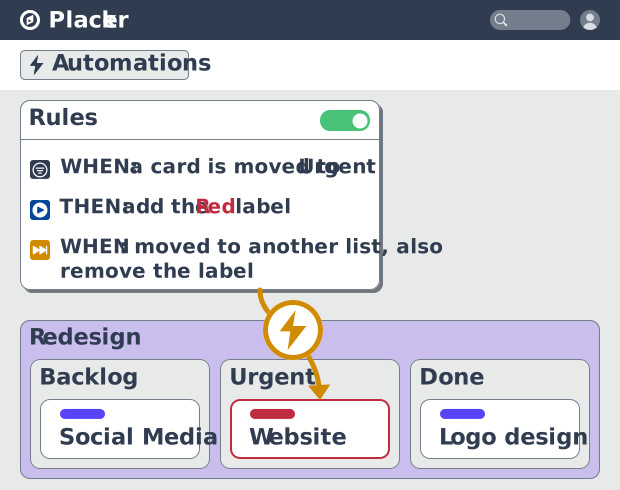
Project board automation rules, no-code
Automate project boards with condition-based rules. Placker mirrors, moves, assigns, and updates cards when work changes. See how it works.
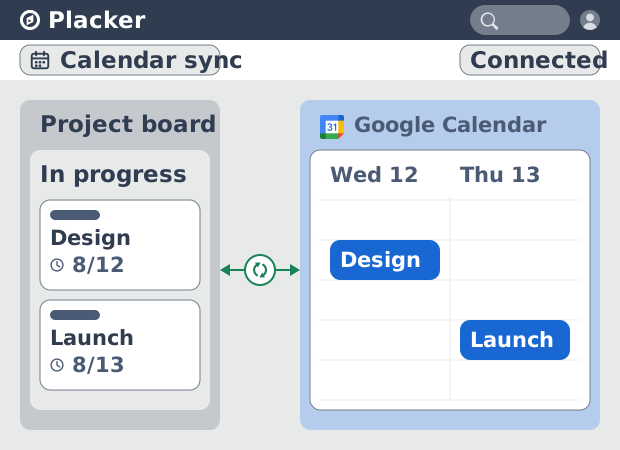
Placker Google Calendar sync: two-way, real-time
Placker syncs every dated card on your boards to Google Calendar, two-way, in under a minute. Edit either tool; both stay aligned. Start free.
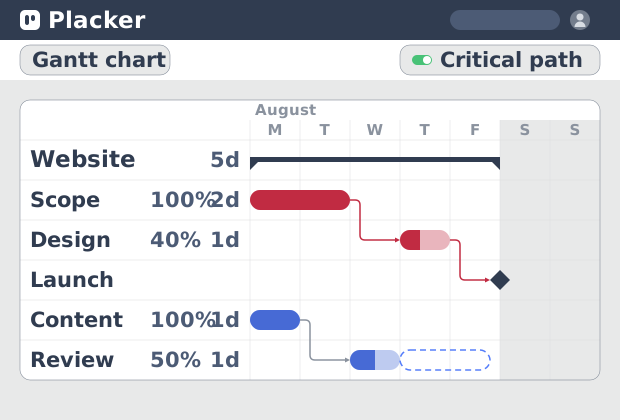
Critical path Placker: Gantt chart CPM analysis
Critical path in Placker finds the tasks that control your deadline and flags them on the Gantt, updating live as dependencies shift. Start a free trial.
Ready to get started?
Easy to setup, no credit card required, start your trial today!