Trello Google Calendar sync that runs both ways
Trello's built-in calendar export runs one way and refreshes slowly. Connect your board to Google Calendar with Placker and card due dates flow both ways, usually within a minute, so a deadline you move in either tool updates the other.
Quick facts
Google Calendar sync with Trello
Connect Trello to Google Calendar and your cards sync both ways by default. Here's what to expect:
- Both ways by default. Trello cards sync to Google Calendar in both directions, or set it one-way to just read due dates in the calendar.
- A due date is all it takes. A card syncs once it has a due date, showing as a full-day event or a timed block when you add a start date.
- Updates in under a minute. Changes land almost immediately rather than on a once-a-day feed.
- Scope it to a board or a person. Sync a whole board or just one member's cards, covering both existing and new cards on any paid plan.
- Keep the calendar clean. Clear completed, archived, or unassigned cards so only live work shows.
One shared timeline
Trello Google Calendar sync in one timeline
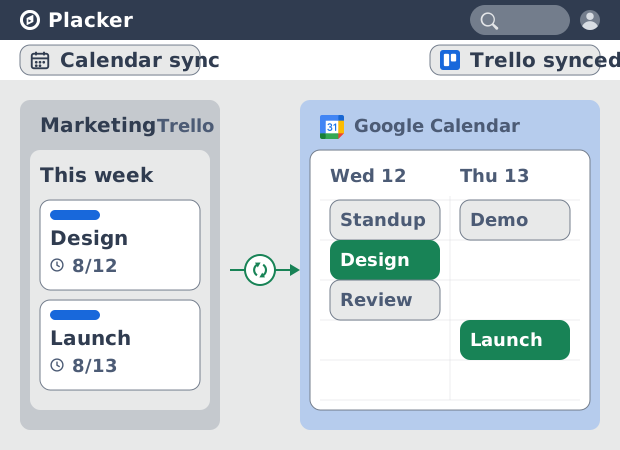
Every dated Trello card lands in Google Calendar as an event, its due date carried across. The deadline sits next to the meetings already on your calendar, in one timeline instead of two. You can see where a card lands against a day that is already half-booked, and hold time for the work before the day fills up.
Two-way sync
Edit in either tool, no double entry
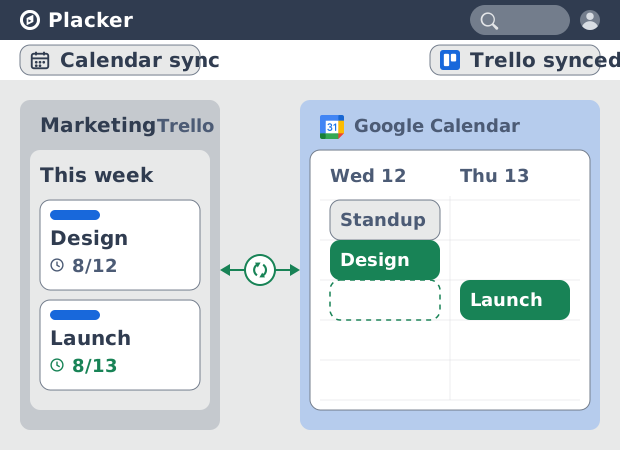
Once a card's deadline is on that timeline, you can move it from either side, because the sync runs two ways. Drag the event to a new slot in Google Calendar and the linked card's due date moves to match. Change the date on the card in Trello and the event shifts. Dates stay in one place, whichever tool you are in, instead of being re-keyed by hand.
Trusted, scoped sync
Sync you can trust, scoped to the right people
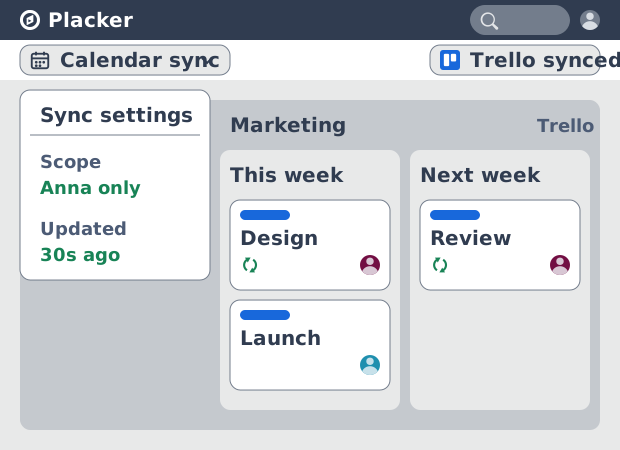
Those edits land in under a minute, so the calendar shows a card's current date rather than yesterday's. You also choose whose cards sync. Point a member's assigned cards at their personal calendar and they see only the work that is theirs. One shared board can feed several people without crowding every calendar with cards no one owns.
How It Works
Setup takes four steps. You enable the Power-Up, connect Google, link a calendar, then work with cards as you normally would.
- 1
Add the Power-Up to your board
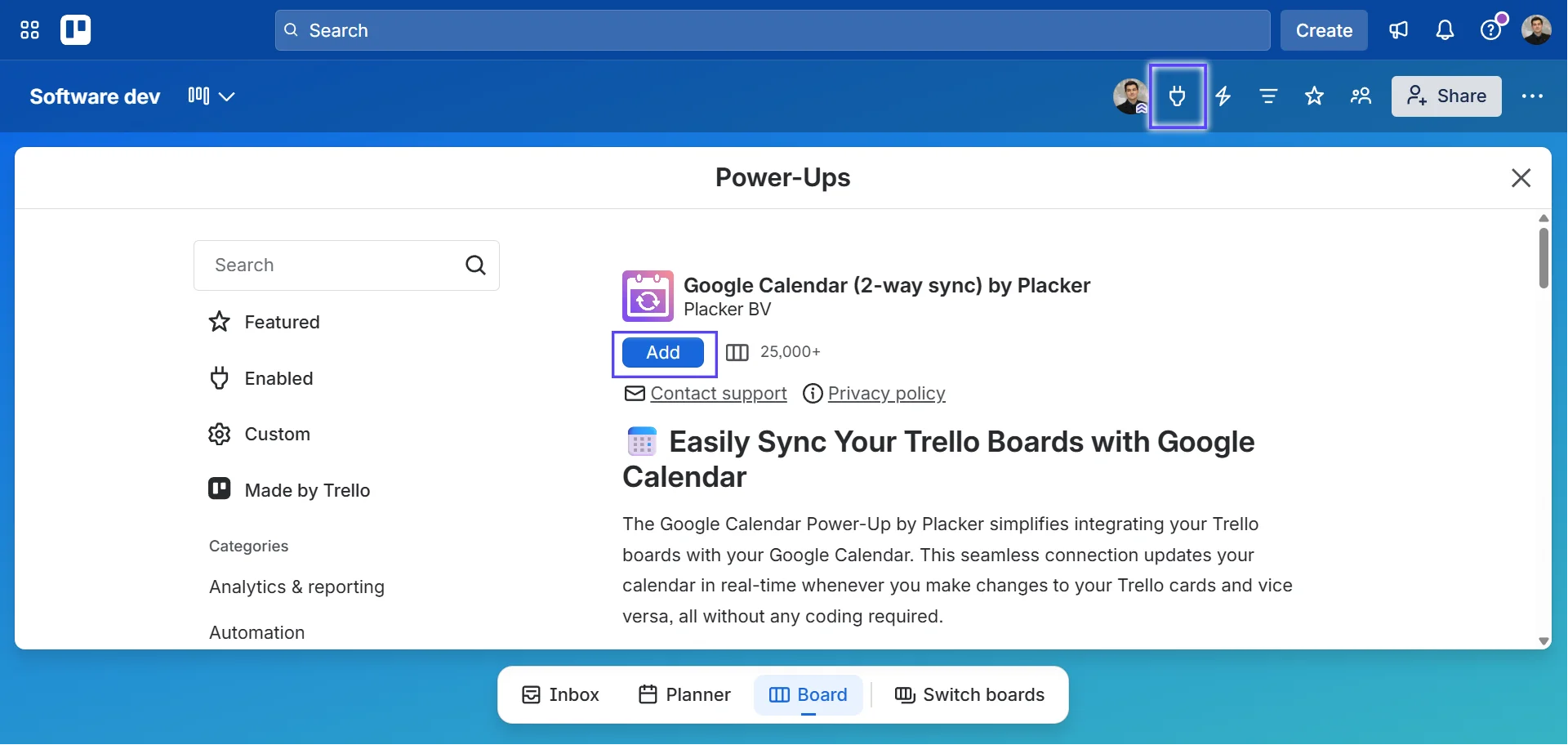
Open your Trello board, open the Power-Ups menu, and add Google Calendar (2-way sync) by Placker. The Power-Up then appears on the board's menu.
- 2
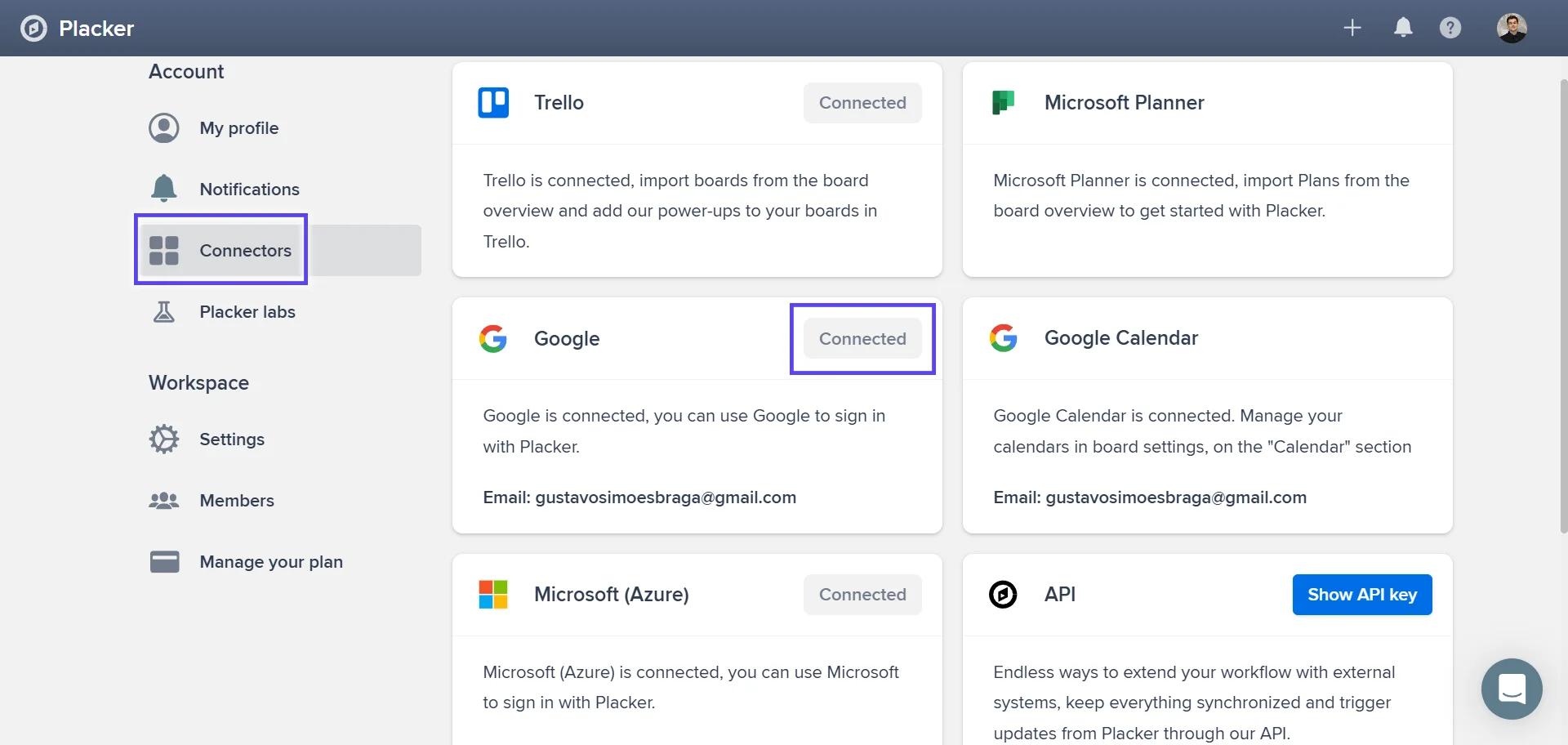
Connect your Google account
Open the Power-Up and sign in to Placker, then connect the Google account that holds the calendar you want to use. Placker asks for calendar access once.
- 3
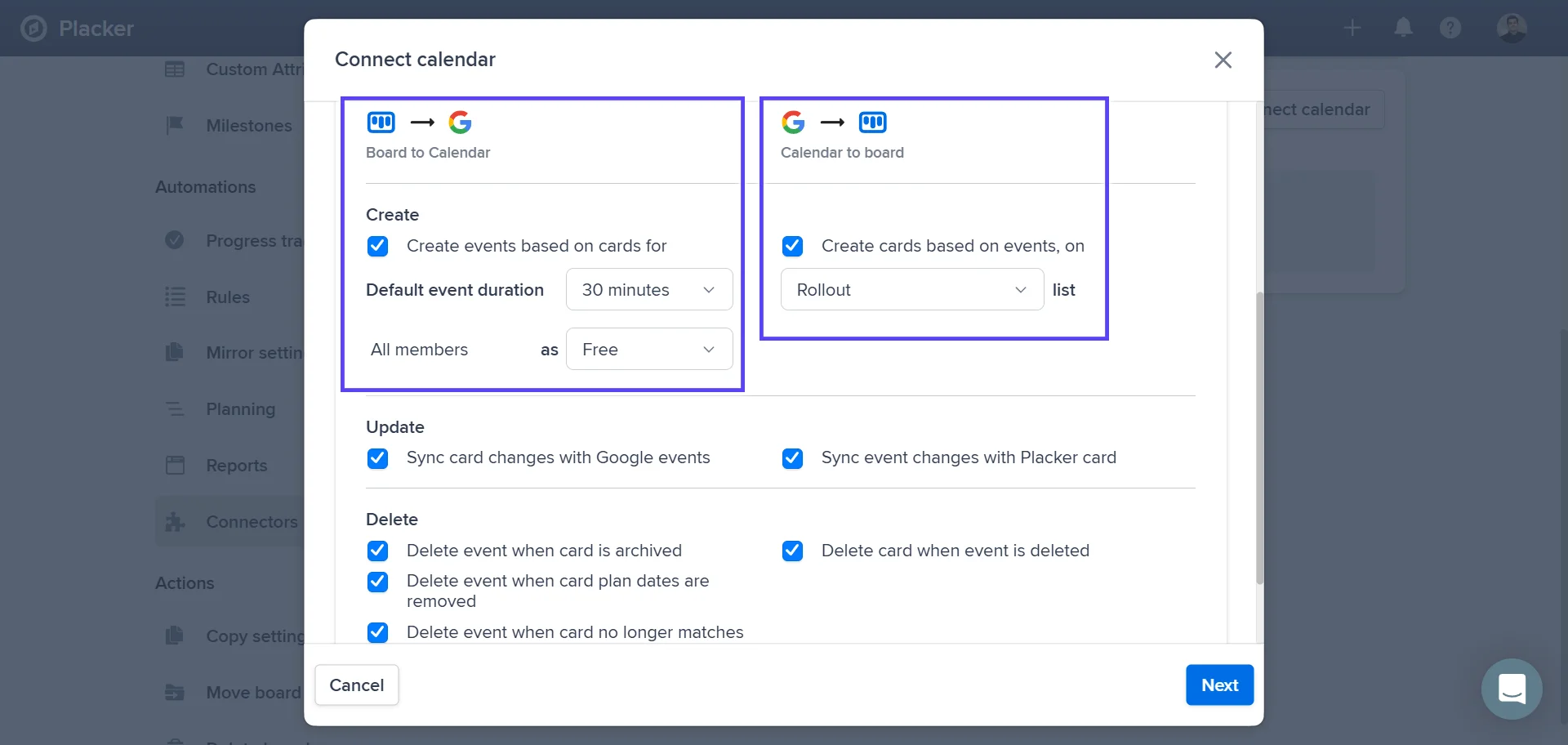
Link a calendar, then set direction and scope
Pick the Google Calendar to link to the board. Choose two-way or one-way sync, and choose whether to sync every card or only cards assigned to specific members.
- 4
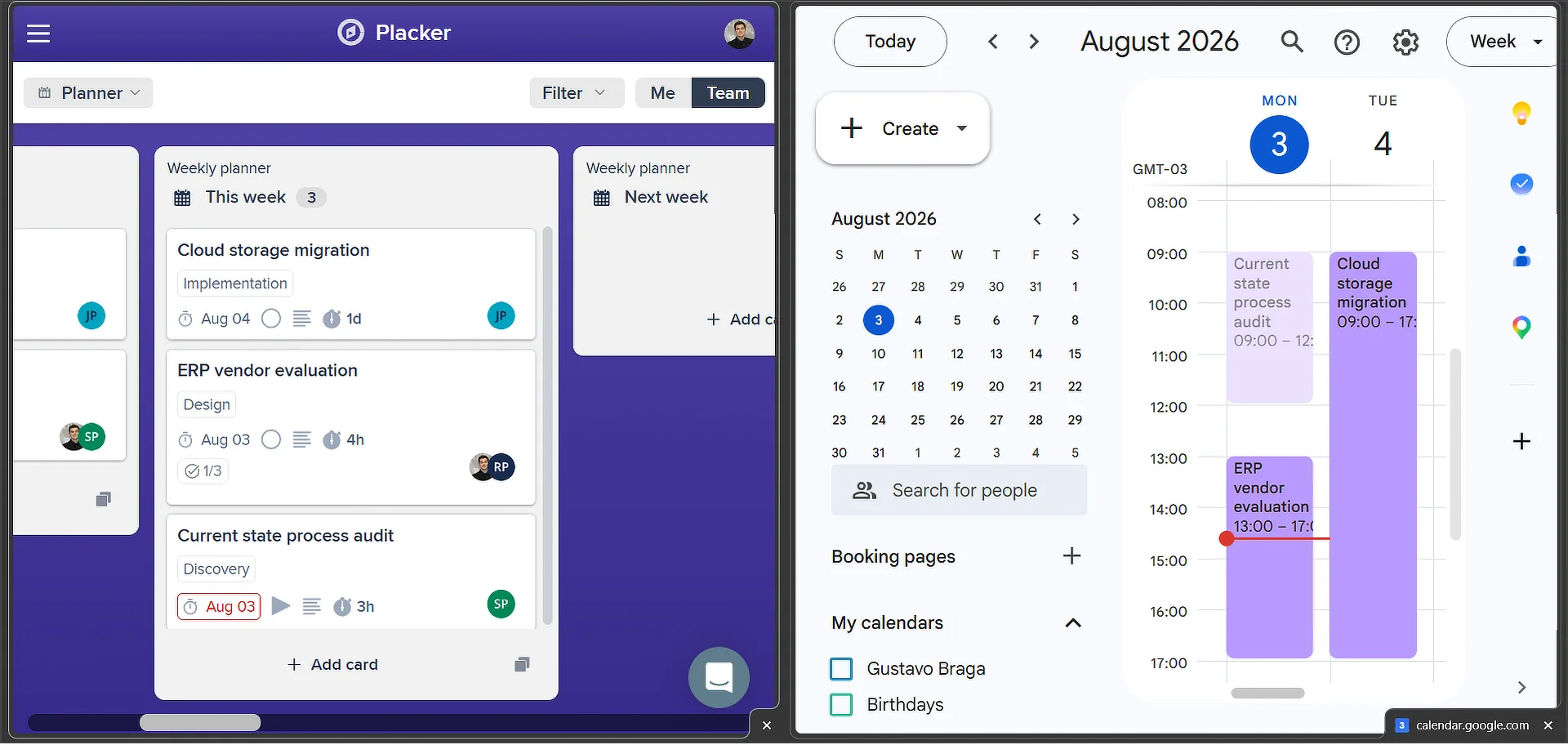
Add or edit cards with due dates
Give a card a due date, or change one, and the event appears or moves in under a minute. Edits made in Google Calendar travel back to the card the same way.
Use cases
Where teams use Google Calendar sync to see Trello deadlines alongside the rest of their day.
Event coordinator with calendar overlay
An event coordinator links Trello cards for each event deliverable to Google Calendar so milestones appear as calendar events. On the weeks leading up to the event, they open the calendar view and immediately see which tasks are due alongside venue bookings and vendor calls.
Remote team with shared deadlines
A remote marketing team syncs their Trello board due dates to a shared Google Calendar so every member can see upcoming deadlines in their personal calendar. Date changes in Trello propagate to the calendar automatically, keeping the whole team aligned without a separate scheduling tool.
Manager with weekly deadline review
A line manager opens a filtered calendar view each Monday to see every Trello card due that week across the team. The integrated view takes 30 seconds versus switching between Trello and a separate calendar to reconstruct the week's priorities.
Tips & Best Practices
Practical advice to get the most out of your workflow
Let Automation set due dates so cards reach your calendar
Only cards with a due date sync. Use Automation rules to set a due date when a card enters a list or gets a label, so new work lands on your Google Calendar without anyone adding the date by hand.
Send Trello deadlines to a dedicated calendar
Point the sync at a separate Google Calendar kept just for Trello deadlines. You can then toggle project dates on or off with one click, keeping your main calendar readable when you only want to see meetings.
Add Google Calendar reminders to synced deadlines
Once a card's due date is a calendar event, add a Google Calendar notification to it, an hour or a day ahead, so you get a heads-up before the deadline instead of only noticing it when you open Trello.
Plan durations on the Gantt, sync deadlines to the calendar
The calendar sync tracks the due date; to plan how long work actually takes, map start-to-due durations on the Gantt chart, then let those deadlines flow to your calendar for day-to-day reminders.
Related pages
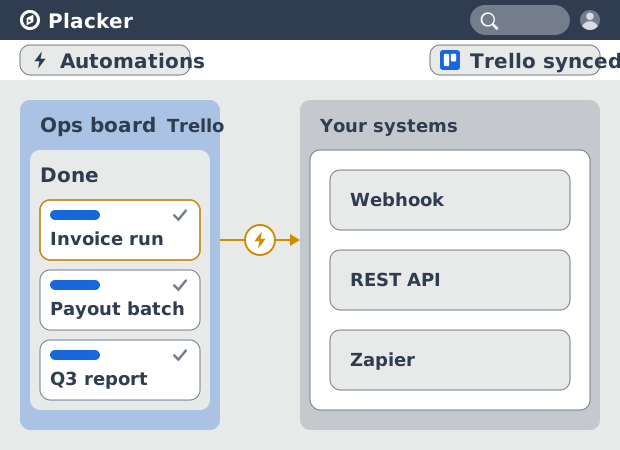
Trello integrations: two-way sync with Placker
Add two-way card sync, Google Calendar, Clockify time tracking, and webhooks to Trello with the Placker Power-Up. See how it works.
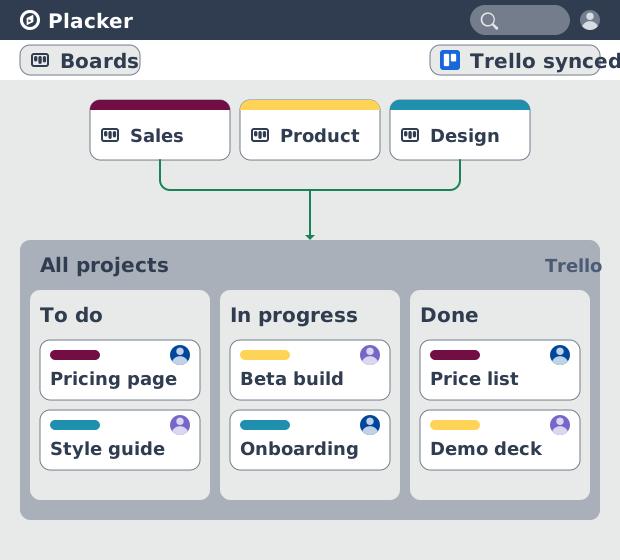
Trello board view: Kanban layouts and reports
Add Kanban structure to your Trello boards with Placker's board view. Group, swimlane, and report on the cards you already have. Add to Trello.
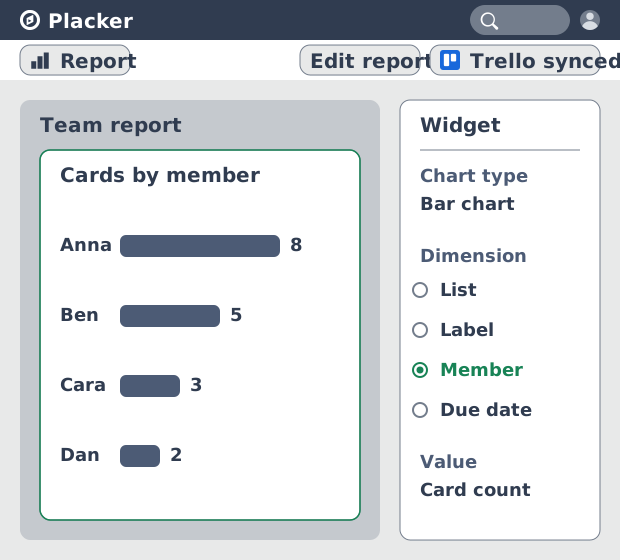
Trello dashboards and reports
Turn your Trello boards into live dashboards. Cross-board reporting, pivot tables, and scheduled PDF reports. Add Reports by Placker to Trello.
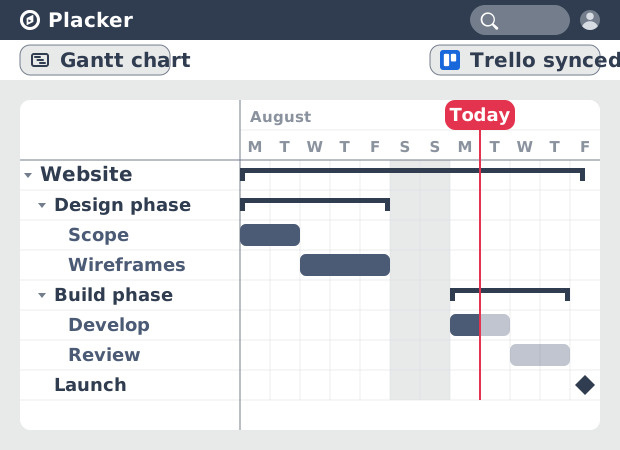
Gantt Chart for Trello with Dependencies
Add a real Gantt chart to your Trello boards. Placker turns cards with dates into a timeline with dependencies, critical path, and resource planning.
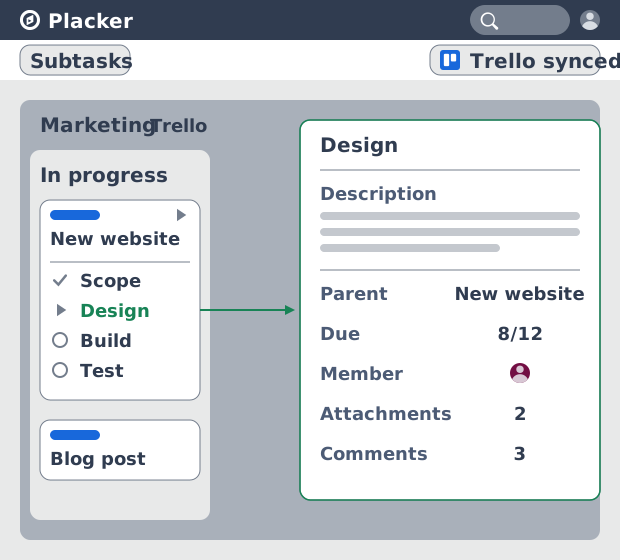
Trello Subtasks: Parent-Child Cards for Trello
Add real subtasks to Trello. Parent-child cards give each checklist item its own card and dates, and roll effort up. Add to Trello free.
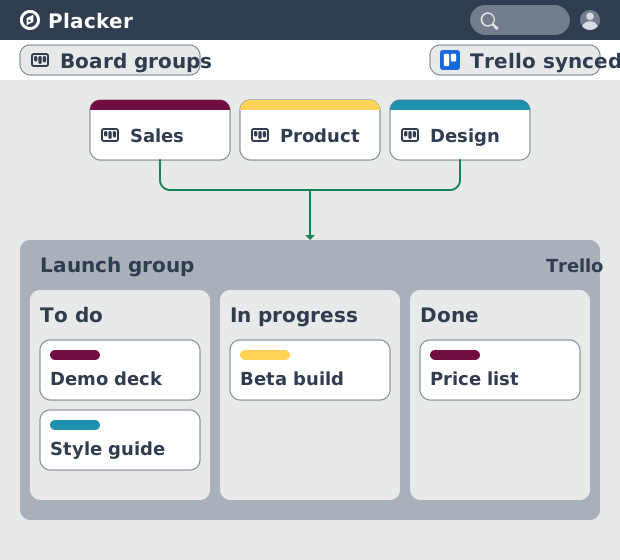
Board Groups for Trello: one combined board view
Load several Trello boards into one combined board view. Placker adds cross-board filtering, drag-and-drop between boards, and combine and split. See how.
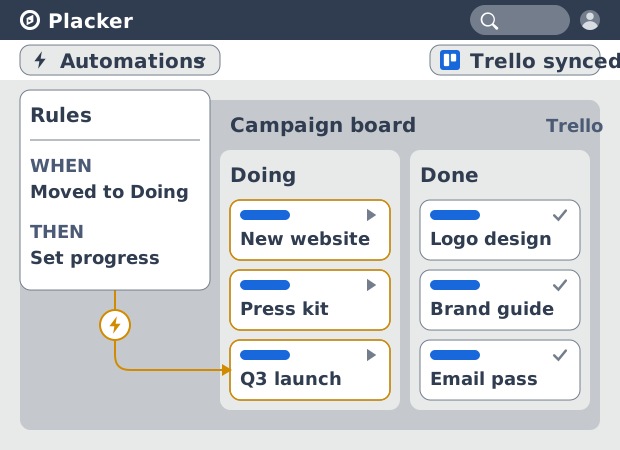
Trello automation rules: beyond Butler limits
Automate Trello boards with no monthly run cap. Placker rules mirror cards two ways and reach fields Butler can't. See how it works.
Ready to supercharge your Trello boards?
Start your 15-day free trial today. No credit card required.