A Trello board view that groups cards beyond your lists
Trello gives you boards, lists, and cards, but only simple lists. Placker's advanced board reads the Trello boards you already run and adds grouping, swimlanes, a due-date layout, and reporting on top, with no card migration required.
Quick facts
Advanced Boards for Trello
Reshape your Trello cards into views Trello can't produce. Here is what you get:
- Layouts Trello can't make. Re-arrange the same Trello cards by member, label, or due date without touching your original board.
- Swimlanes for real structure. Split work into horizontal swimlanes so squads, sprints, or streams each get their own row.
- Sort by what counts. Order each list by story points, effort, or any Trello custom field to surface priorities.
- Filter across boards. Filter by label, member, or due date on one board or several at once, and hide empty lists to cut the noise.
- Spot overload early. See who is stretched before you promise work, so agencies and product teams rebalance ahead of the crunch.
Multiple boards
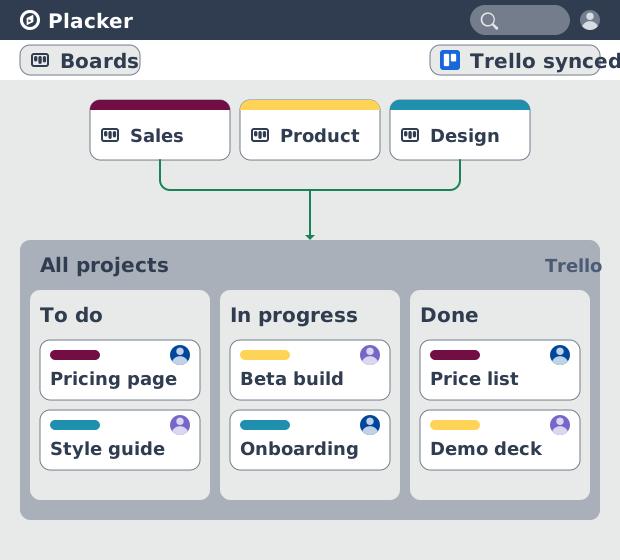
Load multiple boards into one Trello board view
Trello shows one board at a time, so work that spans teams lives in as many tabs as you have boards. Load several Trello boards into a single board view: the cards combine into one board while every card stays where it is in Trello. That gives you portfolio visibility across projects, showing who is doing what on every board, without changing how any team works.
Groups and filters
Group and filter beyond Trello's lists
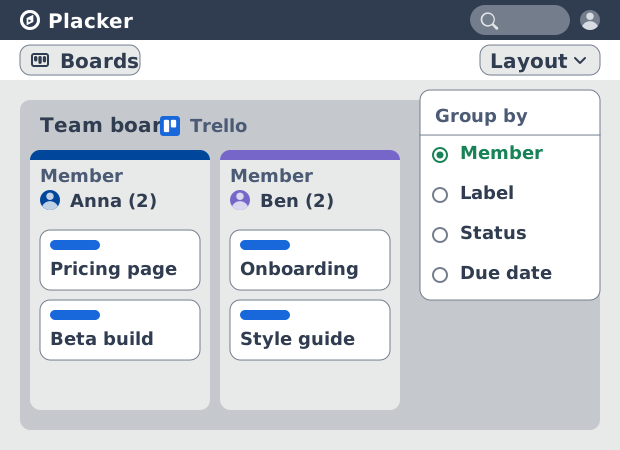
That single board doesn't have to keep Trello's vertical lists and stop there. Group the same cards by member, label, status, or custom field, split them into horizontal swimlanes, or filter down to what is due this month. None of this changes your lists or moves your data; the layout sits on top of the boards you already use, so one board answers who is carrying what and what is due next.
Custom sorting
Sort Trello cards by story points, effort, or dates
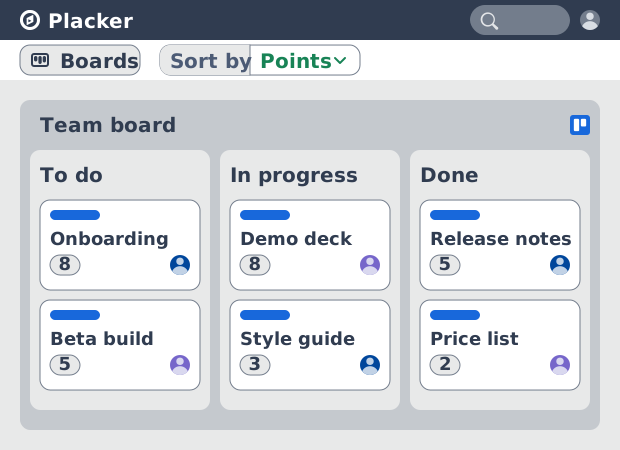
Knowing who is carrying what is one thing; knowing what to do first is another. In Trello, the order of a list is the order someone dragged the cards into. Sort each list instead by attributes such as story points, effort, or due dates, including your Trello custom fields, so the most important work sits at the top of every list. Prioritization becomes something the board does for you: rank by what matters, pick from the top, and re-sort as estimates and dates change.
How It Works
Add the board view to a Trello board in four steps.
- 1
Enable the Placker Power-Up
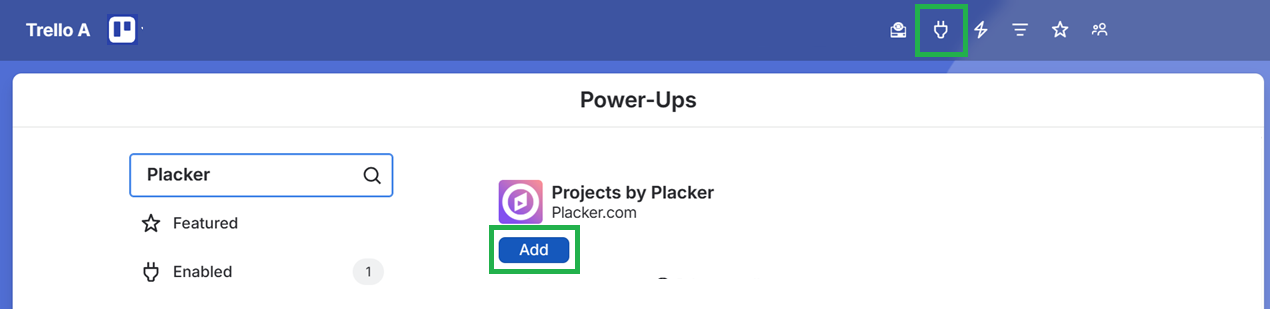
Open your Trello board, click the Power-Ups (plug) icon in the top bar, choose Add Power-Ups, search for Board Groups by Placker, and add it.
- 2
Open the board view
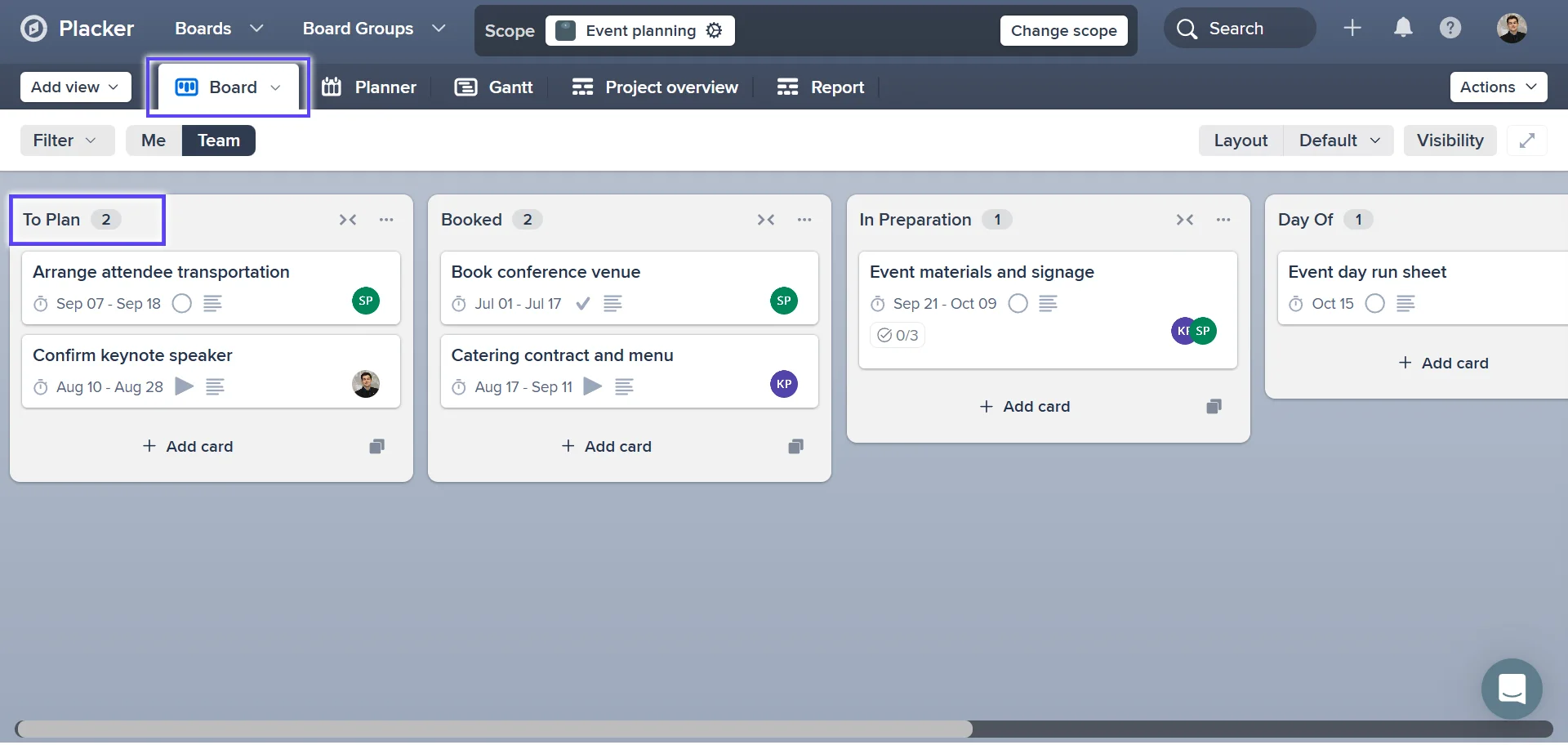
Click the Placker button that now sits in the Trello menu and load your board. Your Trello lists and cards appear in Placker's board view, with each card still tied to its Trello list.
- 3
Pick a layout and filters
Switch the layout between lists, by member, by label, by status, or swimlanes, or open the Planner layout to organize cards by due date. Filter by label, member, or assigned to me, and hide empty lists.
- 4
Move cards and read the flow
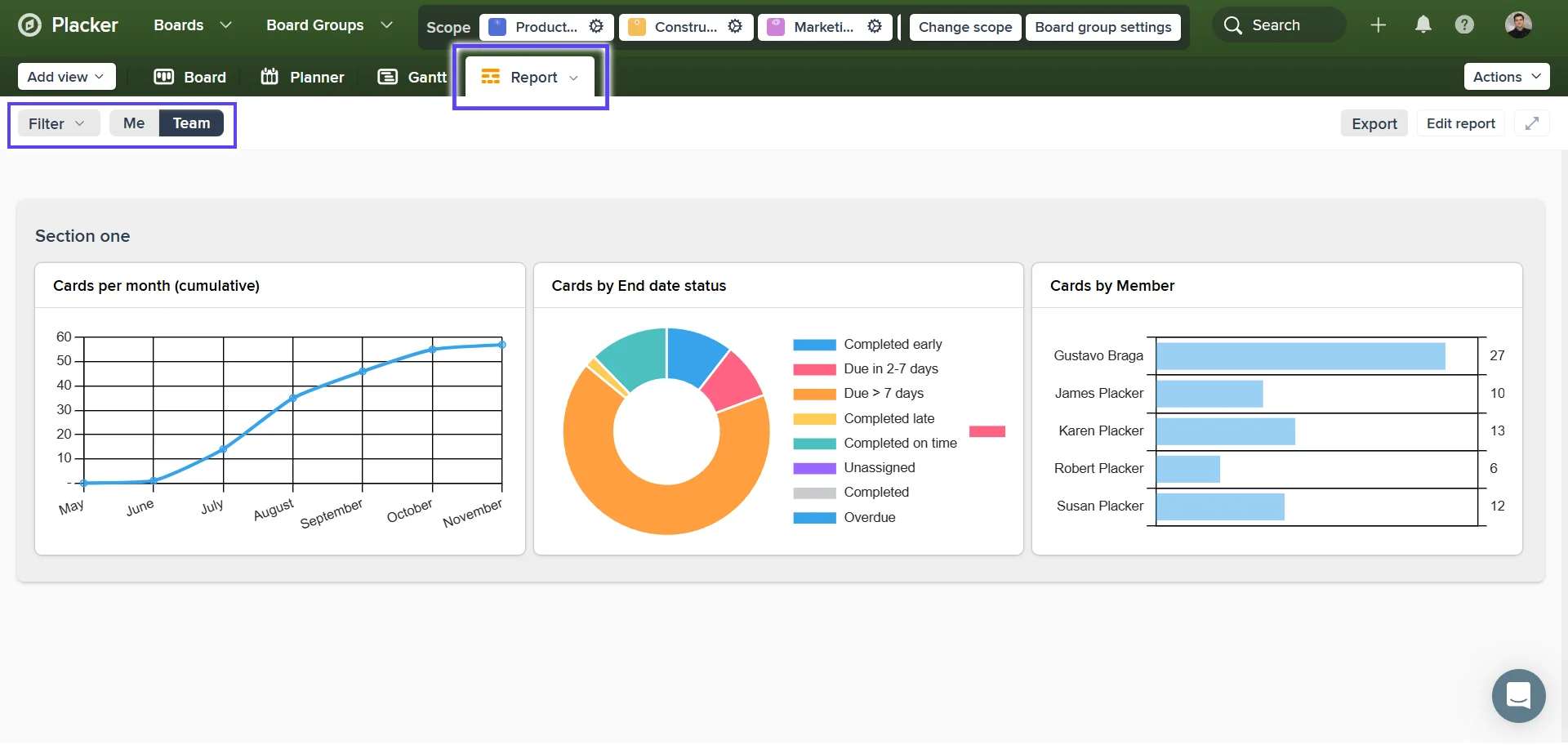
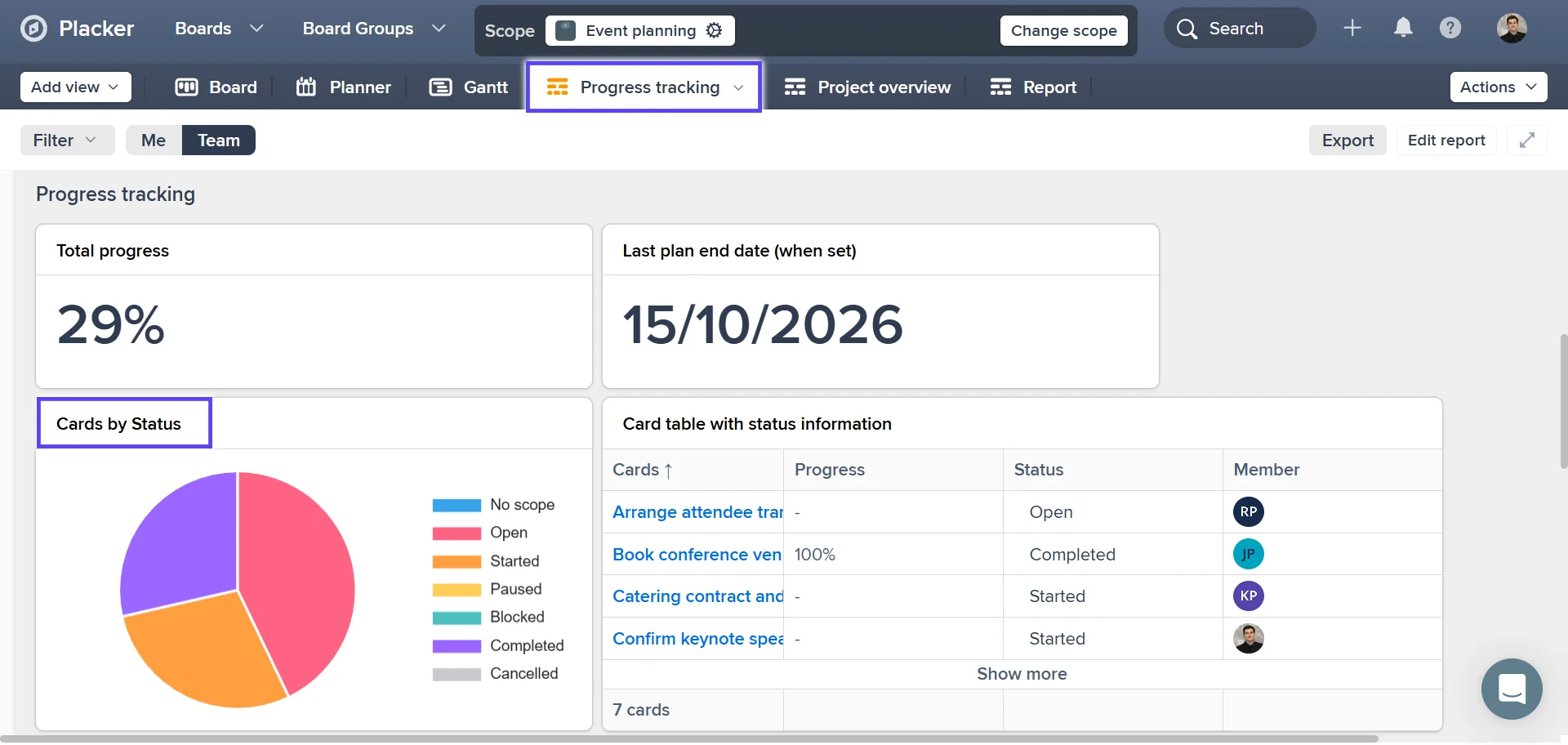
Drag a card to the next list as the work moves, the same gesture as Trello. Open the report view to see cards per stage and lead time, then rebalance where cards are piling up.
Use cases
Where teams use Placker's board views to organize and track work across their Trello boards.
Agency on Trello
An agency keeps one Trello board per client. The account lead groups the board view by member to see who is overloaded before promising a new deliverable, and filters to cards due this week to brief the team on Monday.
Product team on Trello
A product team tracks a sprint on a Trello board with To Do, Doing, and Done lists. Swimlanes split the board by squad, and the Kanban process report shows cycle time per stage, so the team sees where cards stall between development and review.
Marketing team on Trello
A marketing team runs its content calendar on a Trello board with labels for blog, social, and email. They group the board by label to balance the mix, then switch to the Planner layout by due date to read the calendar as deadlines approach.
Tips & Best Practices
Practical advice to get the most out of your workflow
Group into swimlanes, then sort each lane by priority
Stack two layout controls at once: split the board into swimlanes by member, then sort inside each lane by due date or story points. Everyone reads their own row top down with the next thing to do already at the top.
Run standup straight from the board view
Hold your daily standup in the combined view and drag cards between columns as you talk through them. Each move syncs back to Trello in real time, so the meeting ends with the boards already up to date.
Save a separate view for each meeting and report
Build one saved view for standup, another for client reporting, and one for your own task list, each with its own filters and layout. Name them clearly so anyone on the team opens the exact same board in a click.
Send the same cards to a Gantt timeline for date planning
The board view is built for status; when you need to see how dates line up, open the same Trello cards on a timeline. Pair this with Gantt Chart to spot overlaps and gaps the columns hide.
Related pages
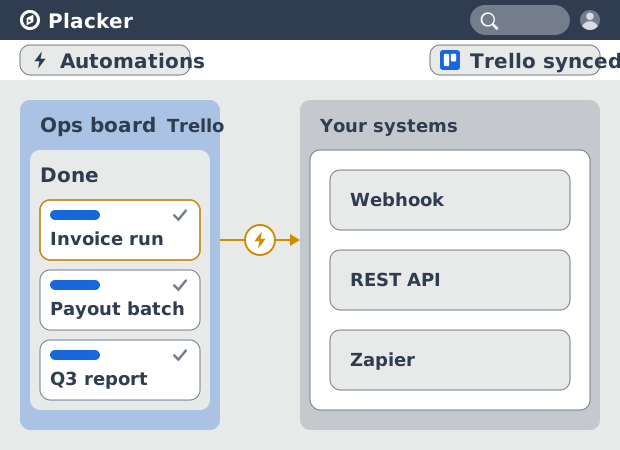
Trello integrations: two-way sync with Placker
Add two-way card sync, Google Calendar, Clockify time tracking, and webhooks to Trello with the Placker Power-Up. See how it works.
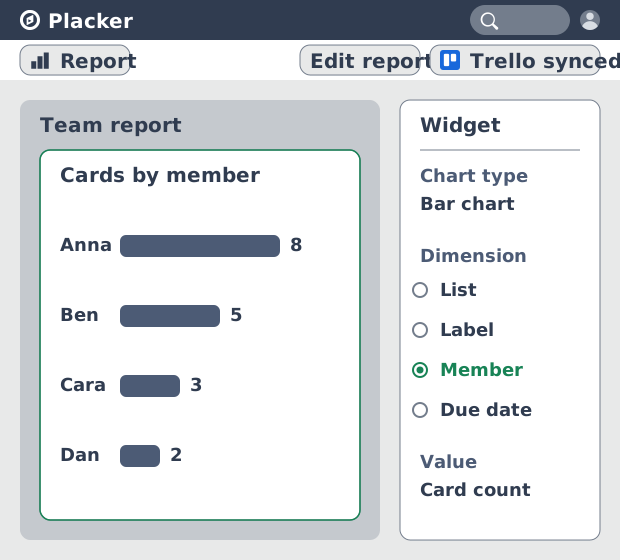
Trello dashboards and reports
Turn your Trello boards into live dashboards. Cross-board reporting, pivot tables, and scheduled PDF reports. Add Reports by Placker to Trello.
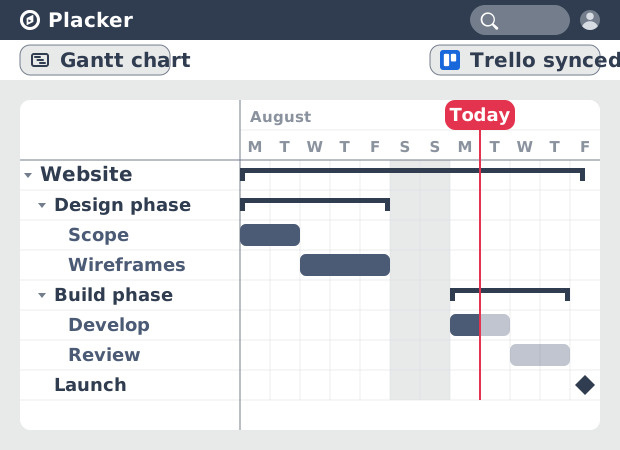
Gantt Chart for Trello with Dependencies
Add a real Gantt chart to your Trello boards. Placker turns cards with dates into a timeline with dependencies, critical path, and resource planning.
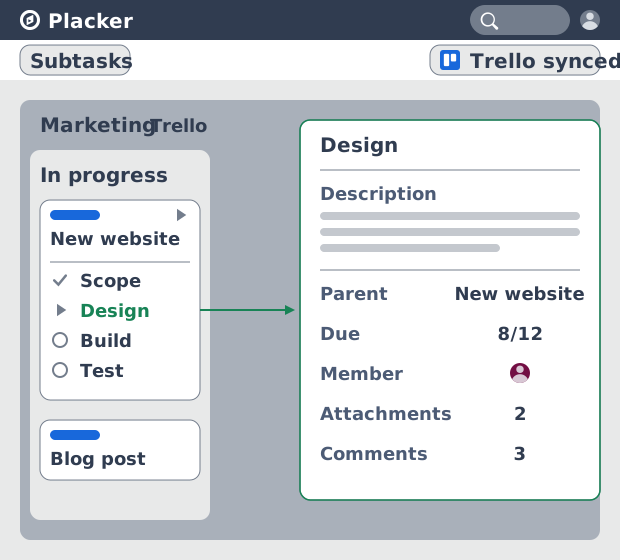
Trello Subtasks: Parent-Child Cards for Trello
Add real subtasks to Trello. Parent-child cards give each checklist item its own card and dates, and roll effort up. Add to Trello free.
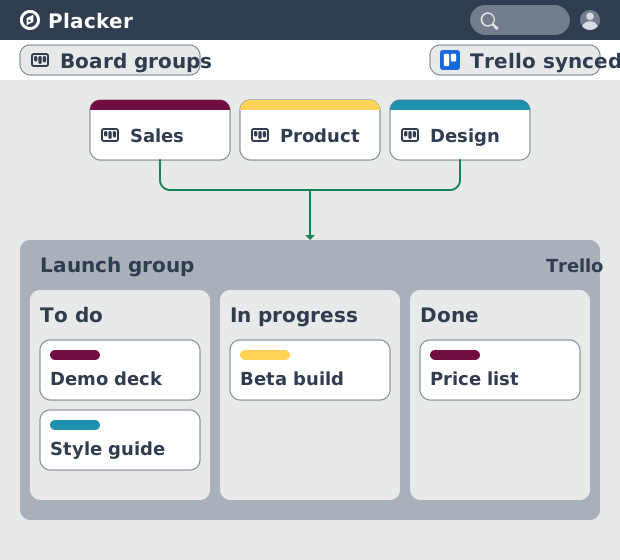
Board Groups for Trello: one combined board view
Load several Trello boards into one combined board view. Placker adds cross-board filtering, drag-and-drop between boards, and combine and split. See how.
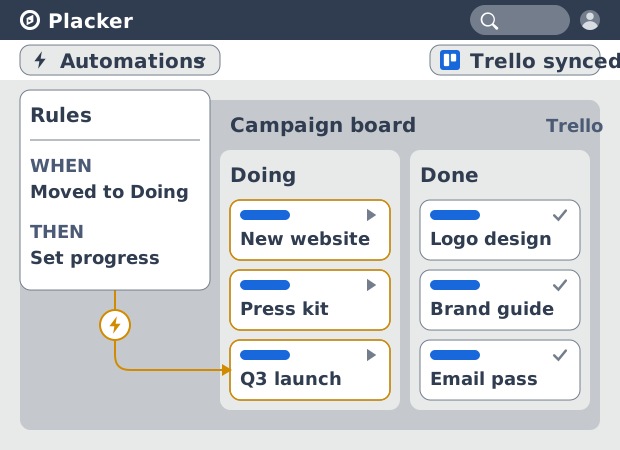
Trello automation rules: beyond Butler limits
Automate Trello boards with no monthly run cap. Placker rules mirror cards two ways and reach fields Butler can't. See how it works.
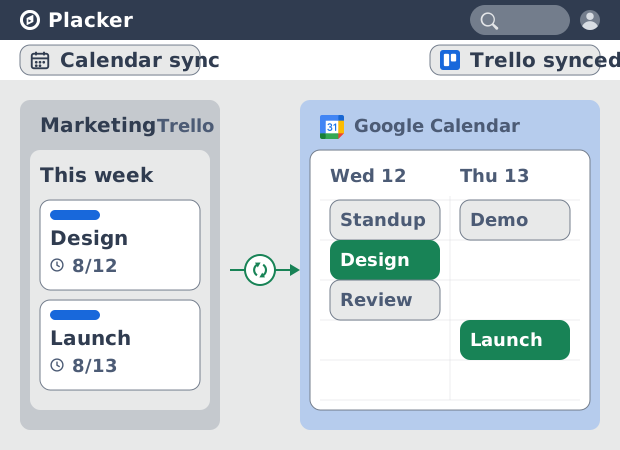
Trello Google Calendar sync: two-way & real-time
Sync Trello cards with due dates to Google Calendar both ways, in under a minute. Edit in either tool and the other updates. Add it to Trello.
Ready to supercharge your Trello boards?
Start your 15-day free trial today. No credit card required.