Trello Board Groups: work across boards without moving cards
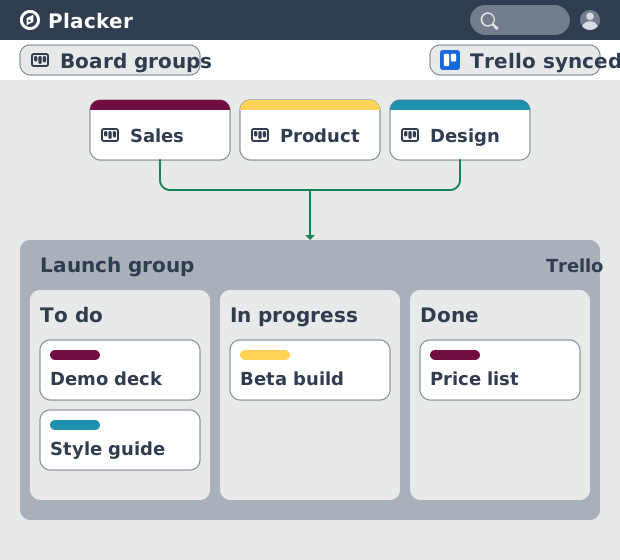
Trello Workspaces and Collections group your boards, but you still open them one at a time, and no single Trello board shows lists and cards from several boards together. Board Groups by Placker loads the boards you pick into one combined board, where each card keeps its board, list, labels, and members.
Quick facts
Board Groups for Trello
Any set of Trello boards, working together in one view. Here is what that gives you:
- All your boards, one view. Load cards from any set of Trello boards into a single view, with each card keeping its original board, list, and labels.
- Filter everything at once. Apply one filter (assigned to me, a label, or a due date) across every board in the group at the same time.
- Drag to move or mirror. Drag cards between boards to move, copy, or mirror them, with mirrors staying synced in both directions.
- Merge or split columns. Merge same-named lists so three boards' To Do becomes one column, or keep each board in its own column.
One combined view
See work across boards with Trello Board Groups
Trello shows one board at a time, and Workspaces only group boards for navigation. Board Groups by Placker loads the boards you choose into one combined board, with each card still showing its source board, list, labels, members, and due date. Your To Do, Doing, and Done lists from several team boards line up in one place, so you stop opening boards in separate tabs to see where work stands. The boards themselves are untouched; the group is a view on top of them.
Cross-board filters
Find any card with one cross-board filter
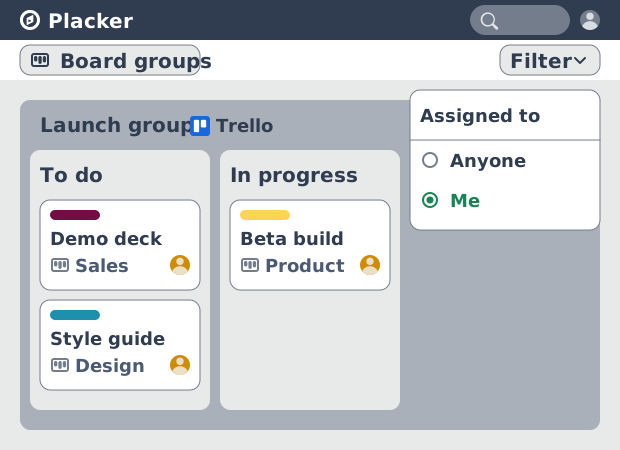
That combined board holds cards from every board you added, and one filter searches all of them. Native Trello filters apply only to the board you are on; in a Board Group the filter runs across every board at once, so assigned to me, a label, a due date, or a member returns matching cards from all the boards together. A team lead filters a group of project boards to one member and reads that person's whole workload without checking each board. Layouts by Members, Labels, or Status reorganize the combined cards the same way.
Move and mirror
Move and mirror cards between Trello boards
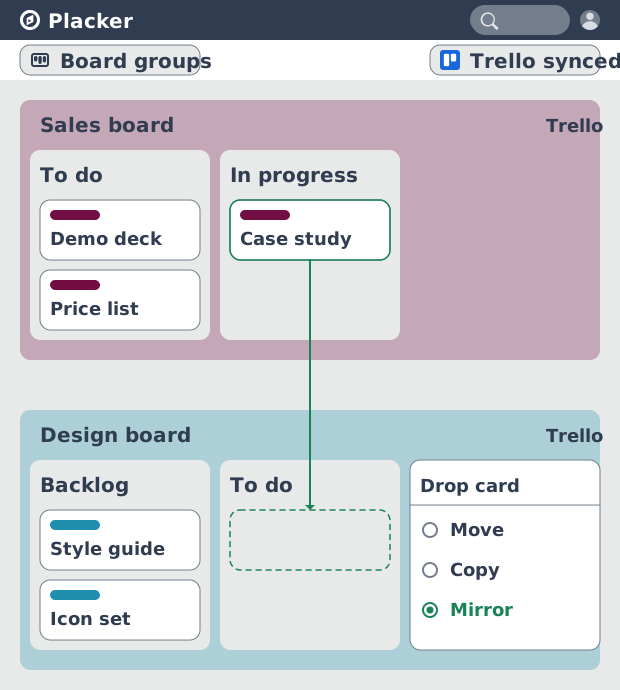
Filters and layouts rearrange how the combined cards show, but moving a card changes where it actually lives. Drag a card from one Trello board to another inside the group, and you choose whether to move it, copy it, or keep a synced mirror that updates on both boards. A mirror keeps the card's fields matched, which is how a request on an intake board can also live on a delivery board. You reorganize work across boards without exporting cards or rebuilding them by hand.
How It Works
Enable the Power-Up, pick the Trello boards for a group, filter and arrange the combined board, then save the group to reuse it.
- 1
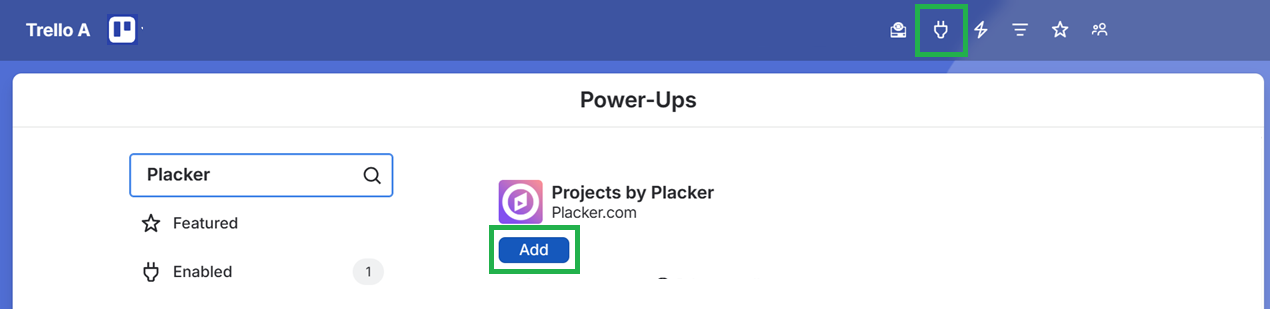
Add the Power-Up to your board
Open a Trello board, click Power-Ups, and enable Board Groups by Placker. Sign in to connect the boards you want to load together.
- 2
Pick the boards for the group
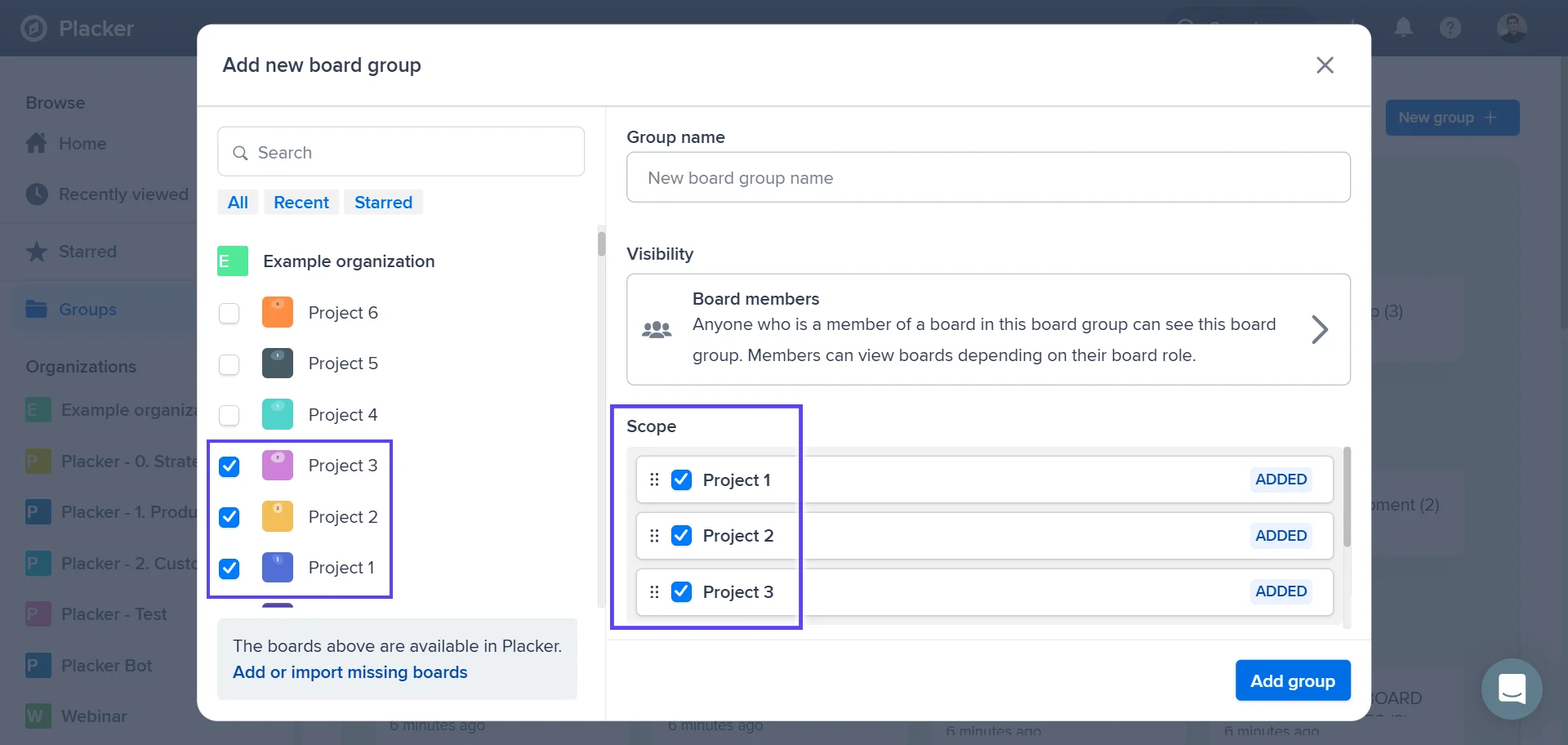
Open Change scope, select the Trello boards to include, and save them as a new group. The boards load into one combined board.
- 3
Filter and arrange
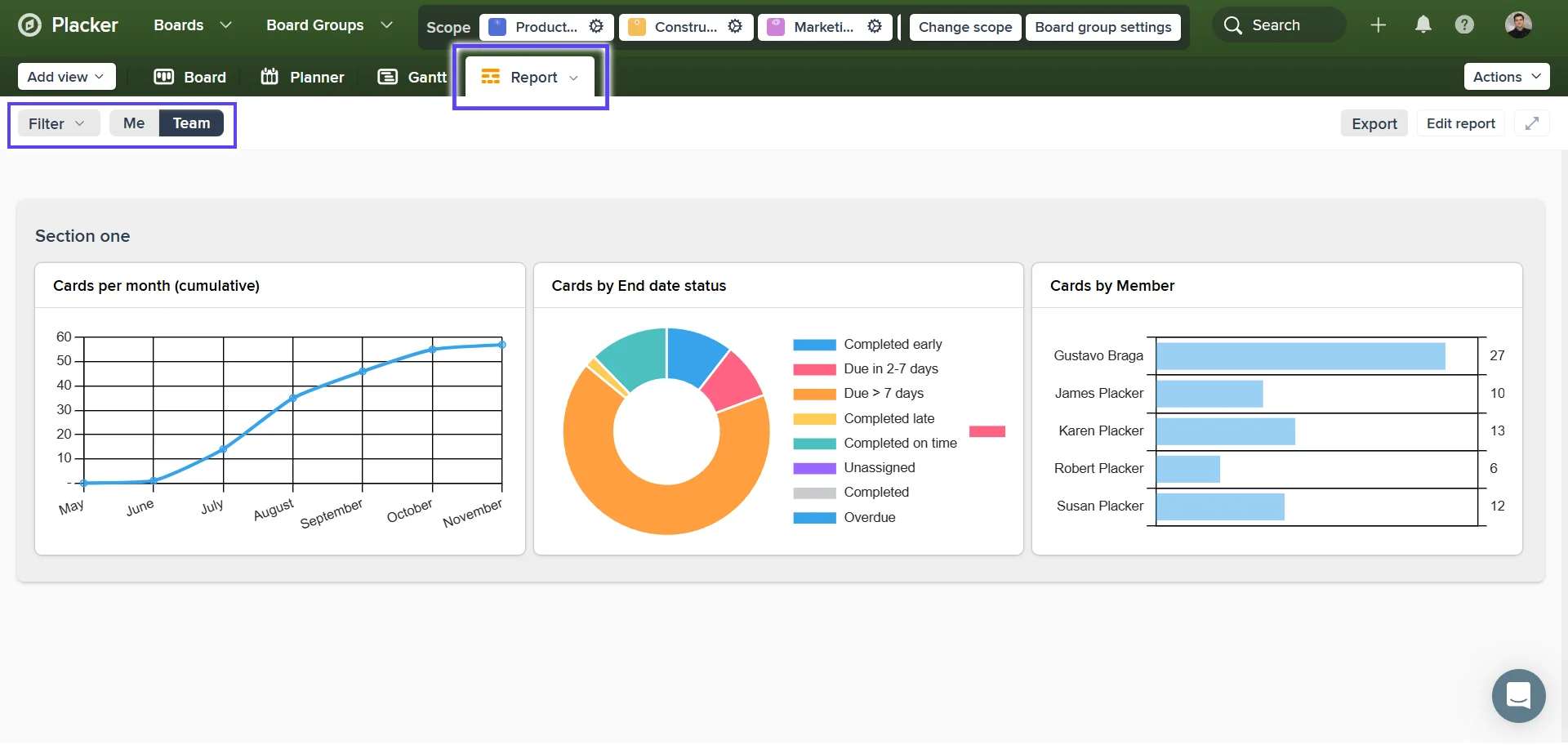
Apply a cross-board filter such as assigned to me or a label, switch between Combine and Split, and choose a layout by Lists, Members, Labels, or Status.
Use cases
Where teams use Board Groups to plan and report across several Trello boards at once.
Ops lead grouping by owner
An operations lead groups a Trello board by the 'Assigned to' custom field to see each team member's workload at a glance. Cards are color-coded by swimlane, so it takes seconds to spot who is overloaded before handing out new tasks.
Product team grouping by priority
A product team uses Board Groups to split the backlog into Critical, High, and Normal priority swimlanes. The team focuses on the Critical group at standup and only moves to lower priorities once the top group is clear.
Agency grouping by client
A creative agency manages multiple client projects on one Trello board and uses Board Groups to create a swimlane per client. The account manager reviews each client row in isolation during weekly check-ins without losing the shared board context.
Tips & Best Practices
Practical advice to get the most out of your workflow
Build a standing group for your weekly review
Set up one group with exactly the boards your weekly review covers, then reopen it each week instead of rebuilding filters. The combined view is ready the moment the meeting starts.
Add a new board to the group instead of a new tab
When a project spins up, drop its board into an existing group rather than juggling another browser tab. The combined view now covers it, and your saved filters and layout still apply.
Open a Board Group on the Gantt for a portfolio timeline
A saved group already combines the boards you care about, so switch it to a timeline to see every project's dates together. Pair this with Gantt Chart to catch clashes across boards before they hit.
Report on a whole group in one pass
Because a group already gathers the boards you track, you can measure them together instead of board by board. Pair this with Reports to chart workload and throughput across every project in the group.
Related pages
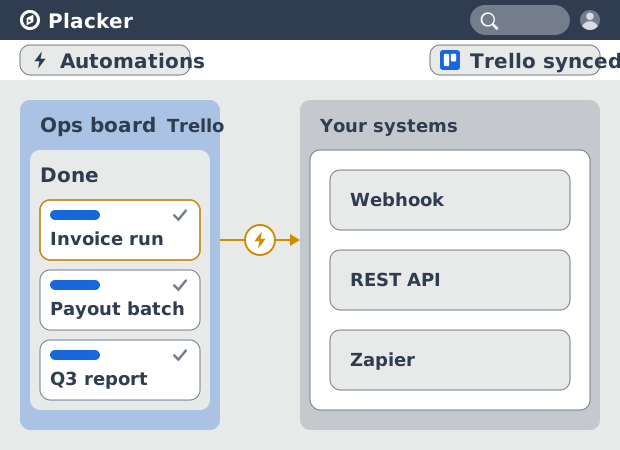
Trello integrations: two-way sync with Placker
Add two-way card sync, Google Calendar, Clockify time tracking, and webhooks to Trello with the Placker Power-Up. See how it works.
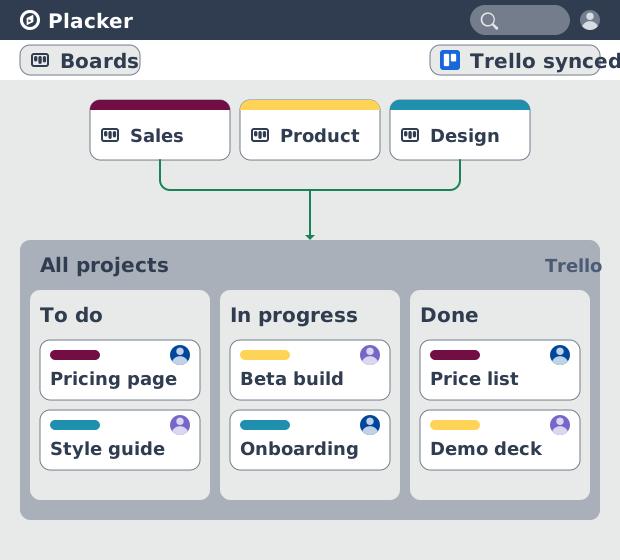
Trello board view: Kanban layouts and reports
Add Kanban structure to your Trello boards with Placker's board view. Group, swimlane, and report on the cards you already have. Add to Trello.
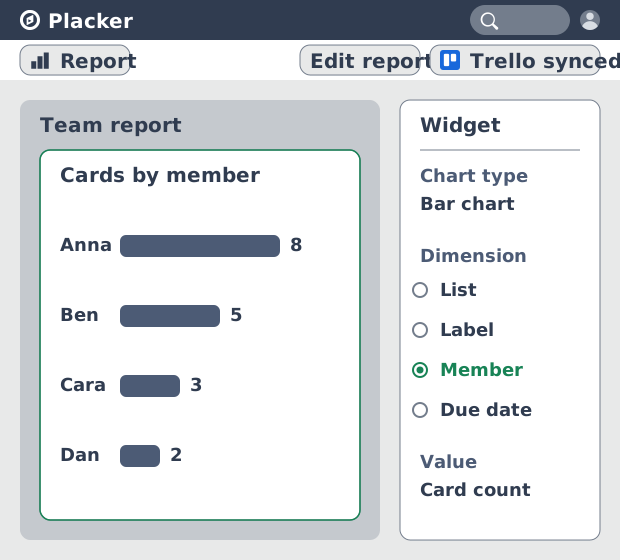
Trello dashboards and reports
Turn your Trello boards into live dashboards. Cross-board reporting, pivot tables, and scheduled PDF reports. Add Reports by Placker to Trello.
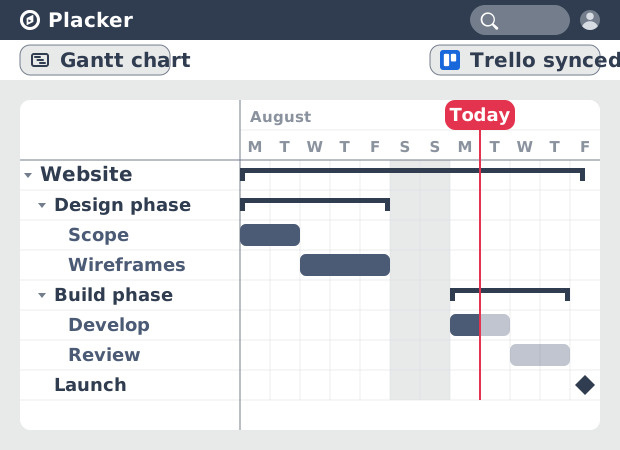
Gantt Chart for Trello with Dependencies
Add a real Gantt chart to your Trello boards. Placker turns cards with dates into a timeline with dependencies, critical path, and resource planning.
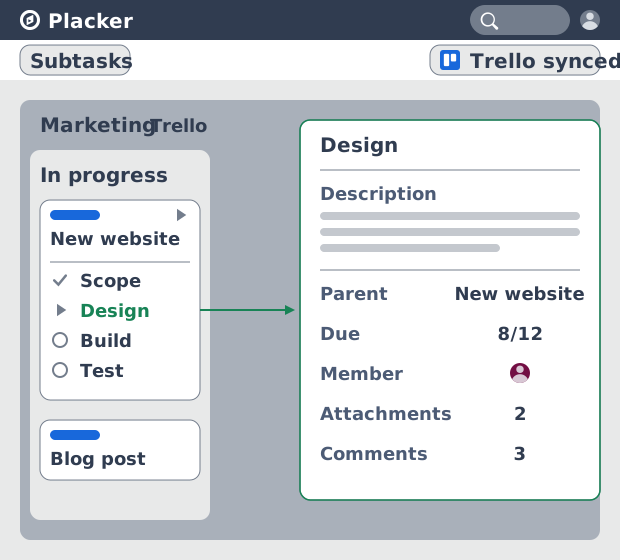
Trello Subtasks: Parent-Child Cards for Trello
Add real subtasks to Trello. Parent-child cards give each checklist item its own card and dates, and roll effort up. Add to Trello free.
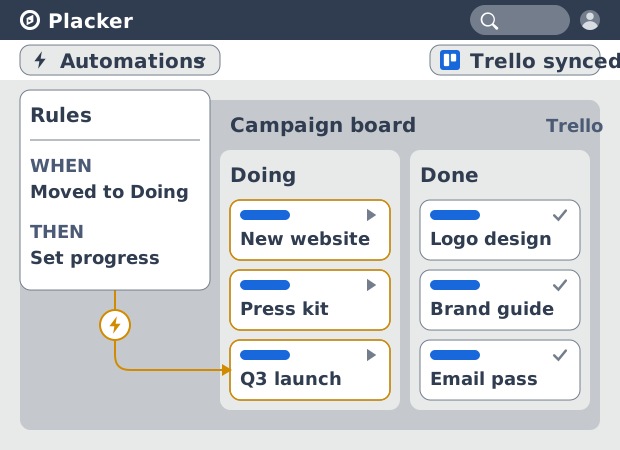
Trello automation rules: beyond Butler limits
Automate Trello boards with no monthly run cap. Placker rules mirror cards two ways and reach fields Butler can't. See how it works.
Trello Google Calendar sync: two-way & real-time
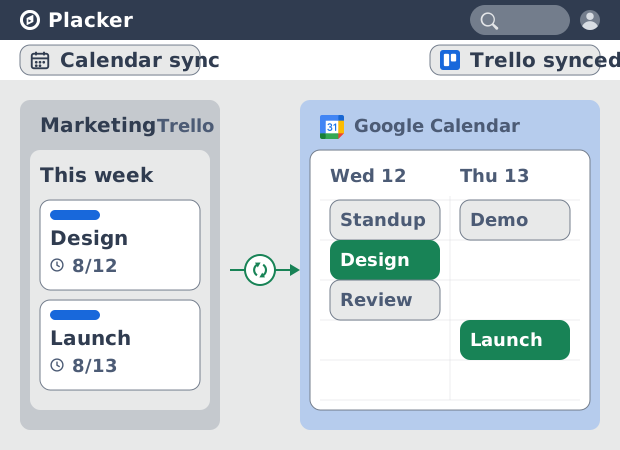
Sync Trello cards with due dates to Google Calendar both ways, in under a minute. Edit in either tool and the other updates. Add it to Trello.
Ready to supercharge your Trello boards?
Start your 15-day free trial today. No credit card required.