Resource planner for Trello that counts hours, not cards
Trello's dashboard shows how many cards each member has, not how many hours they have committed. Placker adds committed hours per member per day, overallocation highlighting, and FTE-based capacity reports directly inside your Trello workflow.
Quick facts
Resource Planner quick facts: Trello
Turn Trello cards into an hour-based view of who is overloaded, and when:
- Hours per member, not card counts. Placker replaces Trello's card-counting workload view with hour-based bars per team member per day, so you see who is committed to how many hours, not just who has the most cards.
- Overloaded days surface automatically. When a member's planned hours exceed their daily capacity, Placker highlights that day in the Resource Planner, right where you're making decisions.
- One view across every Trello board. Board Groups pull cards from any set of Trello boards into a single capacity view, showing total load per member across your full book of work.
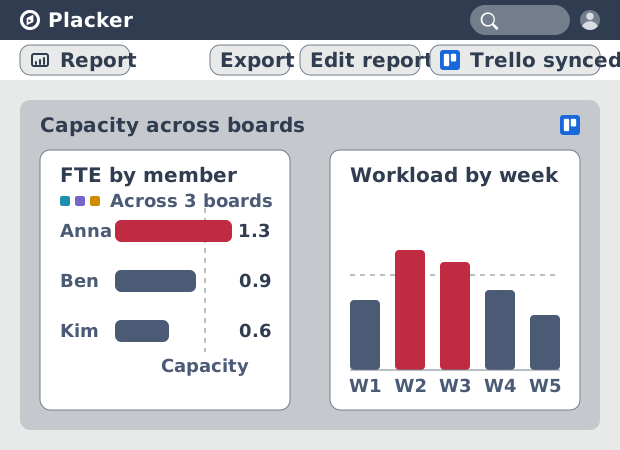
- FTE tells you if the plan is deliverable. The Capacity Planning Report divides planned effort by available capacity per member, so a score above 1.0 flags more work than the team has hours for, before you commit.
Committed hours
Committed hours, not card counts
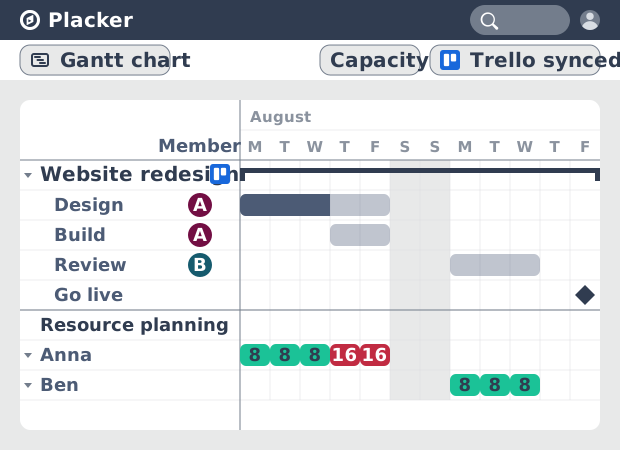
The Placker Resource Planner displays a Gantt-style view with one row per Trello team member. Each row shows a workload bar built from the effort estimates on each card assigned to that person. The default capacity is 8 hours per day and you can configure a different value for each member.
Trello's built-in dashboard widget shows card counts. A member with three two-hour cards and a member with three eight-hour cards look identical in that view. The Resource Planner exposes the difference as a visual bar, with overallocated days highlighted so you can act before delivery is at risk.
You stop assigning by feel. When a new card arrives, open the Resource Planner, check the row for each member, and assign it to whoever has headroom. The decision takes seconds and is based on actual hours, not on your memory of who seemed busy last week.
FTE reporting
Cross-board capacity planning and FTE reports
Multiple Trello boards connect into a single resource view using Board Groups and portfolio views. The Capacity Planning Report aggregates effort across all connected boards and expresses workload as FTE for each member. A score above 1.0 means the person is overallocated across the full set of boards.
Teams running more than one Trello board have no native way to see combined workload. A member could be at 6 hours on a client board and 5 hours on an internal board on the same day. Trello shows no combined total. Most teams find out about the conflict when someone misses a deadline.
You get a factual picture of capacity across your full Trello portfolio. Headcount decisions, project intake, and sprint planning all start from the same numbers rather than from separate board-by-board estimates.
Effort tracking
Plan, track, and adjust effort on Trello cards
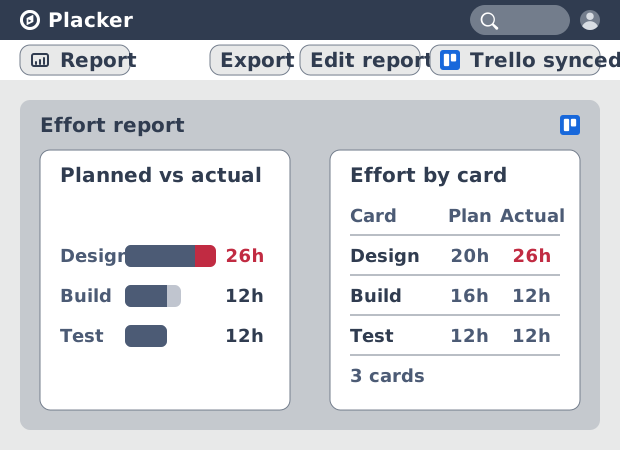
Each Trello card in Placker carries three effort fields: planned, actual, and remaining. You set the estimate at the start, log actuals as work progresses, and remaining adjusts automatically. The Capacity Planning Report and Resource Planner reflect the current state in real time.
Trello cards carry no native effort fields. Teams that need plan-versus-actual comparison typically export data to a spreadsheet and maintain it separately from the board. All three fields live inside the card, keeping the data where the work happens.
You close the gap between the plan and reality without leaving Trello. When actuals diverge from estimates mid-sprint, you see the drift in the Resource Planner and can replan inside the same tool your team already uses.
How It Works
Turn Trello cards into an hour-based view of who's overloaded, in four steps.
- 1
Open the Gantt view to see workload rows
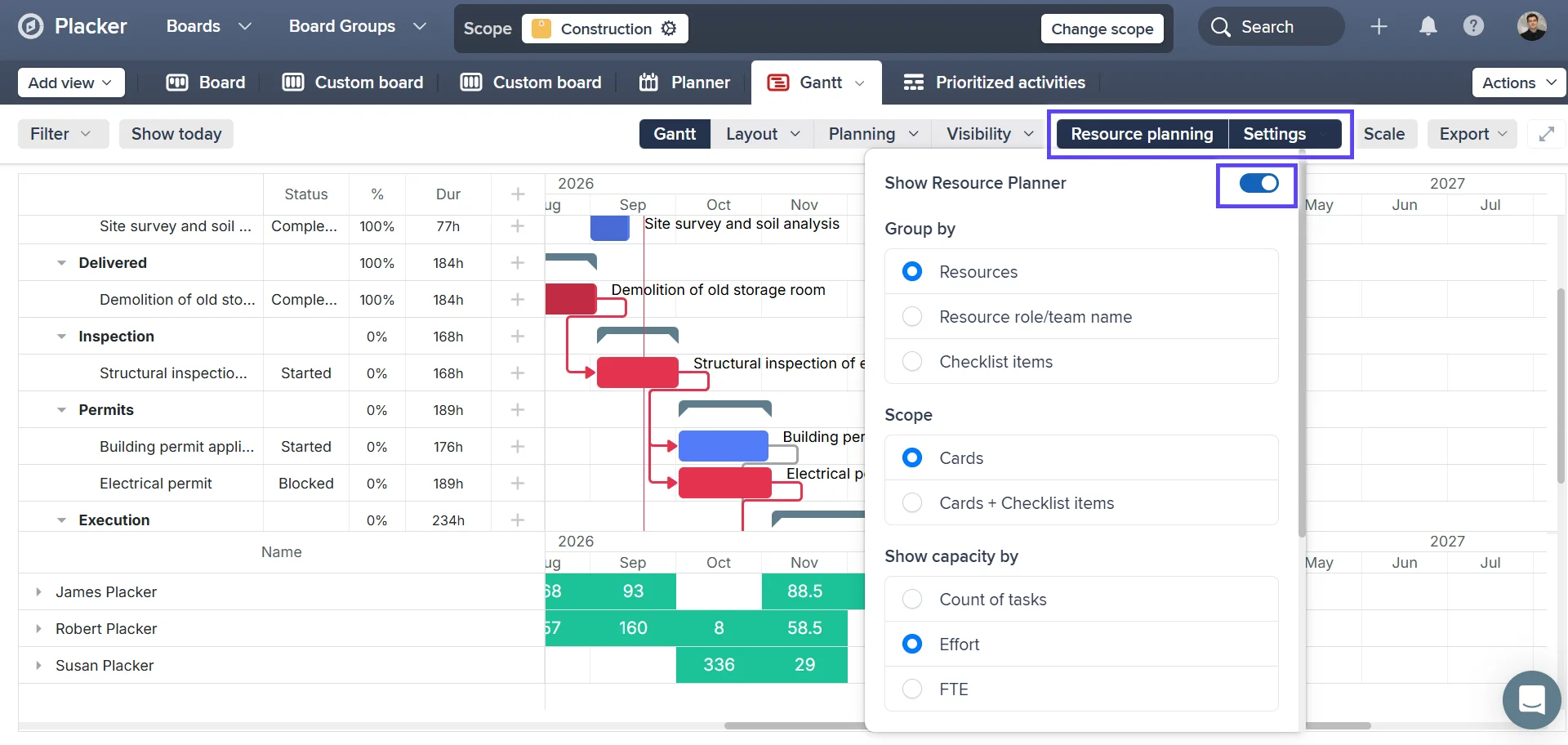
Switch to Placker's Gantt view and toggle Show Resource Planner. Each Trello member appears as a row with a workload bar, using a default capacity of 8 hours per day that you can adjust per member.
- 2
Add effort estimates to your cards
Set planned effort on each Trello card. Overallocated days highlight on the member's row automatically, so you catch the conflict before it affects delivery.
- 3
Check assignments in the Capacity Planning Report
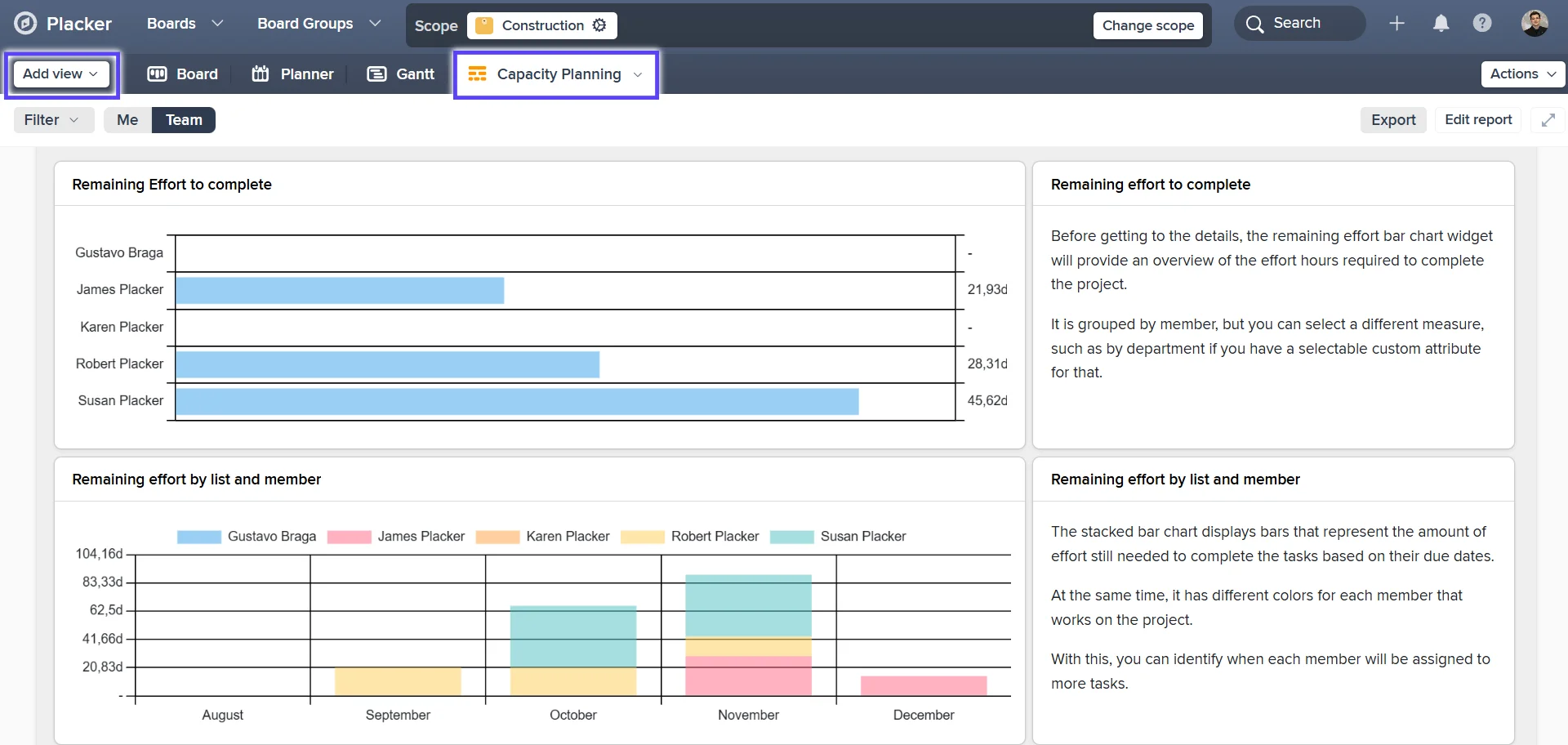
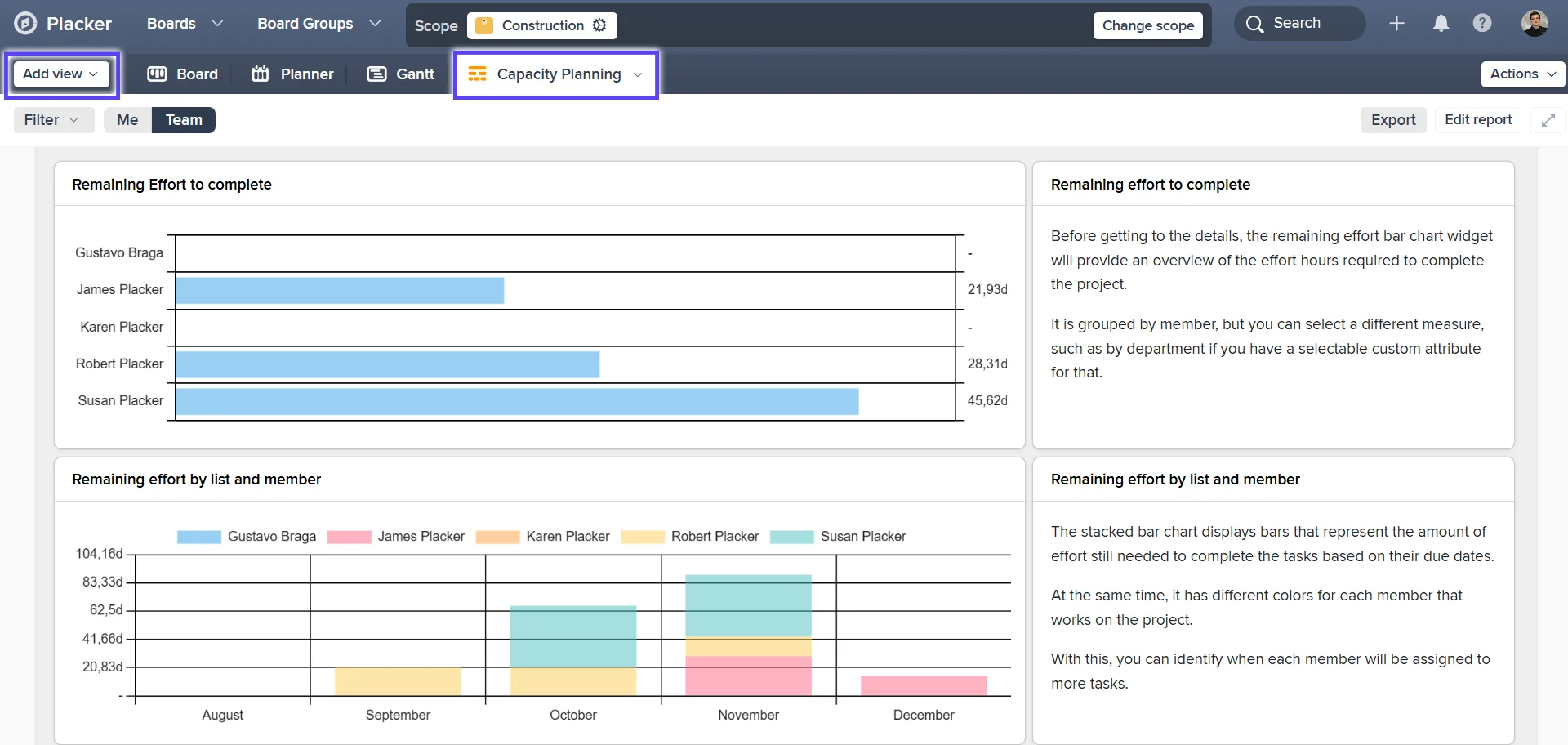
Open the Capacity Planning Report to see workload per member.
- 4
Roll up capacity across boards with Board Groups
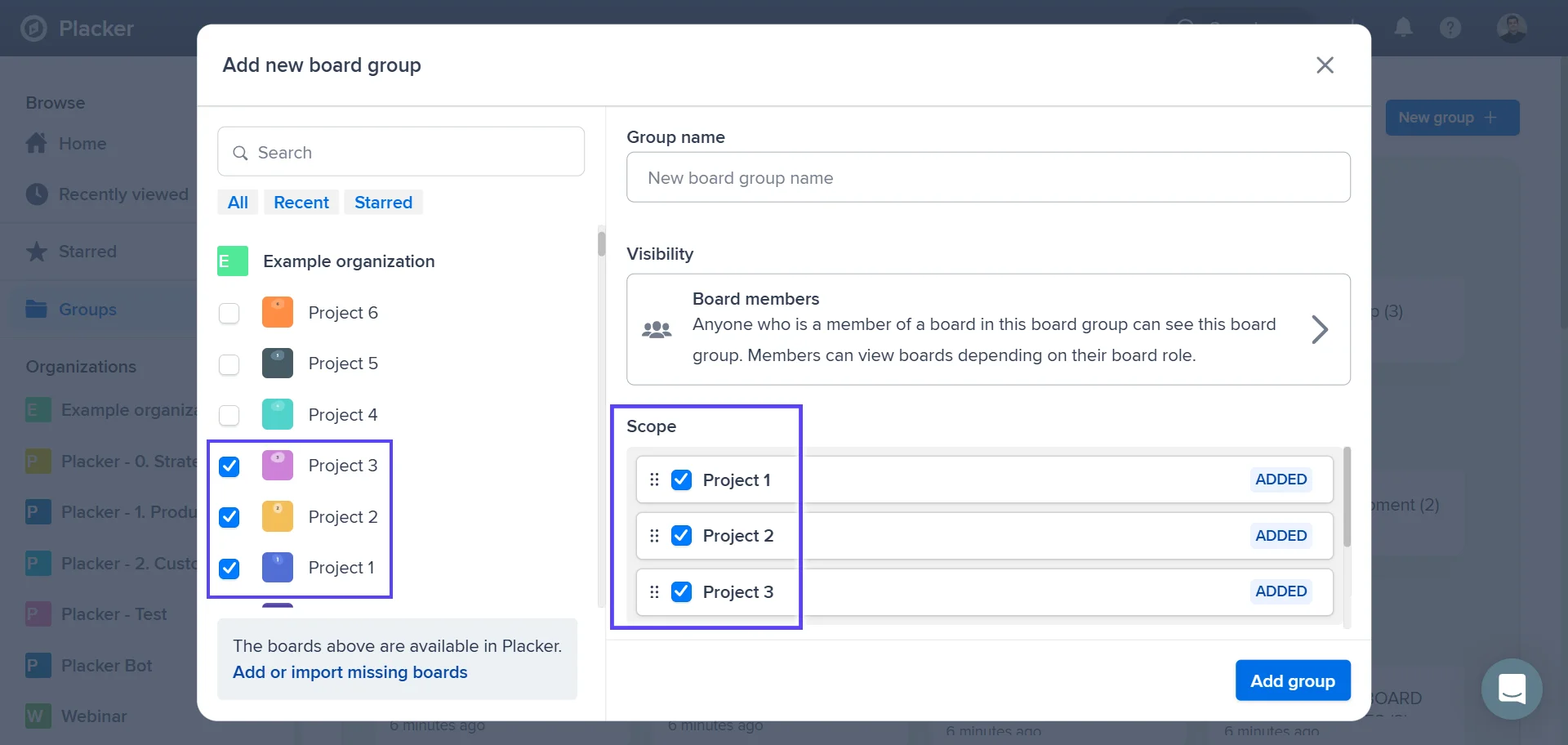
Connect multiple Trello boards with Board Groups or a masterboard to see combined workload in a single resource view, instead of checking each board separately.
Use cases
Where teams use the resource planner to balance workloads and avoid over-committing people.
Ops manager with capacity view
An operations manager opens the Placker resource planner each Monday to see how many hours each Trello board member has committed for the week. Cards with no assignee get routed to the person with the most available capacity.
Scrum master balancing sprint load
A scrum master uses the resource planner to review team capacity before the sprint planning meeting. The planner shows who has room and who is already at capacity, so story point allocation is grounded in actual availability rather than guesswork.
Agency resourcing multiple clients
An agency project manager uses the resource planner to see each designer and developer's hours committed across all Trello client boards. Before promising a tight turnaround to a new client, the planner confirms whether the capacity actually exists.
Tips & Best Practices
Practical advice to get the most out of your workflow
Use Resource Planner to see how your Trello team's workload is distributed
Placker's Resource Planner visualises each team member's cards over time, colour-coded to show when they're at capacity, under-allocated, or overloaded. Great for catching imbalances before they cause problems.
Drag Trello cards in Resource Planner to rebalance the team
When you see one team member's lane overflowing, drag their cards to someone with spare capacity or shift the dates. Placker syncs the changes back to Trello automatically, no card-by-card editing needed.
Check Resource Planner before assigning new Trello cards
Before adding a new card to someone's queue, open Resource Planner to see how busy they already are. Two minutes of capacity-checking saves you from discovering the overload mid-sprint.
Review Resource Planner at the start of each week to stay ahead
A quick weekly check of your team's resource view helps you spot overloads and gaps before they become crises. It's the easiest way to keep workload balanced without constant check-ins.
Discover our Power-Ups
Use our Power-Ups to level up your project management game

Projects by Placker
- Description
- An all-in-one Power-Up for Trello. Combine boards, mirror cards, view tasks in a Gantt chart, generate a dashboard, and more.

Gantt Chart for Trello
- Description
- Gantt chart, Resource Planning and extended timeline view. All-in-one project management for Trello by Placker

Board Groups (By Placker)
- Description
- Combine any numbers of boards in a boardgroup to manage cards effectively across boards

Reports (by Placker) 📈
- Description
- 📈 Track and report your work across boards on real-time dashboards 📊
Related pages
Trello integrations: two-way sync with Placker
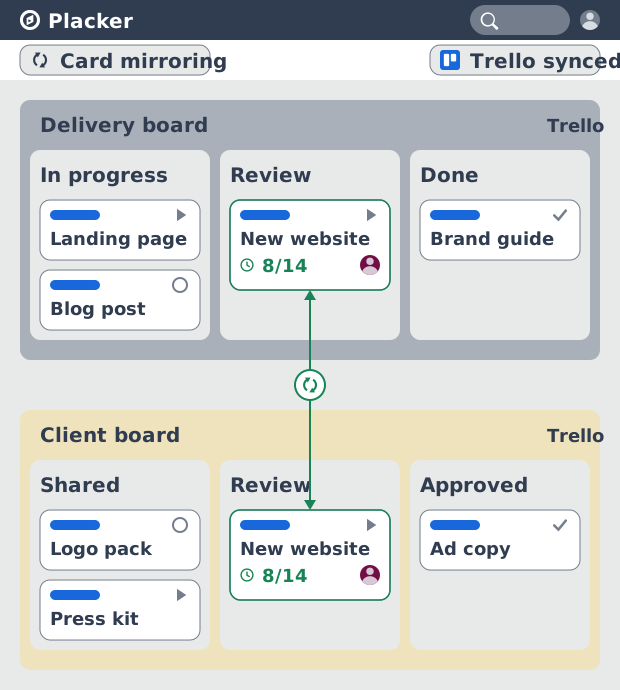
Add two-way card sync, Google Calendar, Clockify time tracking, and webhooks to Trello with the Placker Power-Up. See how it works.
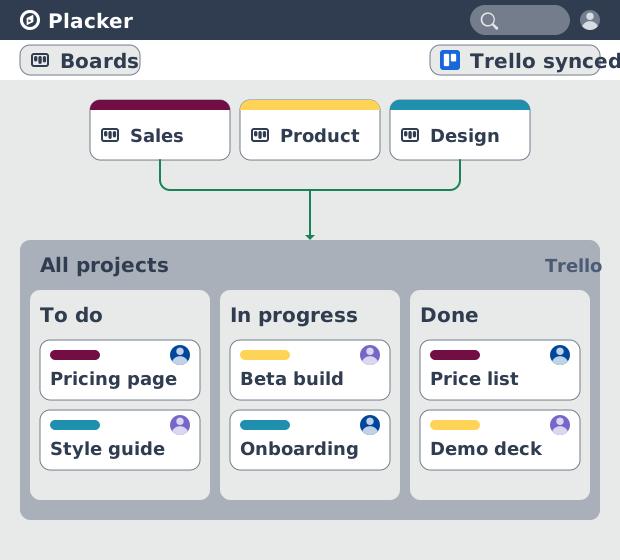
Trello board view: Kanban layouts and reports
Add Kanban structure to your Trello boards with Placker's board view. Group, swimlane, and report on the cards you already have. Add to Trello.
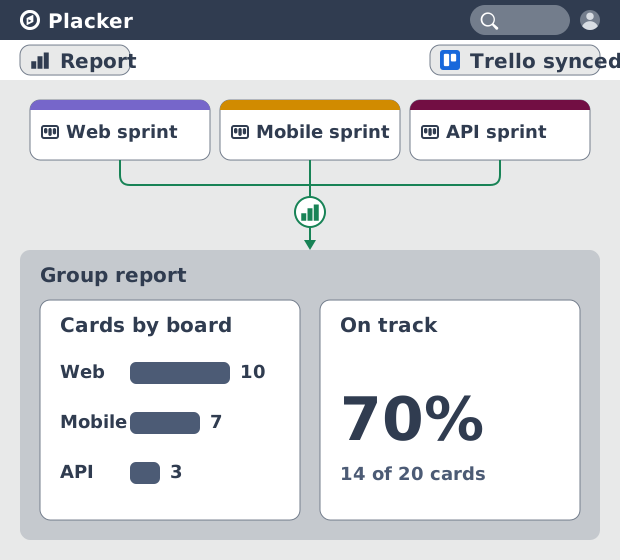
Trello dashboards and reports
Turn your Trello boards into live dashboards. Cross-board reporting, pivot tables, and scheduled PDF reports. Add Reports by Placker to Trello.
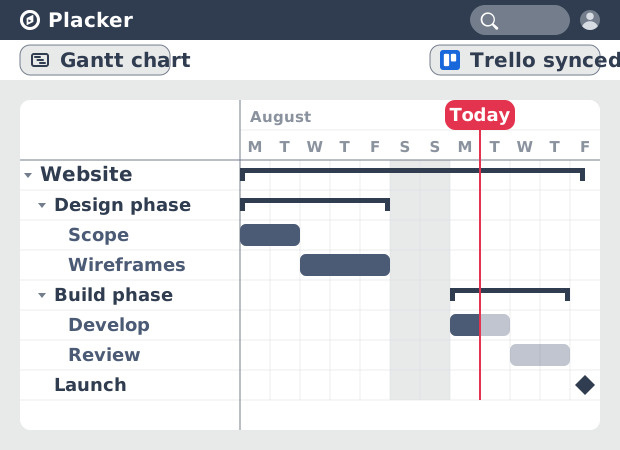
Gantt Chart for Trello with Dependencies
Add a real Gantt chart to your Trello boards. Placker turns cards with dates into a timeline with dependencies, critical path, and resource planning.
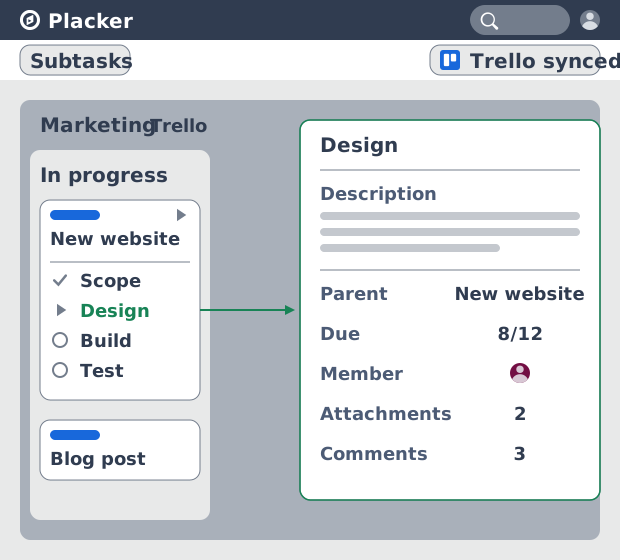
Trello Subtasks: Parent-Child Cards for Trello
Add real subtasks to Trello. Parent-child cards give each checklist item its own card and dates, and roll effort up. Add to Trello free.
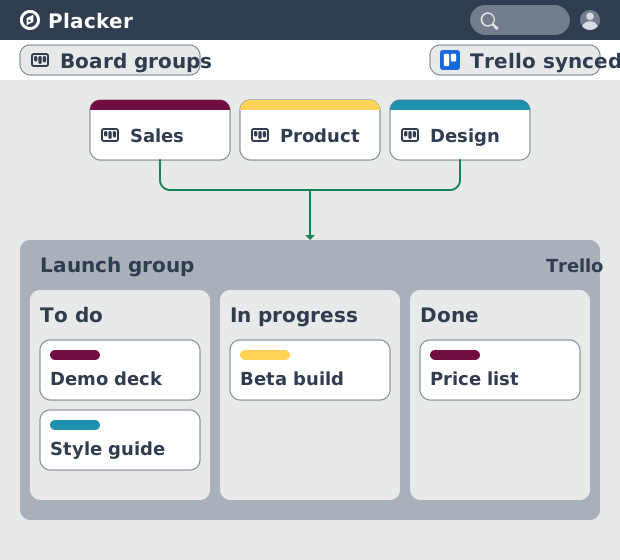
Board Groups for Trello: one combined board view
Load several Trello boards into one combined board view. Placker adds cross-board filtering, drag-and-drop between boards, and combine and split. See how.
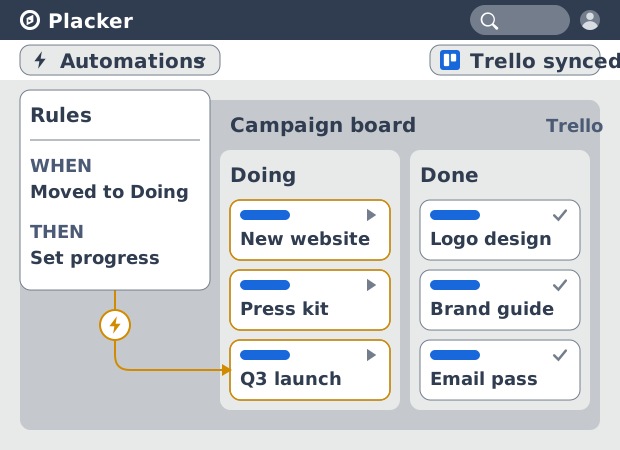
Trello automation rules: beyond Butler limits
Automate Trello boards with no monthly run cap. Placker rules mirror cards two ways and reach fields Butler can't. See how it works.
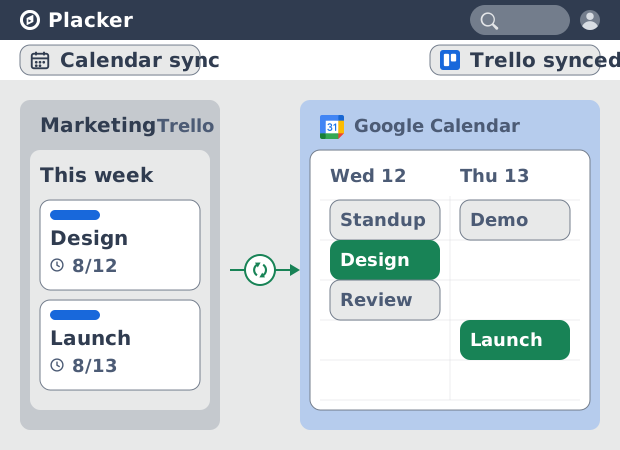
Trello Google Calendar sync: two-way & real-time
Sync Trello cards with due dates to Google Calendar both ways, in under a minute. Edit in either tool and the other updates. Add it to Trello.
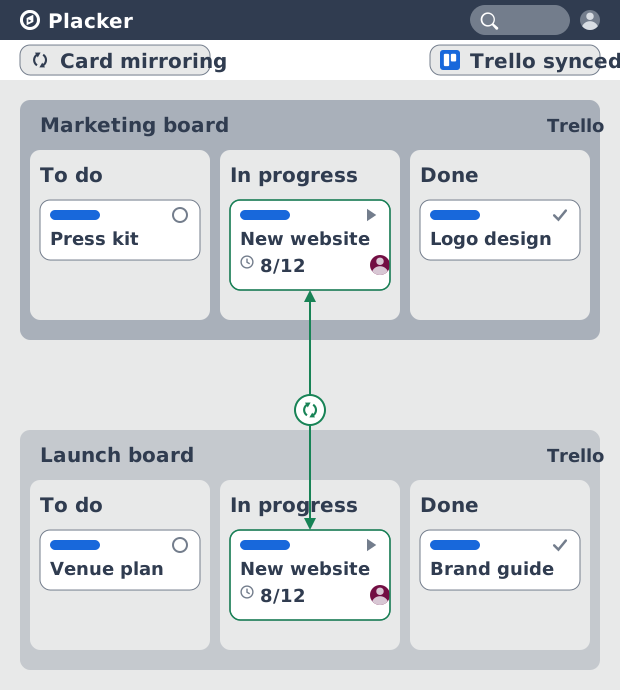
Card Mirror for Trello: 2-way sync, all fields
Mirror Trello cards across boards with 2-way sync. Placker syncs checklists, attachments, members, and dates where native mirrors stop. See how it works.
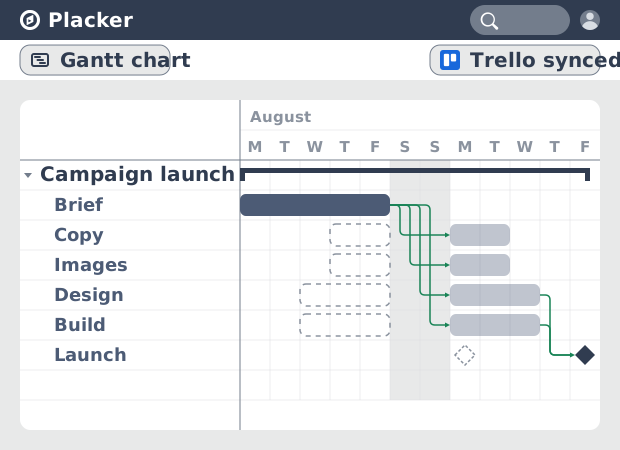
Auto-scheduling for Trello
Trello boards have no native dependency system. The Placker Power-Up adds auto-scheduling so dates propagate when cards slip. See how it works.
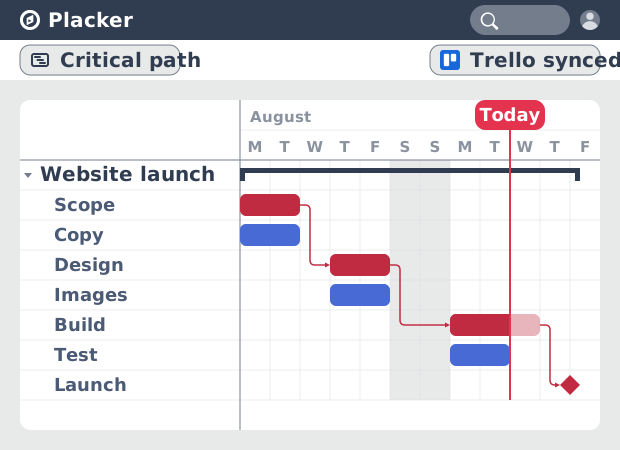
Critical Path for Trello: Gantt & CPM
Add critical path analysis to Trello. Placker calculates float and flags critical tasks in red on a Gantt chart. Add to Trello free.
Ready to supercharge your Trello boards?
Start your 15-day free trial today. No credit card required.