Microsoft Planner automation without a Power Automate flow
Microsoft Planner repeats a task, and that's where its automation stops. Anything conditional, like assigning a task in a bucket or mirroring it to another plan, means a Power Automate flow. Placker adds a visual rules engine over your plans, so you set triggers and actions in a few clicks.
Quick facts
Microsoft Planner automation & workflow rules
Conditional automation in Microsoft Planner without building a flow. Here is what it does for you:
- No flow to license. You build triggers, conditions, and actions in a Rules tab, with no Power Automate flow to license or maintain.
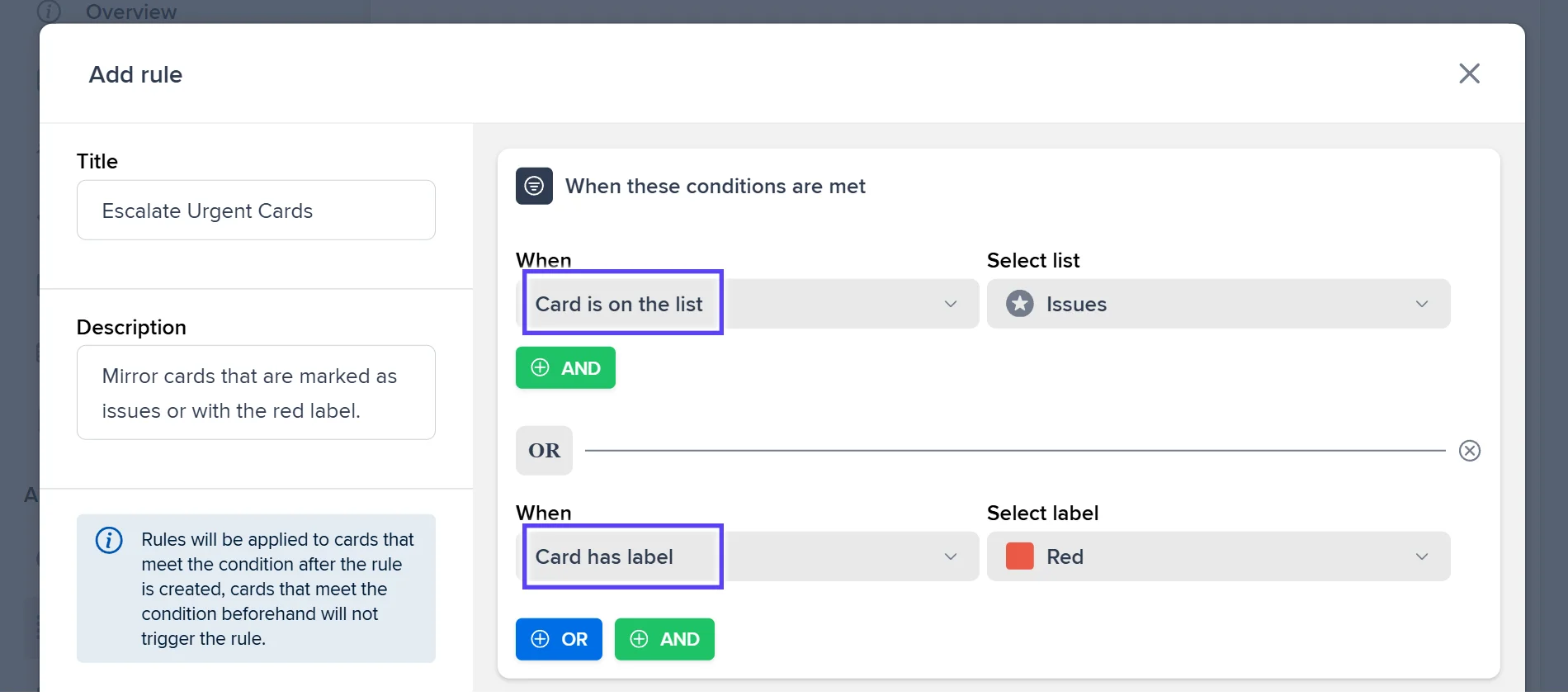
- Branch your logic. Combine AND and OR conditions to build and visualise conditional if-this-then-that rules.
- Acts on your plan. Rules assign members, set custom attributes, or update progress on their own.
- True recurring tasks. The Repeat feature creates recurring cards on a fixed schedule, going beyond Planner's native recurrence that only surfaces the next task once the current one is done.
Conditional rules
Add the conditional logic Planner leaves to Power Automate
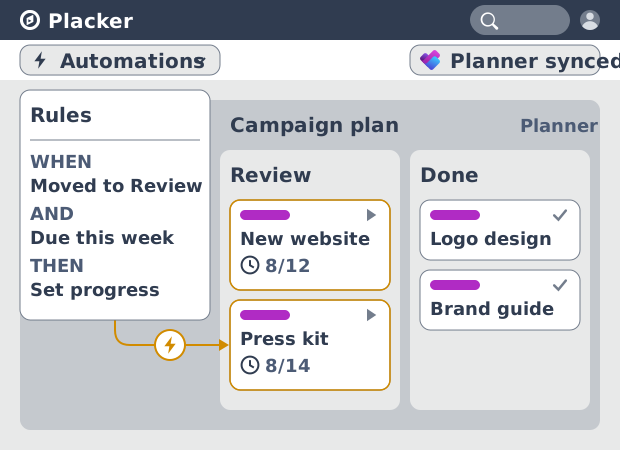
Planner handles recurring tasks on its own, but anything conditional means a Power Automate flow. That is another tool to license in many tenants and another flow for someone to keep maintained. Placker gives you the same kind of logic inside the board. You pick a trigger, such as a task moving to a bucket, a member being assigned, or a plan date being set, add conditions with AND or OR, and choose the action. The automation lives where the work lives, and you don't leave Planner to set it up.
Auto-assign & attributes
Keep assignments and status right across your plans
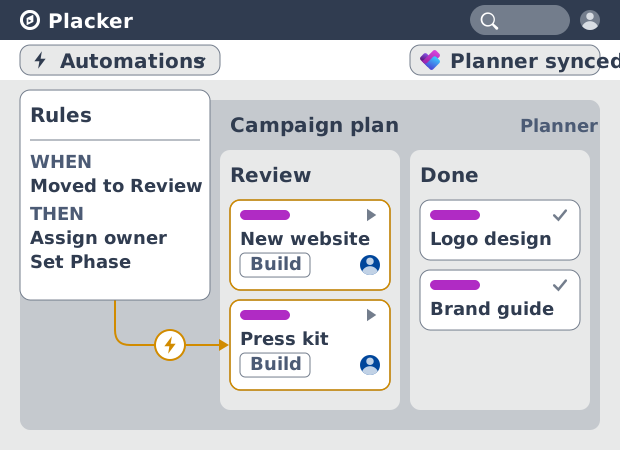
That action is the payoff. When a task lands in a bucket, a rule can assign the right owner, set a custom attribute like Phase, or set its progress, so the plan reflects reality without anyone updating fields by hand. A rule can also mirror or move a task to another plan, which is how a request in one plan becomes tracked work in another. For teams in Microsoft 365 with plans tied to Teams groups, that keeps the shared view current as work moves between groups.
Recurring tasks (cards)
Schedule recurring work with more control than Planner's repeat
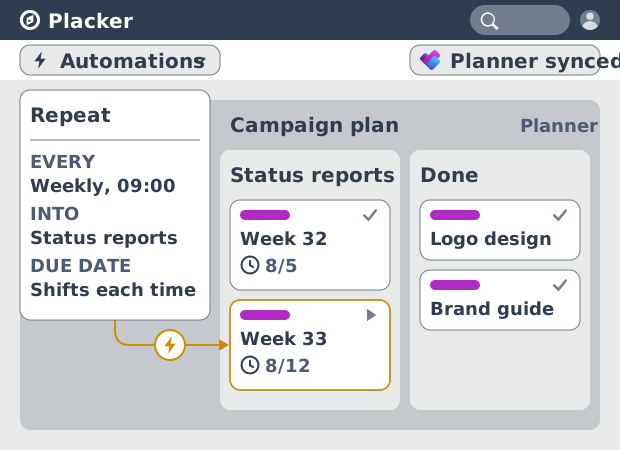
Those rules all fire off something changing in the plan; recurring work runs on a clock instead. Planner's recurrence shows only the current occurrence and creates the next one when you complete the task. Placker's recurring tasks run on a fixed schedule you set: the interval, the days, the time and timezone, the destination plan and bucket (list), and whether the due date clears or moves. You can also choose whether each new copy starts from a fixed template or carries forward changes from the last one. Cadenced work, like a weekly status task, appears on time without waiting for the previous one to close.
How It Works
Connect your plan and build your first rule in four steps.
- 1
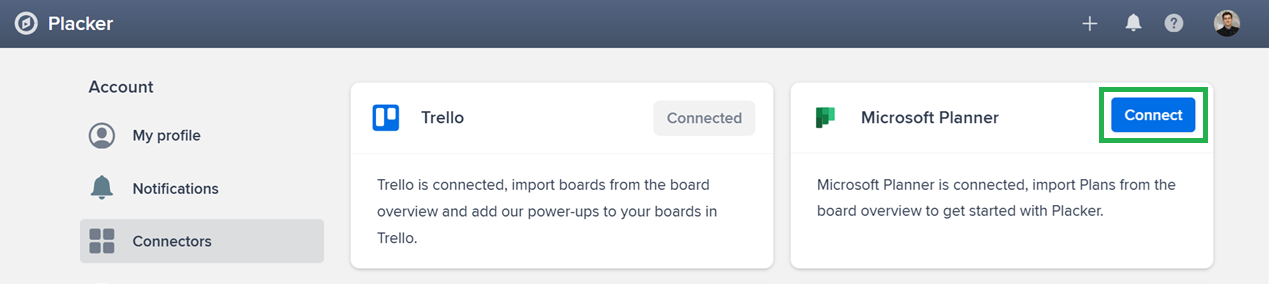
Connect your plan to Placker
Import your Microsoft Planner plan so its tasks, buckets, and assignments are available for rules to act on.
- 2
Open the Rules tab
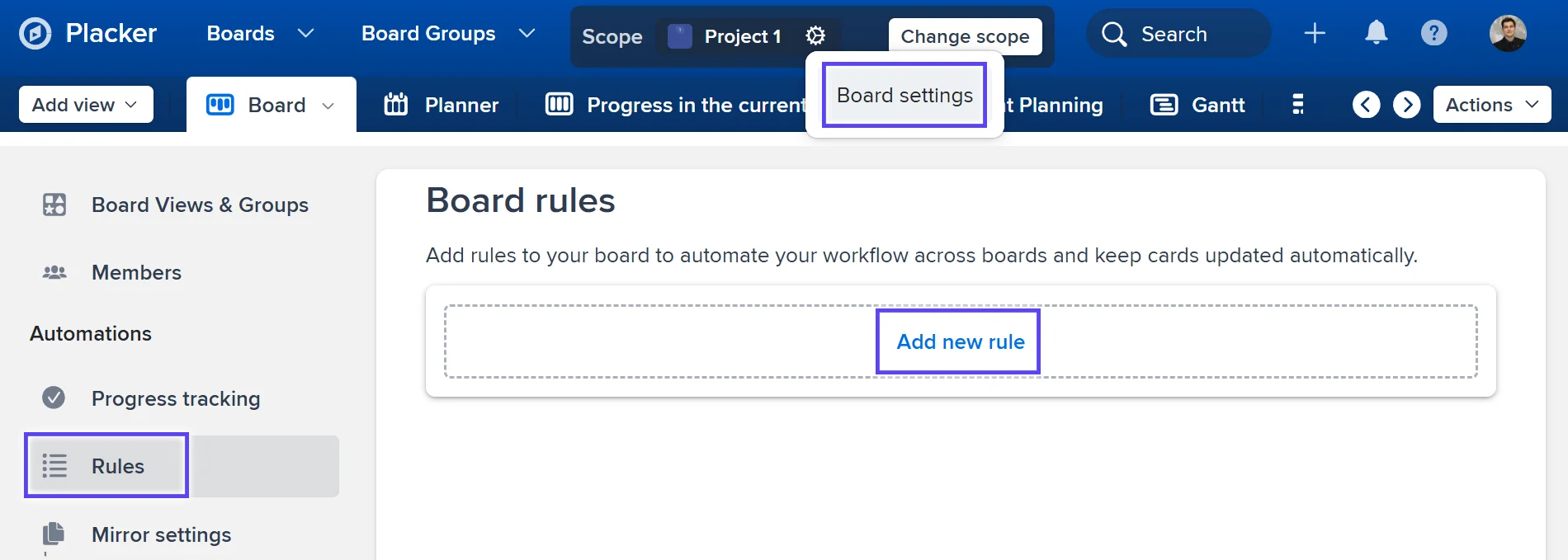
In a board view of the plan, click the gear next to the title to open board settings, then open the Rules tab. Every rule for the plan lives here.
- 3
Build the trigger and conditions
Choose the event: a task created or moved to a bucket, a member assigned, an attribute value, or a plan date set. Combine conditions with AND or OR.
- 4
Choose actions and apply
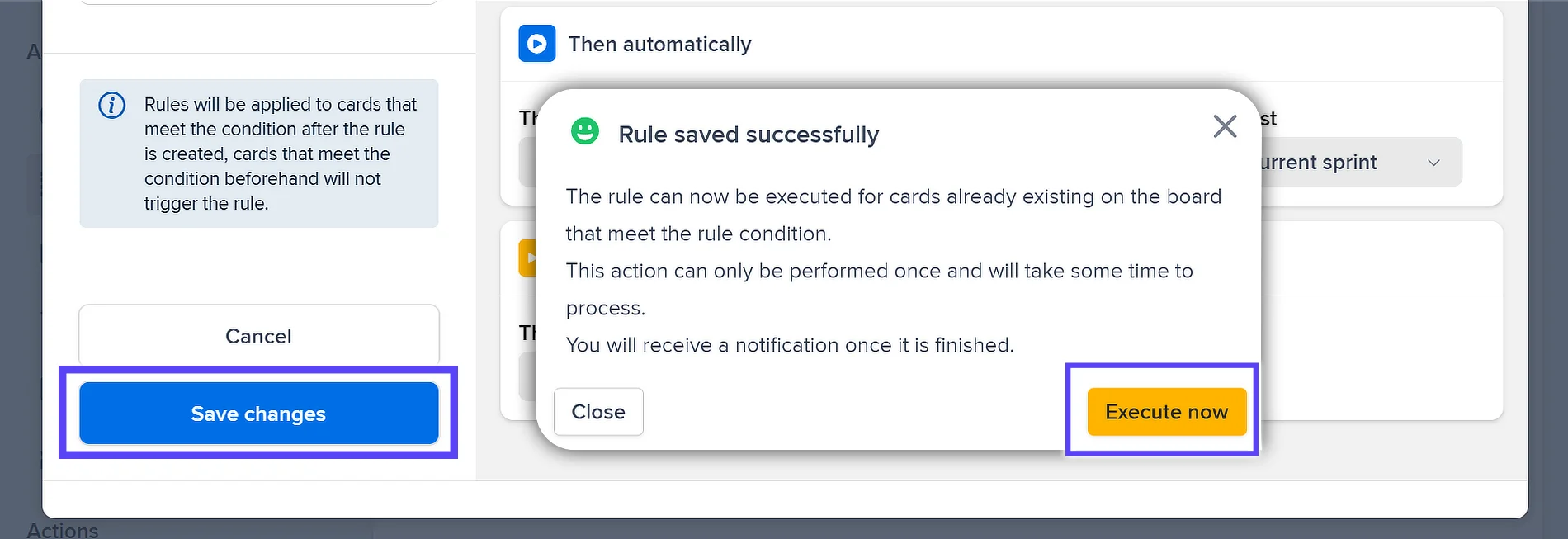
Set the actions: assign a member, set progress or a custom attribute, mirror or move the task to another plan, or archive it. Save, then use Execute now to apply the rule to tasks already in the plan.
Use cases
Where teams use automation and workflow rules to take repetitive Planner work off their plate.
Ops team with recurring checklists
An operations team automates the creation of a weekly maintenance checklist in Microsoft Planner every Monday. Each task is pre-populated with the same items, assigned to the same people, and due by Friday. Nobody has to recreate the routine work manually.
IT team with auto-routing
An IT team uses Placker automation to route incoming Planner tasks to the right technician based on the task label. Hardware requests go to the desktop team and software requests go to the dev team. No dispatcher has to decide each one.
Team with completion triggers
A content team sets a rule that moves a Planner task to the 'Review' bucket when all its checklist items are completed and sends a Teams notification to the reviewer. The review handoff happens automatically, eliminating a manual handover message.
Tips & Best Practices
Practical advice to get the most out of your workflow
Automate your single most-repeated action first
Pick the manual step your team does most often, such as reassigning a task when it moves to a new bucket, and build that one rule before anything else. A single working rule proves the time savings and gives you a pattern to copy for the next one.
Stack AND/OR conditions so a rule fires only when it should
Add conditions to a trigger so a rule runs only for the right tasks, for example a bucket move AND a specific label rather than every card that moves. Tighter conditions stop an automation from overwriting fields you set by hand.
Let a rule mirror a task, then link the copies as parent-child
Set a rule that mirrors a task into another plan when a date or bucket changes, then connect the original and the copy with Parent-Child Cards so status and dates stay in sync across both plans.
Try a new rule on one plan before turning it loose
Point a new rule at a single plan or a test bucket first and watch a few tasks flow through it. Once it fires the way you expect, widen the trigger, so a misfiring rule never reassigns or moves work across every plan at once.
Related pages
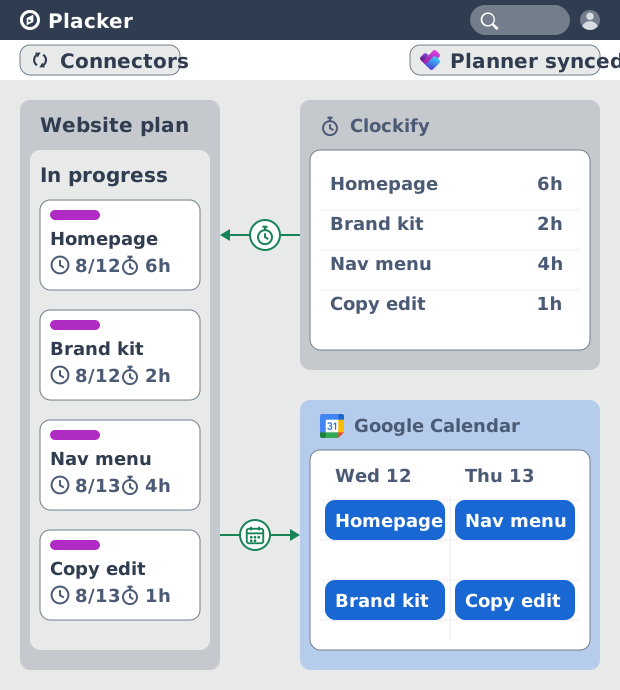
Microsoft Planner integrations: two-way sync
Sync Microsoft Planner plans two ways with Placker and add the calendar, time tracking, and automation Planner lacks. See how it works.
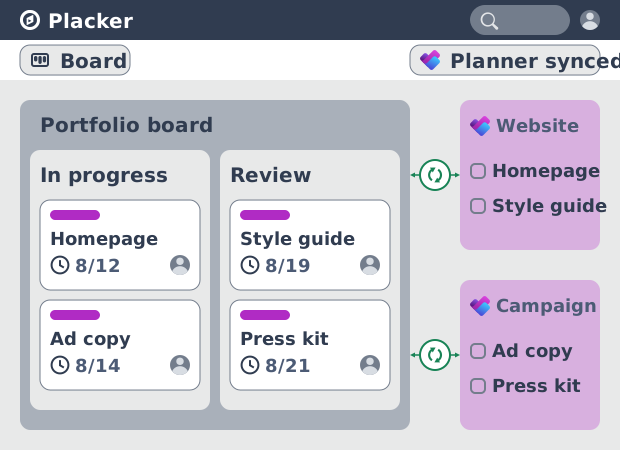
Microsoft Planner board view: layouts and reports
Add custom grouping, swimlanes, and Kanban reports to your Microsoft Planner board view. Placker reads your plans, no rebuild. Start a free trial.
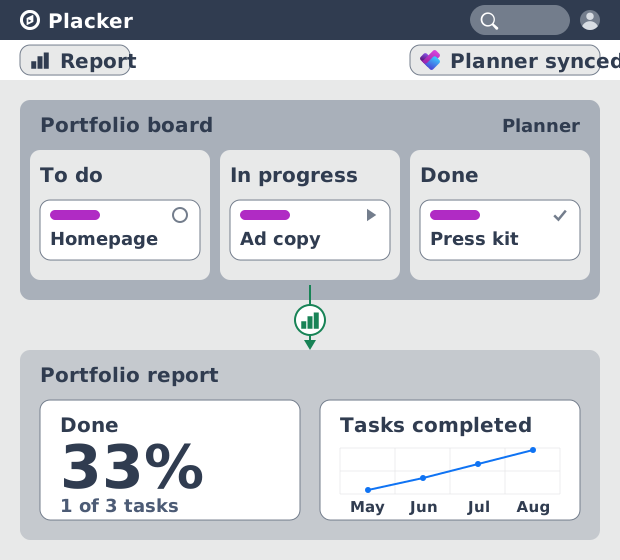
Microsoft Planner dashboards & reports
Report across Microsoft Planner plans without Power BI. KPI widgets, pivot tables, portfolio dashboards, and scheduled PDF reports. Start a free trial.
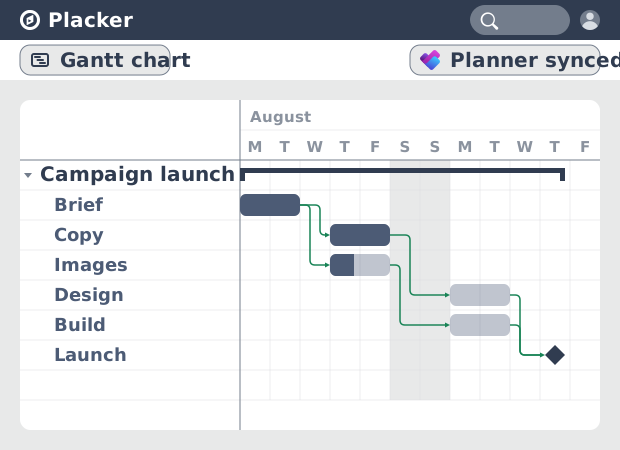
Microsoft Planner Gantt Chart: Add Dependencies
Microsoft Planner has no true Gantt chart. Placker turns Planner tasks into a timeline with dependencies and a critical path. Start free.
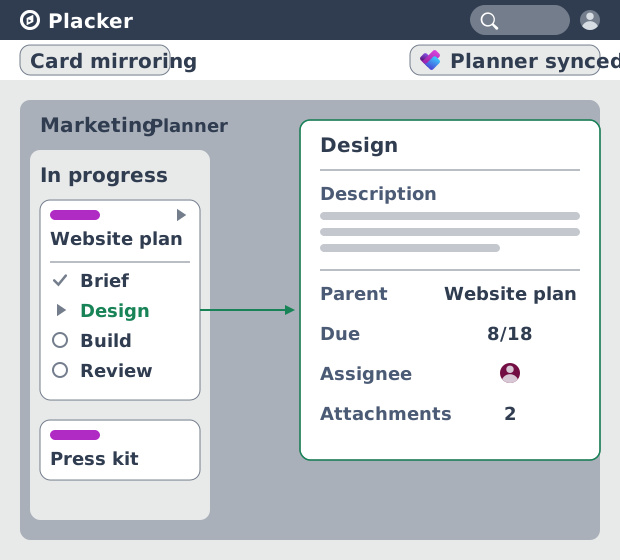
Subtasks in Microsoft Planner: Parent-Child Tasks
Add real subtasks to Microsoft Planner without premium. Parent-child tasks give each subtask an assignee and dates, and roll effort up.
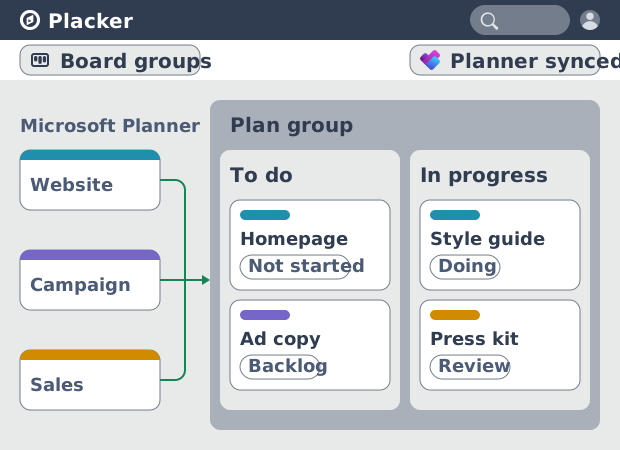
Microsoft Planner: see many plans in one view
See tasks from several Microsoft Planner plans in one board view, no Project Plan 3 or 5 license needed. Placker works on every tier. See how it works.
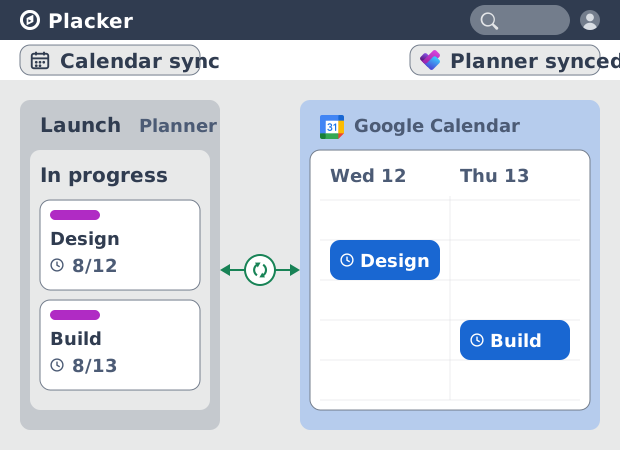
Microsoft Planner Google Calendar sync (2-way)
Microsoft Planner has no native Google Calendar sync. Placker syncs your tasks to Google Calendar, both ways, in minutes. Start free trial.
Ready to get started?
Easy to setup, no credit card required, start your trial today!