Go beyond Butler with Trello automation rules
Butler runs your Trello automations until you hit its monthly cap, and every run stops after a set number of actions, so bulk jobs get cut off partway. Placker's rules have no monthly quota. They mirror cards both ways and reach Placker fields and checklist items Butler never sees.
Quick facts
Automation & workflow rules for Trello
Automation that goes further than Butler on any Trello board. Here is what it does for you:
- No monthly cap. Rules keep firing however busy the board gets, with no metered execution limit like Butler's.
- Mirror across boards. A rule can copy a card to another board and hold a live two-way link between the two.
- Reads Placker data. Rules act on Placker attributes like Progress and custom fields, and can even mirror a checklist item up to its own card.
- Runs on free boards. They come with the Placker Power-Up, so they work on Free Trello boards as well as paid ones.
- Applies to existing cards. Execute now runs a new or edited rule against the cards already on your board.
No run quota
Run Trello automation rules with no monthly cap
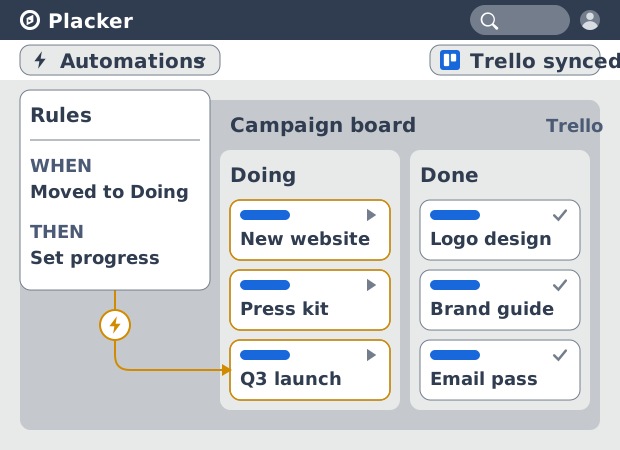
Butler counts every automation against your Trello plan's monthly run cap, and a single run stops after a set number of actions. An active board burns through that, and a button applied across a hundred cards can halt halfway. Placker's rules carry no run or operation quota. You set a trigger, such as a card moving to a list or a label being added, combine conditions with AND or OR, and the rule fires every time it matches. Busy weeks cost nothing extra.
Two-way mirror
Keep cards in sync across boards, both ways
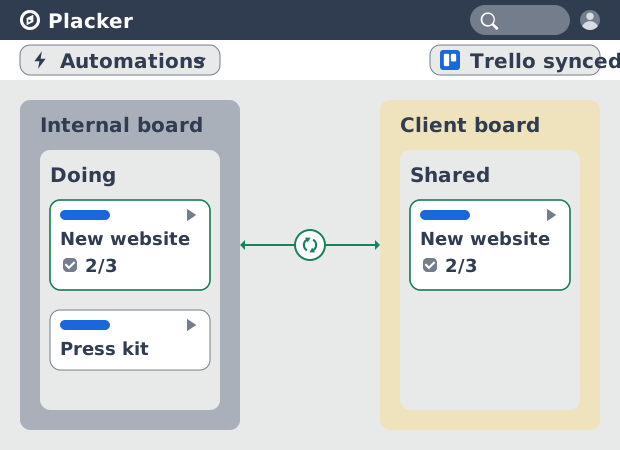
One thing a rule can do when it fires is put a card on a second board and keep it there. A native Trello mirror or a Butler copy also puts the card in two places, but the copies drift the moment someone edits one. A Placker rule holds a two-way sync, so a checklist ticked on the client board shows ticked on the internal one. The same trigger and conditions start it, from a label added to a move to a list, and a reverse action can unlink or archive the mirror once the condition no longer holds. The mirroring runs through the Card Mirror & Sync Power-Up.
Placker fields & checklists
Reach the card data Butler can't touch
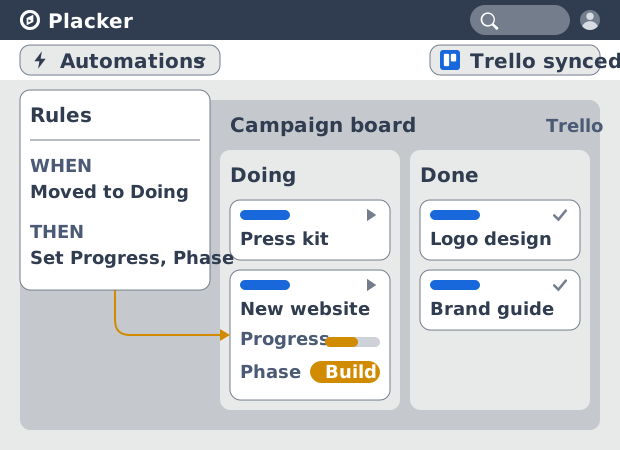
Those mirrors even reach inside a card: a rule can mirror a checklist item up to its own card on a program board. It can do that because those rules read and set the extra fields Placker adds to your cards, beyond the native Trello fields Butler is limited to: Progress, custom attributes, and the parent-child link behind checklist items. A rule can set Progress to In progress when a card enters Doing, or set a custom Phase attribute on entry to a list. The board carries the structure your reporting needs, and the rules keep it filled in.
How It Works
Add the Power-Up and build your first rule in four steps.
- 1
Add the Power-Up to your board
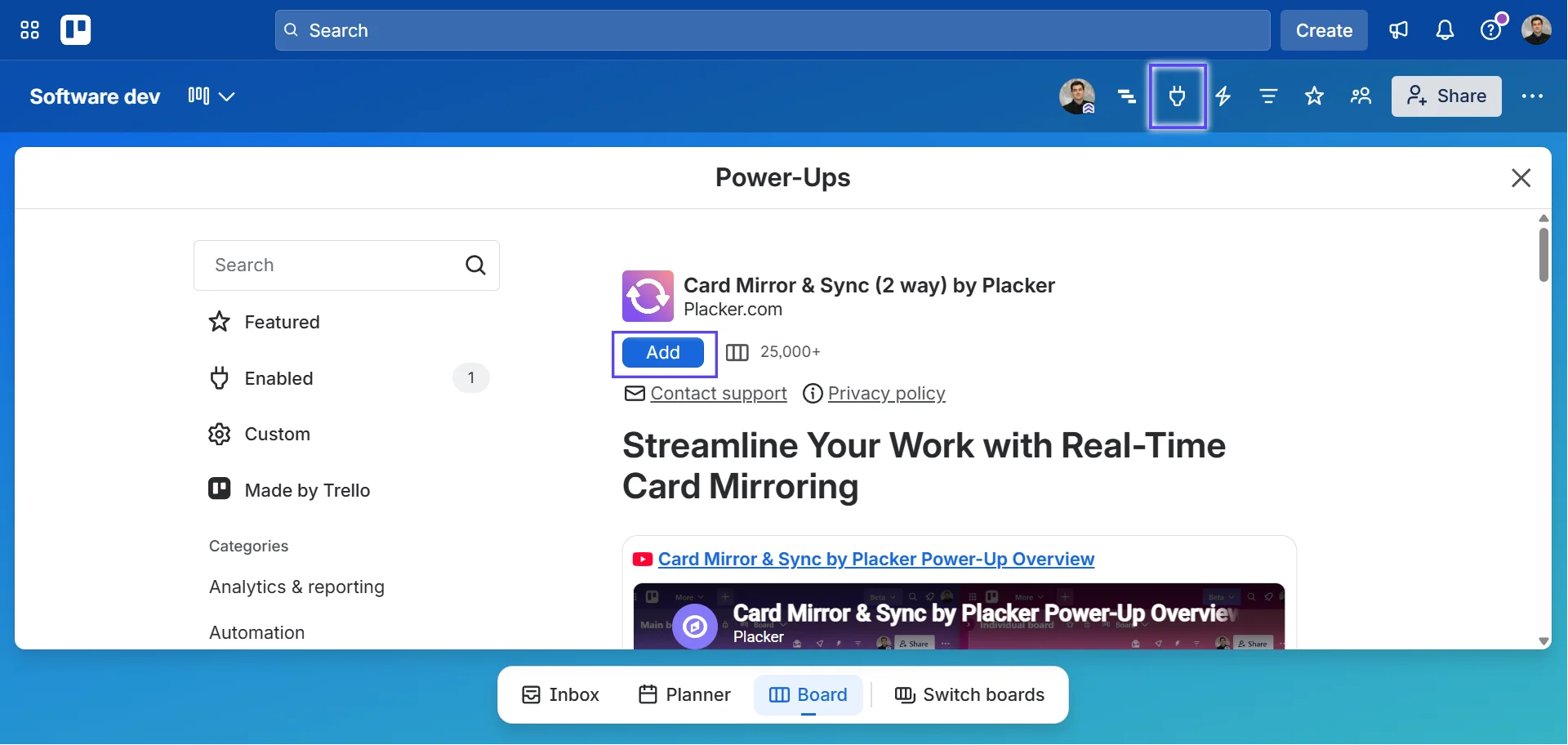
Open your Trello board, click Power-Ups, and enable Card Mirror & Sync (2 way) and Board Workflow by Placker. Sign in to connect the boards you want rules to act on.
- 2
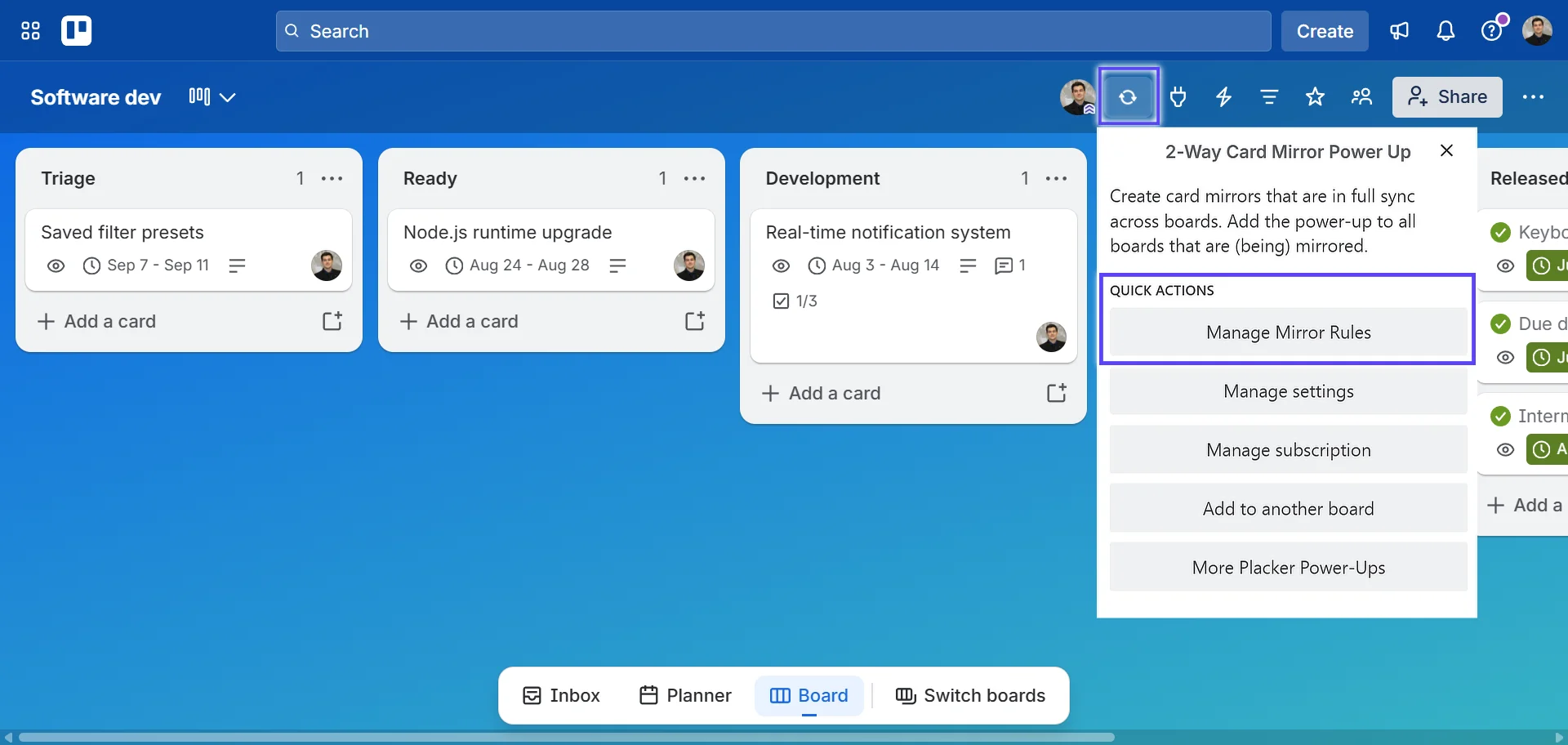
Open the Rules tab
Click the gear next to the board title to open board settings, then open the Rules tab. This is where the board's rules live, and where you edit, disable, or delete them later.
- 3
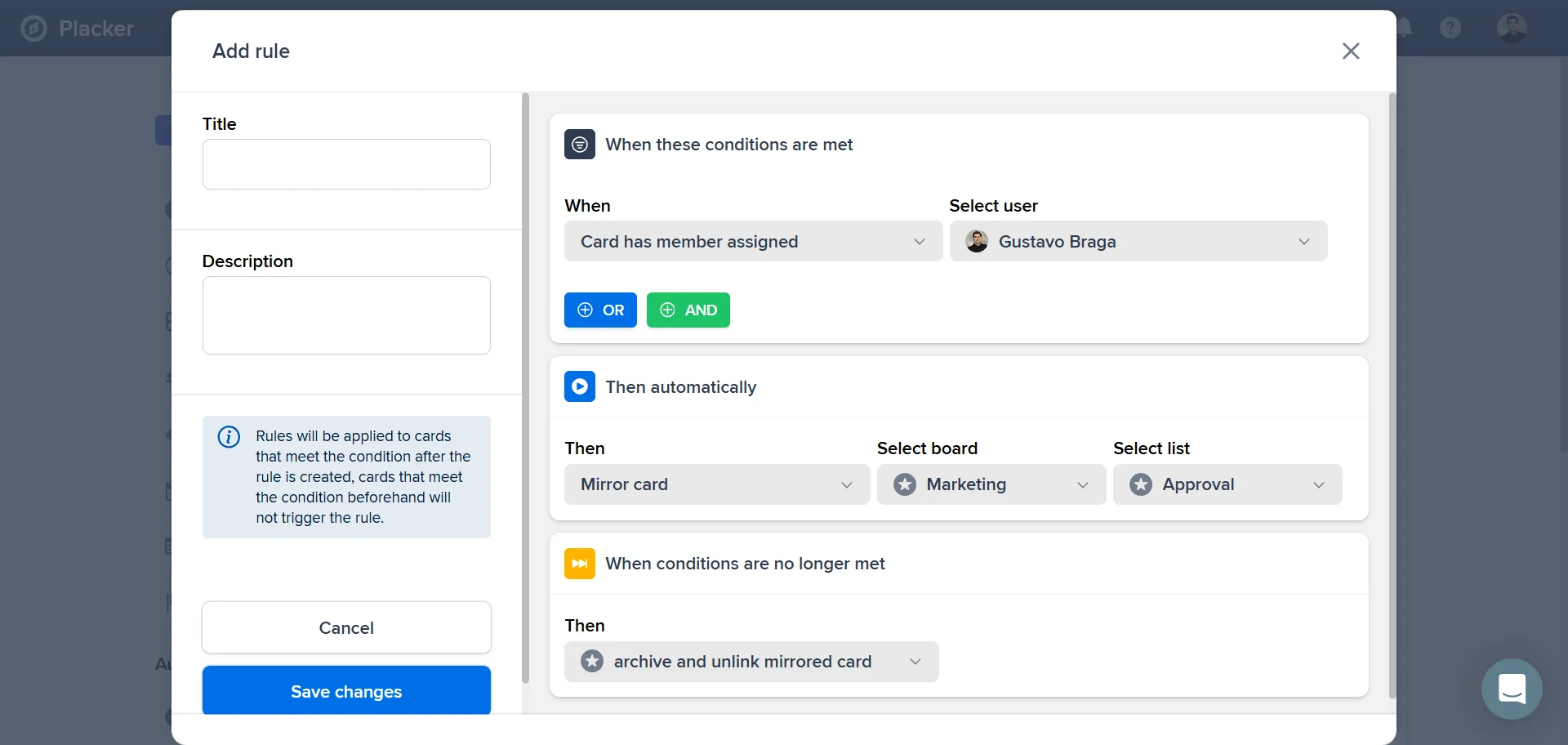
Build the trigger and conditions
Pick the event: a card created or moved, a member assigned, a label added, a checklist item status, or a date set. Add conditions and join them with AND or OR.
- 4
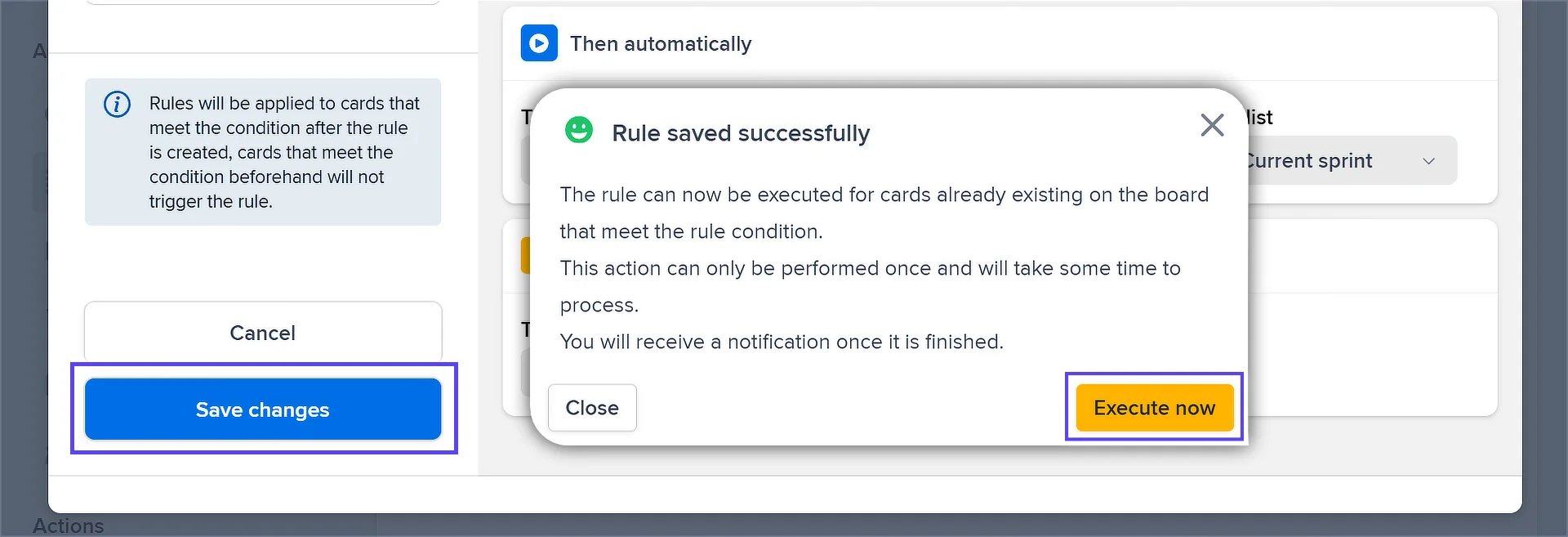
Choose actions and apply
Set the actions: mirror, move, or copy the card, assign a member or label, set Progress or a custom attribute, or archive the card. Save, then use Execute now to run the rule on cards already on the board.
Use cases
Where teams use automation and workflow rules to take repetitive work off their plate.
Team with recurring sprint setup
At the start of every two-week sprint, a development team runs an automation rule that copies a standard sprint template, with its tasks, checklists, and due dates, onto the active Trello board. Setup that used to take 30 minutes now runs automatically on Monday morning.
Manager with auto-assignment rules
A customer success manager sets a rule that auto-assigns any card moved to the 'Escalation' list to the senior account rep on call. The right person is notified immediately without the manager needing to intervene in every escalation.
Team with due-date reminders
A project team adds an automation rule that posts a Slack message when a Trello card is one day from its due date with no checklist items completed. At-risk tasks surface before they miss the deadline rather than after.
Tips & Best Practices
Practical advice to get the most out of your workflow
Automate one step your team repeats every day first
Pick a single manual action you do constantly, like moving a card to Review once every checklist item is ticked, and rule it first. One well-placed rule proves the value before you build out a whole system.
Trigger rules from due dates so nothing stalls
Set rules to fire as a due date approaches or a start date arrives: add a label, move the card, or ping the owner. Deadlines drive the board instead of someone remembering to check it.
Assign the owner automatically when a card enters a list
Add a rule that sets the right assignee the moment a card lands in a given list. Handoffs stop needing a manual mention, and no card sits in a list with nobody on it.
Let rules keep your reporting fields filled in
Have a rule set Progress or a custom Phase field the moment a card changes list, so status stays current without anyone editing cards. Pair this with Reports and your charts stay accurate on their own.
Related pages
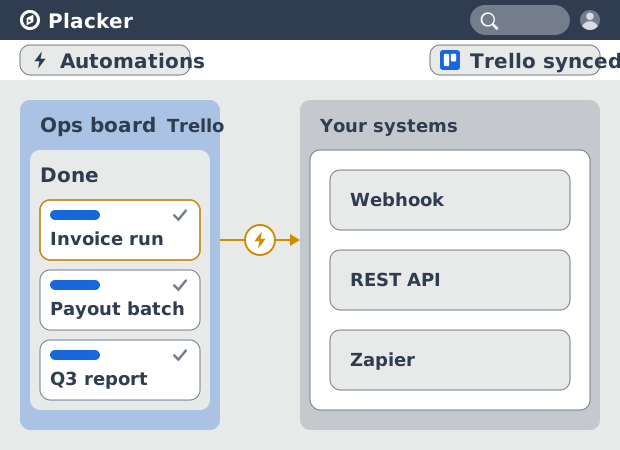
Trello integrations: two-way sync with Placker
Add two-way card sync, Google Calendar, Clockify time tracking, and webhooks to Trello with the Placker Power-Up. See how it works.
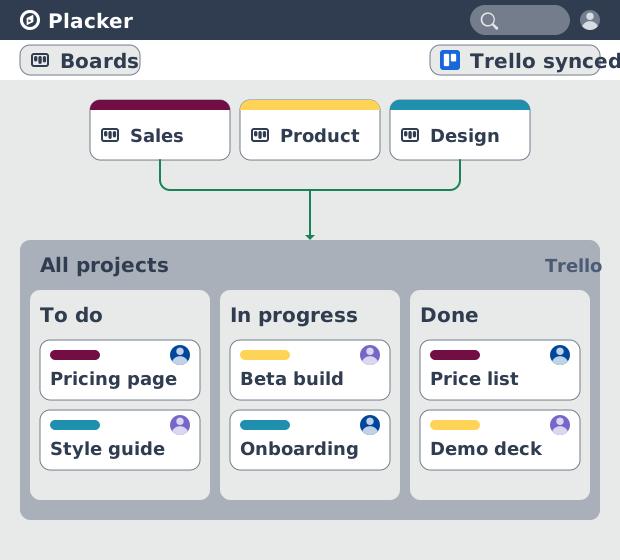
Trello board view: Kanban layouts and reports
Add Kanban structure to your Trello boards with Placker's board view. Group, swimlane, and report on the cards you already have. Add to Trello.
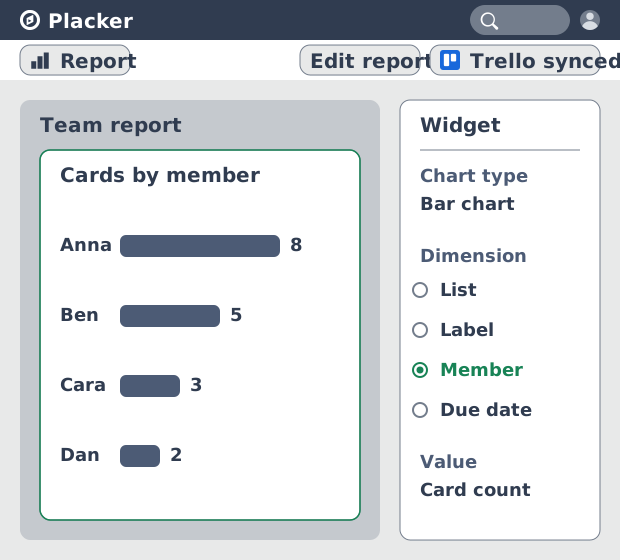
Trello dashboards and reports
Turn your Trello boards into live dashboards. Cross-board reporting, pivot tables, and scheduled PDF reports. Add Reports by Placker to Trello.
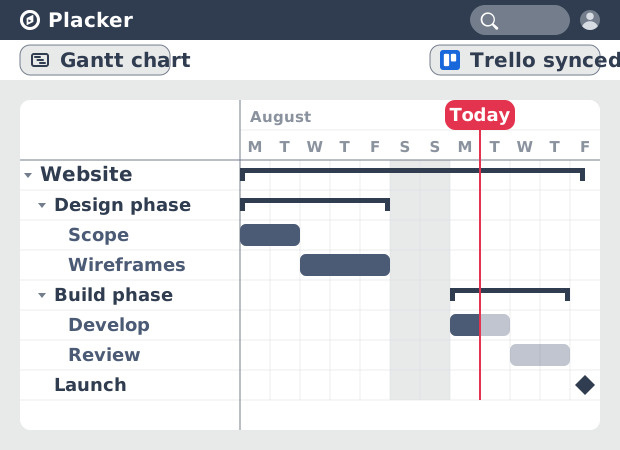
Gantt Chart for Trello with Dependencies
Add a real Gantt chart to your Trello boards. Placker turns cards with dates into a timeline with dependencies, critical path, and resource planning.
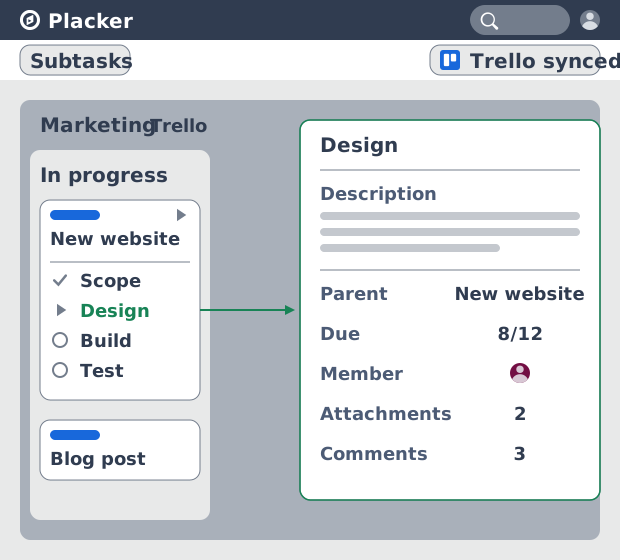
Trello Subtasks: Parent-Child Cards for Trello
Add real subtasks to Trello. Parent-child cards give each checklist item its own card and dates, and roll effort up. Add to Trello free.
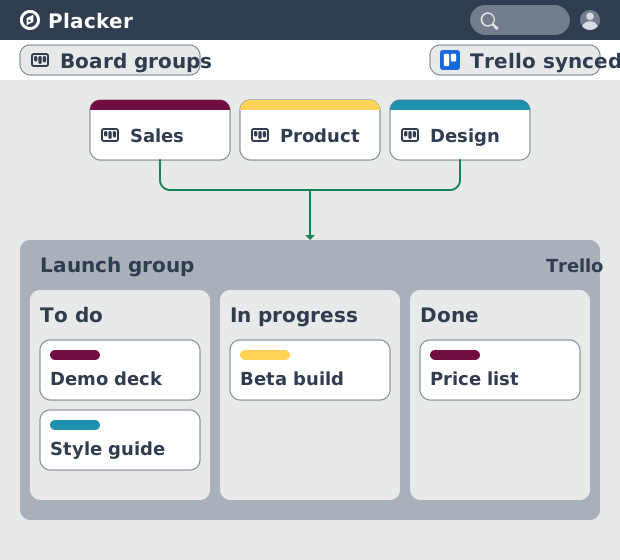
Board Groups for Trello: one combined board view
Load several Trello boards into one combined board view. Placker adds cross-board filtering, drag-and-drop between boards, and combine and split. See how.
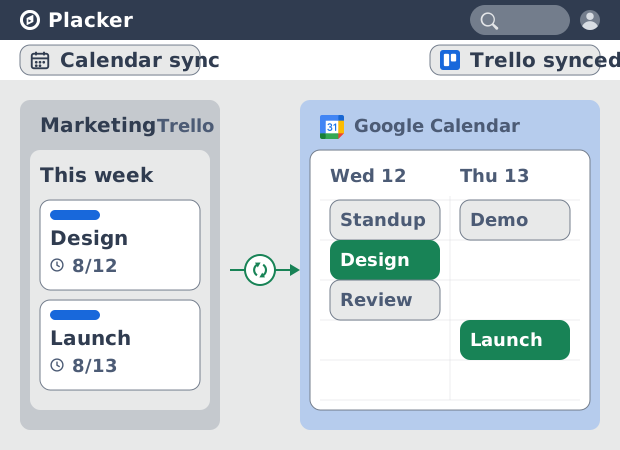
Trello Google Calendar sync: two-way & real-time
Sync Trello cards with due dates to Google Calendar both ways, in under a minute. Edit in either tool and the other updates. Add it to Trello.
Ready to supercharge your Trello boards?
Start your 15-day free trial today. No credit card required.