Portfolio management software that shows every project
Placker groups the boards your teams already run into one scope, so status, workload and delivery dates roll up across every project without moving a card.
Quick facts
What portfolio management looks like in Placker
Placker builds the portfolio from three things you already use, with nothing to move or maintain:
- No separate module to buy. Board groups, parent-child cards and cross-group reports are part of Placker, not an upgrade you unlock later.
- Many boards, one view. Board groups load every project board into a single view, with no limit on how many you add to a group.
- Projects roll up to a card. Parent-child cards mirror a project's tasks onto a portfolio card, so each project reports up on its own.
- Reports read the whole group. A single report aggregates across every board in the group at once, rolling up budget, cost and consumption.
- The roll-up stays current. Nothing moves or gets copied: the portfolio view stays as up to date as the cards it reads.
The problem
Every project is visible, the portfolio is not
Work splits one board per project to stay readable, and that same split removes the overview.
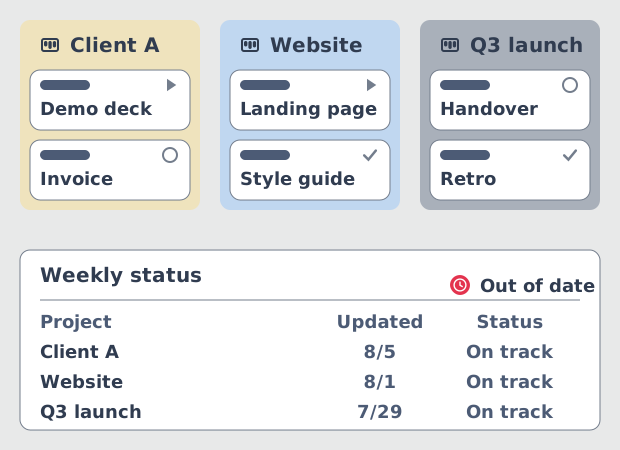
Teams split work one board per project, client or department, because that is what keeps each board readable. The split works at delivery level and fails one level up. A leader who needs to know what is running, what is late and where the people are has no single place to look, so the answer gets assembled by hand.
That assembly is the weekly status report, and it is a job in itself. Someone opens each project in turn, cross-references time tracking, checks budget consumption, then compiles it into a colour-coded sheet. By the time it reaches the leadership meeting the portfolio has moved on. The traffic lights on it were assigned by judgement rather than measured from card data, so green means nobody escalated.
The approach
A portfolio layer over the boards you already run
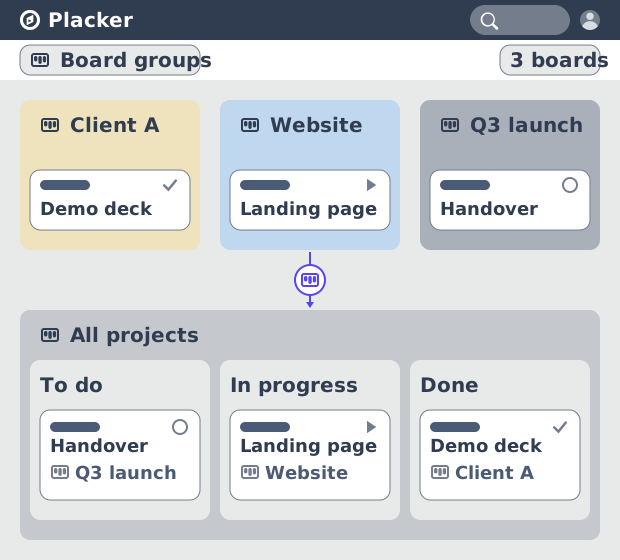
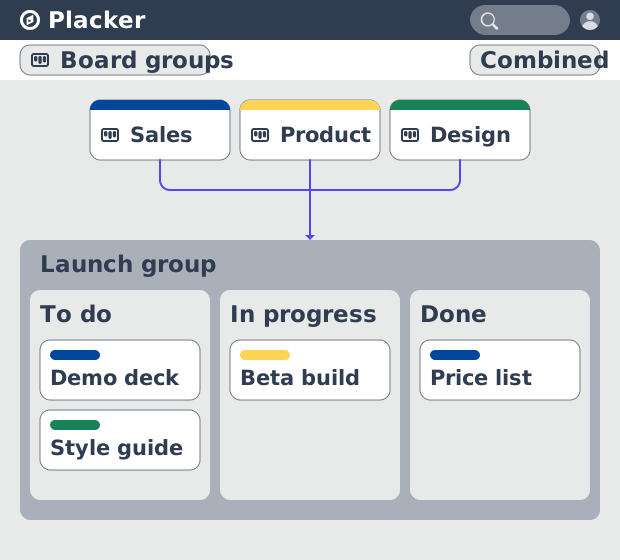
Board groups load many boards into one view without moving a card.
A board group is a saved set of boards that Placker loads together. Selecting several boards applies to every Placker view, so one group can be read as a board, a Gantt, a track view or a report. The cards never move. They stay on the boards the delivery teams own, and the portfolio becomes a way of looking at them rather than a place they get copied to.
That is what separates this from the enterprise route. A PPM suite does real portfolio governance, and it asks the organisation to run its projects inside it, which makes adoption a programme of its own. A portfolio layer asks nothing of the delivery teams: they keep the board they work on every day, and the roll-up is built from cards they were already updating. The capability behind it is board groups.
The steps
Build the group, then give the portfolio two levels
A card per project, the tasks underneath it, and a mirror that keeps both current.
Create the group first. From the board overview, choose Add group, select the boards and name it. From an open board, use the scope bar instead: Change scope, select several boards, then Save as new group. A group carries its own views, the boards inside it reorder by drag and drop, and My Scope sets per board whether you see all cards, no cards, or only the cards assigned to you.
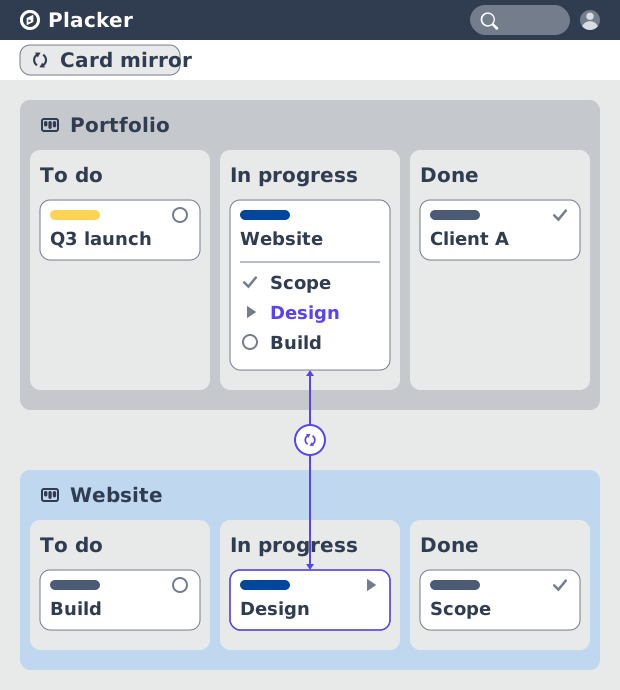
Then give the portfolio its two levels. Add one card per project on a portfolio board and keep that project's tasks as checklist items underneath it. Mirroring an item turns it into a card on the project board while it stays an item on the portfolio board, and the two stay in sync, so a project manager marking work complete updates the portfolio without sending a message. Placker track views and reports read at card level, which is exactly why that mirror matters for roll-up.
The outcome
Portfolio reporting you read instead of assemble
One set of widgets across the whole group, as current as the cards underneath it.
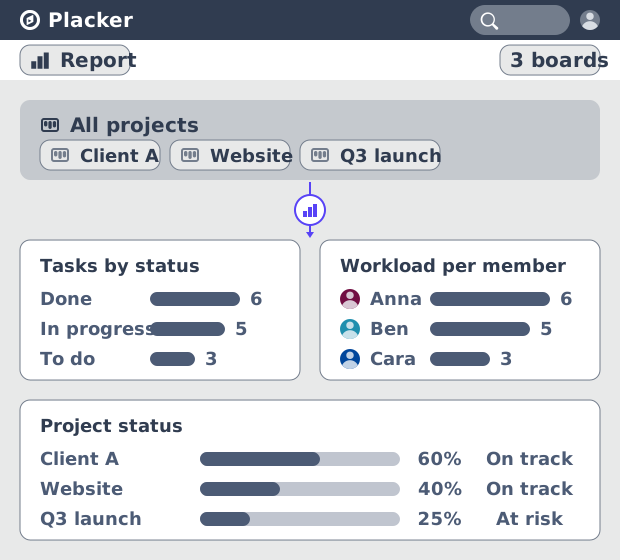
With the group in place, reporting stops being an assembly job. A report can aggregate across a whole board group in one set of widgets: task counts by status, workload per member, traffic-light indicators on whether each project is tracking to its dates, and comparison across teams or time periods. Budget, cost and consumption roll up the same way, so the financial picture sits beside the delivery one instead of in a separate spreadsheet.
Two shipped report templates cover most of what a portfolio review needs. Progress tracking shows the percentage of work completed, the expected delivery date read from the last card planned to end, and tasks by status and traffic light. Project overview shows milestone status, a completion graph, a list of risks with their impact, and card count and workload per team member. Reports can go out on a schedule, so the review starts from a document nobody had to build.
What your portfolio management software should show you
One view across every project, a two-level structure underneath it, and reporting that reads straight off the cards.
One view across every project
Board groups load every project board into a single scope. The board, the Gantt, the track view and the reports all read that same scope, so changing view does not mean rebuilding the selection.
A portfolio level and a project level
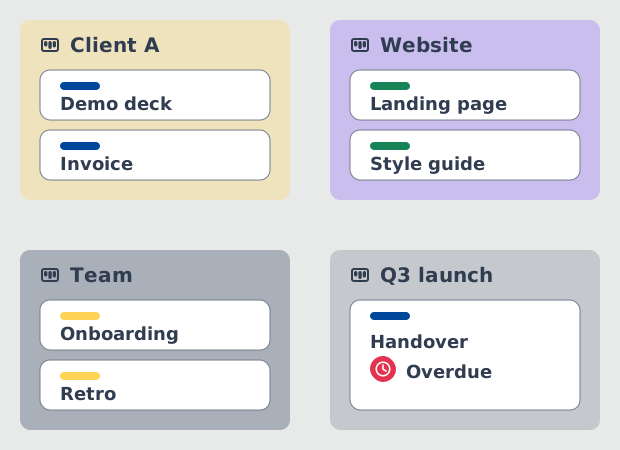
A card per project on the portfolio board, its tasks as items underneath, and mirroring to keep the two in sync. The delivery team works at card level while the portfolio reads the same data one level up.
Status measured, not interpreted
Progress, dates and traffic-light indicators are computed from card data. The colour in the portfolio review reflects what the cards say rather than who escalated loudest that week.
Budget that rolls up with the work
Budget, cost and consumption aggregate across the projects in the group, so the money view and the delivery view come from one set of cards instead of two systems that have to be reconciled.
Tips & Best Practices
Practical advice to get the most out of your workflow
Name your lists the same way on every board
Combining boards in a group merges lists that share a title. Consistent list names across project boards are what make the combined view readable instead of a wall of near-duplicate columns.
Sharing a group is not sharing its boards
A group can be made visible to other members, but they still need access to the boards inside it. Grant board access first, or the portfolio view looks empty to the person you shared it with.
Use My Scope to keep a shared group personal
Per board you choose all cards, no cards, or only cards assigned to you. One shared group then serves both a portfolio owner who wants everything and a delivery lead who wants their own work.
Let rules create the mirrors for you
Mirroring checklist items to cards by hand stops scaling after a few projects. Rule-based mirroring keeps the two-level structure current as new work arrives, without anyone maintaining it.
Group the boards, or build a master board
Board groups load boards into one view and copy nothing. Card mirroring builds a separate aggregate board of synced cards. Start with the group: it is reversible and needs no agreement from the board owners.
Related pages
The capabilities behind the portfolio view, each covered in full on its own page.
Board groups: many boards, managed as one
The capability behind the portfolio view. How groups are created, shared, reordered, and scoped per board.
How to Build a Master Board in Placker
The other route to consolidation: mirror cards into one aggregate board instead of loading many boards into a single view.
Project management software that keeps your plan current
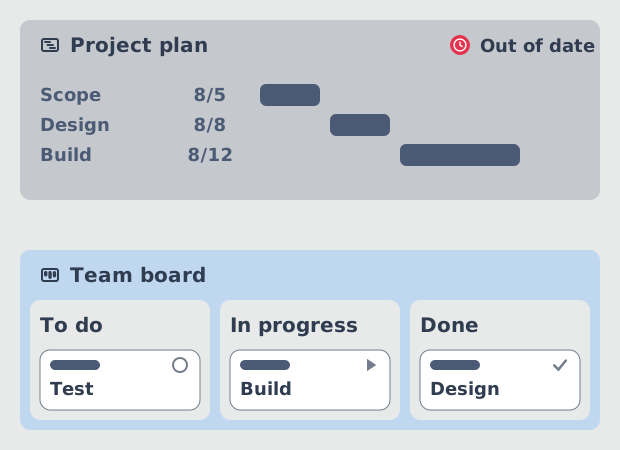
The single-project layer underneath the portfolio: scheduling, dependencies and critical path on the same boards.
Ready to get started?
Easy to setup, no credit card required, start your trial today!