Critical path for Microsoft Planner: what decides your end date
Microsoft Planner organises your work into tasks and buckets, but gives no visibility into which tasks are holding your project back. Placker connects to your Microsoft 365 account, maps your plan to a Gantt timeline, and marks the tasks your deadline depends on.
Quick facts
Critical Path in Placker for Microsoft Planner
See which Planner tasks decide your finish date, highlighted in red on the Gantt:
- Know which Planner tasks control your deadline. Placker calculates float for every task from its dates and dependencies and highlights the zero-float sequence in red on your Gantt, something Planner's Timeline doesn't calculate.
- Updates live as the plan changes. Move a task, adjust a dependency, or add a link and the critical path recalculates immediately, so you always see the sequence that controls the deadline right now.
- Turn it on without leaving the Gantt. Open the Visibility menu in the Placker Gantt for Microsoft Planner and toggle on Show critical path, and the red highlights appear on your existing tasks with no separate setup.
- Reflects the realistic schedule. Dependencies with a minimum duration (a waiting period or approval window between tasks) factor into the float, so the path shows what delivery actually requires rather than the theoretical minimum.
Zero-float highlighting
Focus your team on the tasks that actually move the deadline
Microsoft Planner spreads your work across buckets in Teams. There is no way to tell from the bucket view which tasks are critical to your end date.
Your plan opens on a Gantt timeline with float calculated for every task: the number of days it can slip before it delays the project finish. Tasks with zero float are highlighted in red. Tasks with float keep their default colour.
Your team sees immediately which tasks need attention and which ones have room to wait, without digging through a bucket list or building a separate spreadsheet.
Visual To Be Added
Real-time recalculation
See the impact of any change the moment it happens
Microsoft Planner tasks get updated across Teams, Outlook, and the Planner app throughout the day. Each change can shift which tasks control your end date.
The critical path recalculates each time a due date or dependency changes in your plan. No manual refresh, no re-running analysis. The red highlighting always reflects your plan's current state.
When a task slips in Teams and triggers a path shift, you see it immediately, before it becomes a missed deadline.
Visual To Be Added
Minimum dependency durations
Account for approval cycles and mandatory wait times
Microsoft Planner has no native dependency system. You get task dependencies here, and more: minimum dependency durations let you model the mandatory gaps that exist in every M365 project.
Set a minimum gap between tasks to account for a SharePoint approval window, a Teams review cycle, or a scheduled sign-off. That constraint builds into the CPM calculation, and the critical path you see is the one your project actually has, not a theoretical one that ignores real-world delays.
The result is a critical path calculation that accounts for how your Microsoft 365 environment actually works.
Visual To Be Added
How It Works
See the critical path on your Planner timeline in four steps.
- 1
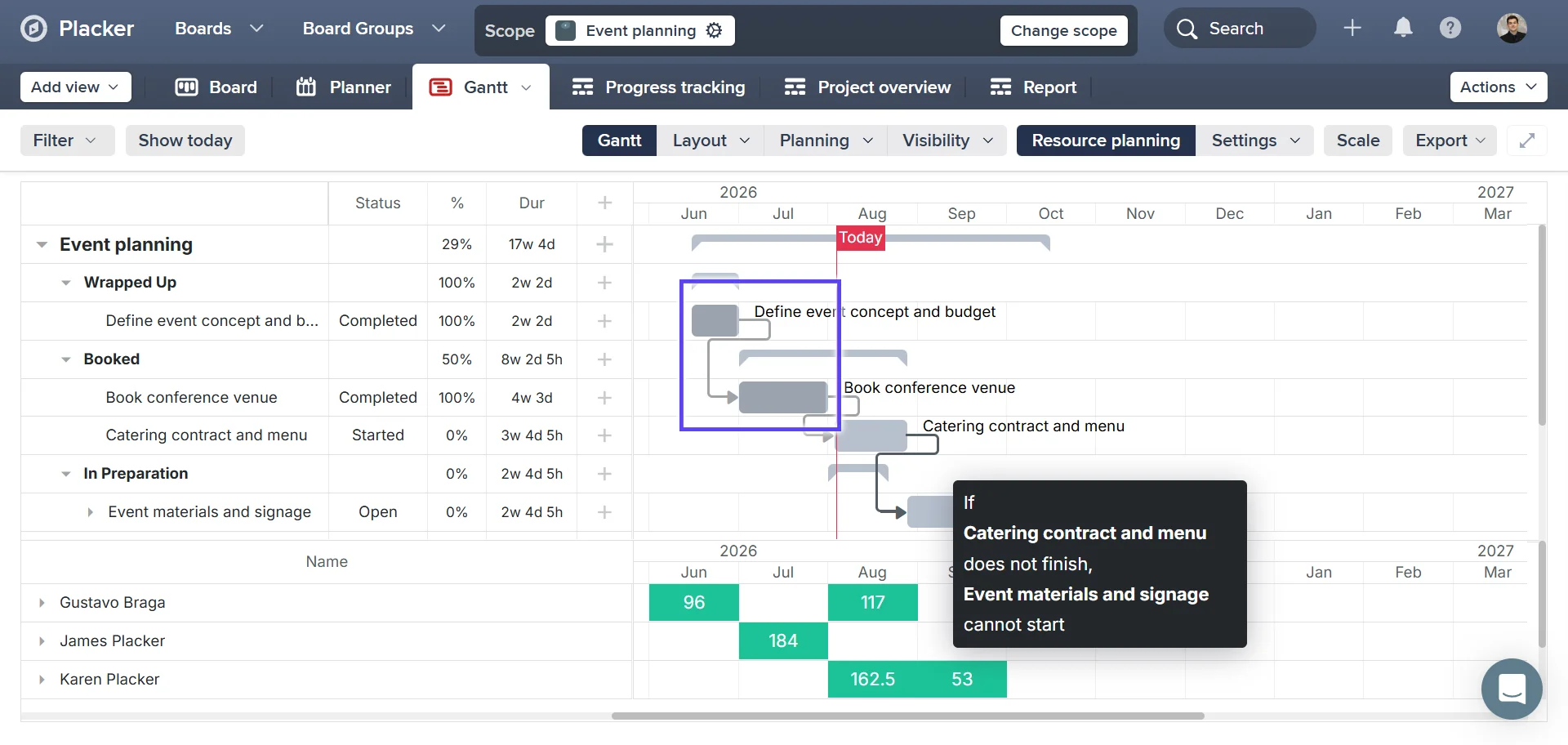
Open your plan in the Gantt view
Switch your Microsoft Planner plan to Placker's Gantt view. Float is calculated for every task — the number of days it can slip before it delays your project finish.
- 2
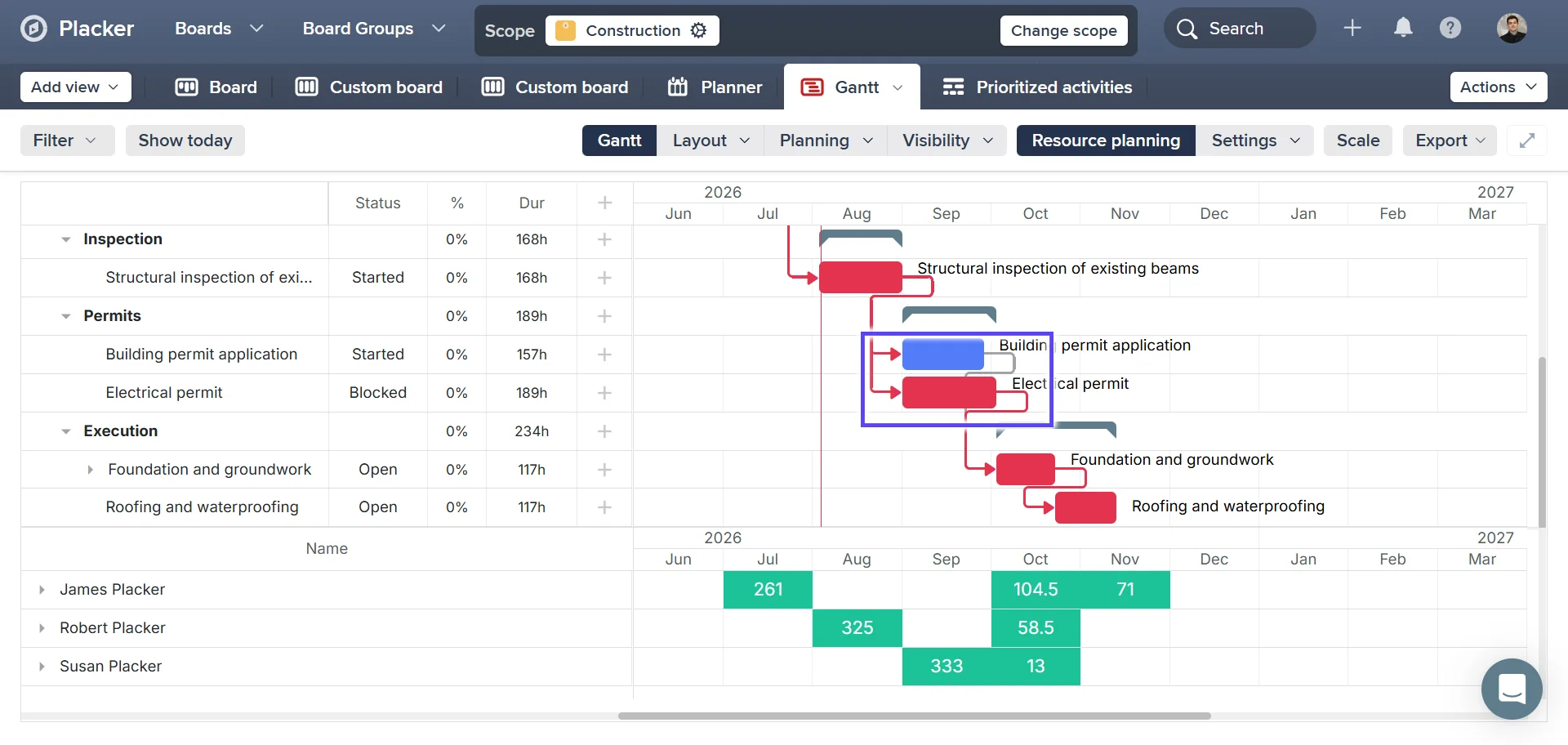
Spot zero-float tasks highlighted in red
Tasks with zero float are highlighted in red; tasks with float keep their default colour, so your team sees at a glance which tasks need attention.
- 3
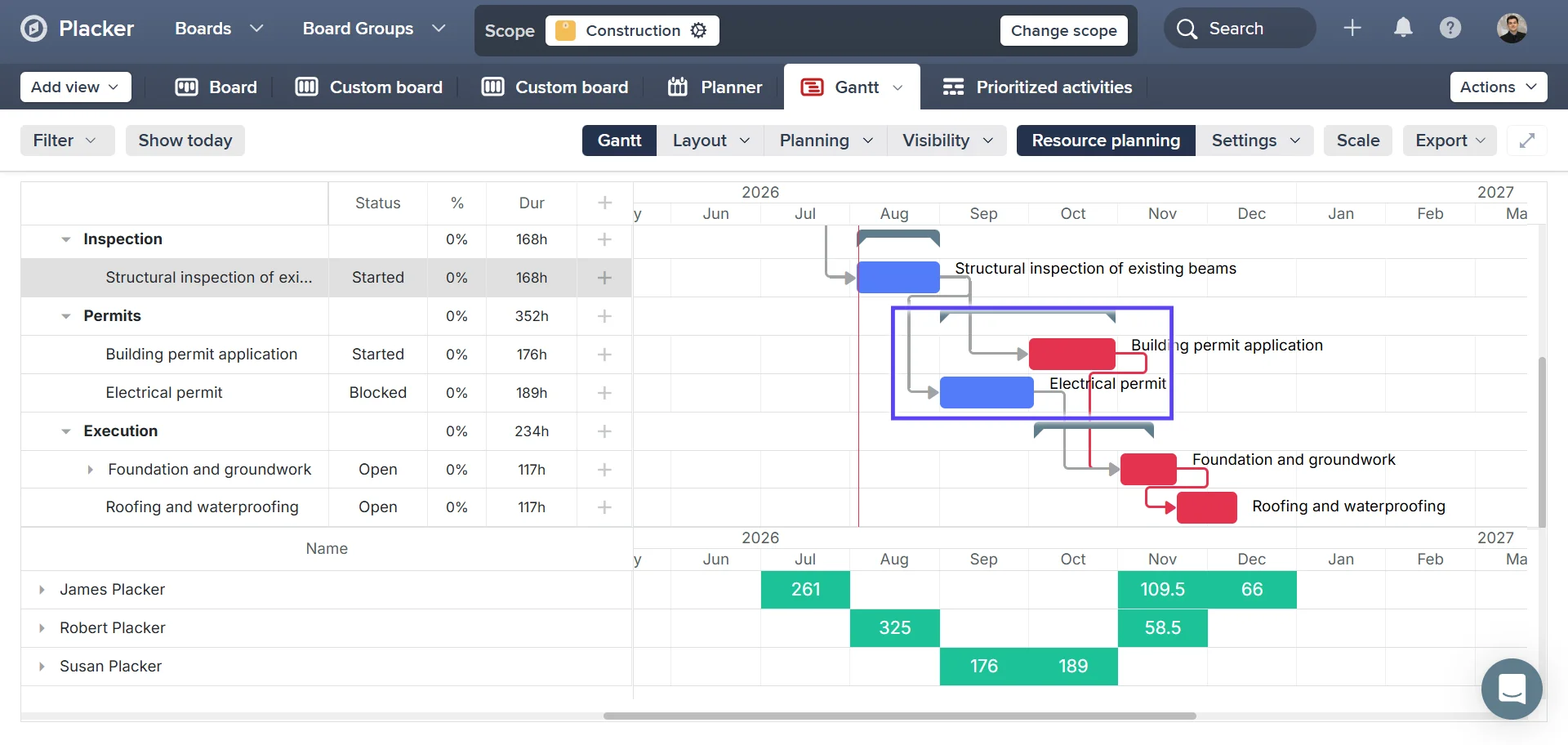
Change a date and watch the path recalculate
Update a due date or dependency in Teams, Outlook, or the Planner app. The critical path recalculates automatically, so the red highlighting always reflects your plan's current state.
Use cases
Where teams rely on the critical path to protect their deadline.
Protecting a milestone date
A programme manager running a multi-phase Microsoft Planner project enables the critical path to see which tasks control the delivery milestone. When a dependency slips, the highlighted path makes it clear whether the milestone is at risk, before the status call, not during it.
Focusing effort on what matters
A team is behind schedule and needs to decide where to double down. The critical path in Placker highlights the tasks that will directly push out the end date if they slip further. Non-critical tasks are deprioritised, and the team concentrates capacity where it has the most impact.
Communicating risk to stakeholders
A project manager exports the critical path view from Placker to share with an executive sponsor. The highlighted dependency chain shows exactly which work controls the launch date, giving the sponsor a data-backed picture of project risk without needing to read a full status report.
Tips & Best Practices
Practical advice to get the most out of your workflow
Add start and due dates in the Gantt to power your critical path
Placker calculates the critical path from your task dates. Open the Gantt view, set start and due dates on your Microsoft Planner tasks, and the critical path highlighting will show you precisely which tasks drive your project timeline.
Link task dependencies in Placker's Gantt to reveal the critical path
Placker's Gantt view lets you draw dependency arrows between tasks. Once your dependencies are connected, enable critical path from the Visibility menu to instantly see which chain of tasks determines your project end date.
Red tasks are where your team's focus makes the biggest difference
Tasks highlighted in red have zero float: they're the ones that directly determine your project finish date. Use critical path highlighting to guide your team's attention to where their efforts will have the greatest impact.
Drag a due date to preview how the critical path shifts
Placker recalculates the critical path the moment you adjust any task date. Try out different scheduling options right in the Gantt view, then confirm the change when you're happy with how the timeline looks.
Related pages
Microsoft Planner integrations: two-way sync
Sync Microsoft Planner plans two ways with Placker and add the calendar, time tracking, and automation Planner lacks. See how it works.
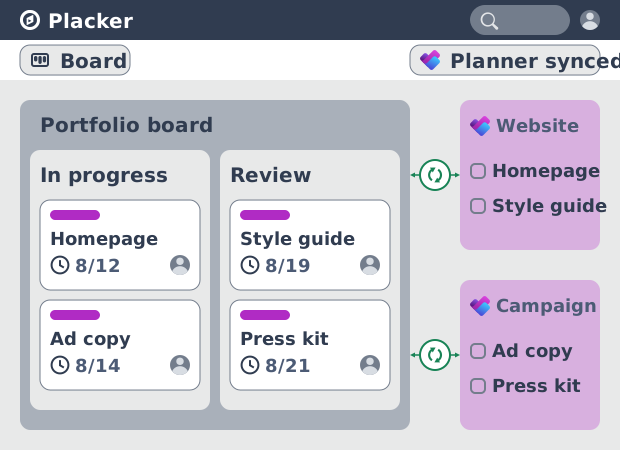
Microsoft Planner board view: layouts and reports
Add custom grouping, swimlanes, and Kanban reports to your Microsoft Planner board view. Placker reads your plans, no rebuild. Start a free trial.
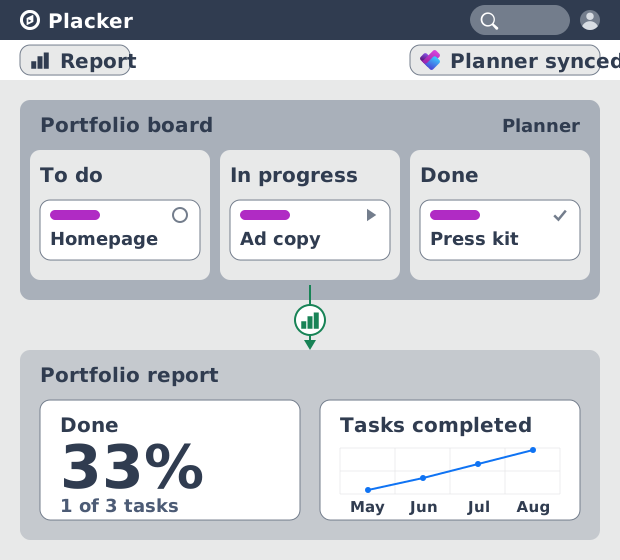
Microsoft Planner dashboards & reports
Report across Microsoft Planner plans without Power BI. KPI widgets, pivot tables, portfolio dashboards, and scheduled PDF reports. Start a free trial.
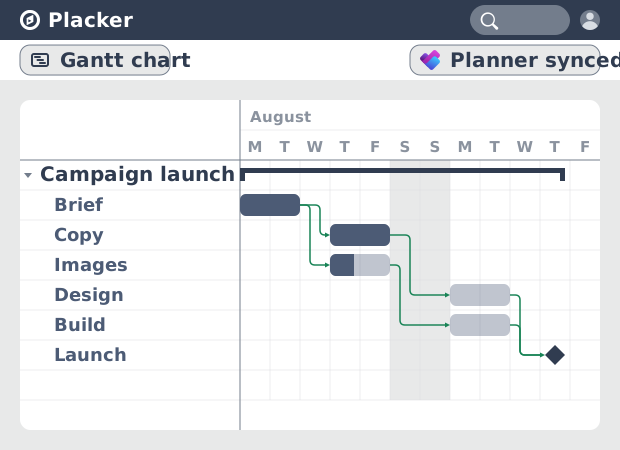
Microsoft Planner Gantt Chart: Add Dependencies
Microsoft Planner has no true Gantt chart. Placker turns Planner tasks into a timeline with dependencies and a critical path. Start free.
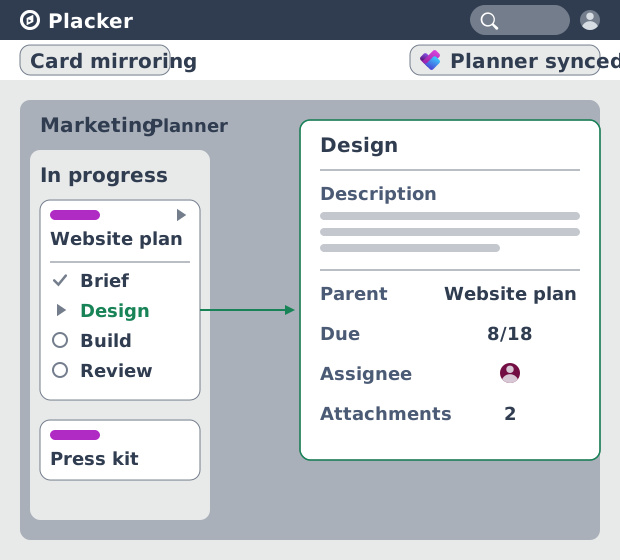
Subtasks in Microsoft Planner: Parent-Child Tasks
Add real subtasks to Microsoft Planner without premium. Parent-child tasks give each subtask an assignee and dates, and roll effort up.
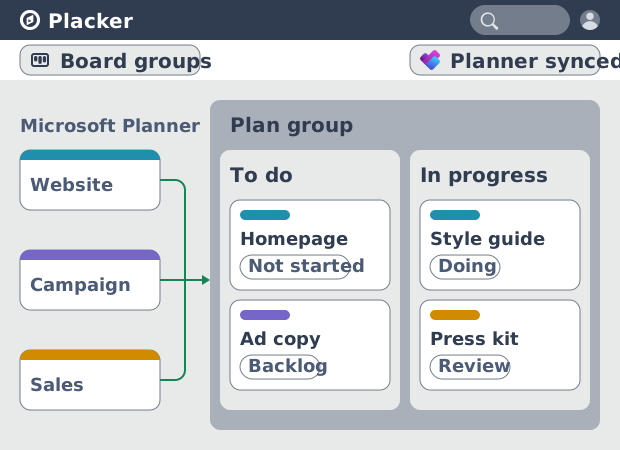
Microsoft Planner: see many plans in one view
See tasks from several Microsoft Planner plans in one board view, no Project Plan 3 or 5 license needed. Placker works on every tier. See how it works.
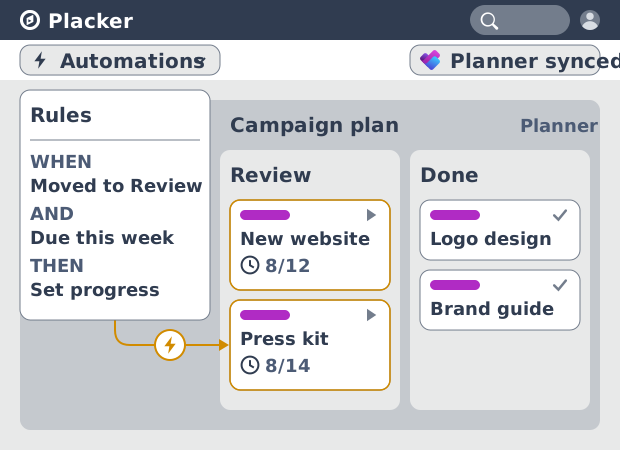
Microsoft Planner automation, no Power Automate
Add conditional automation to Microsoft Planner without Power Automate. Placker runs visual rules on your plans and tasks, plus recurring cards. See how.
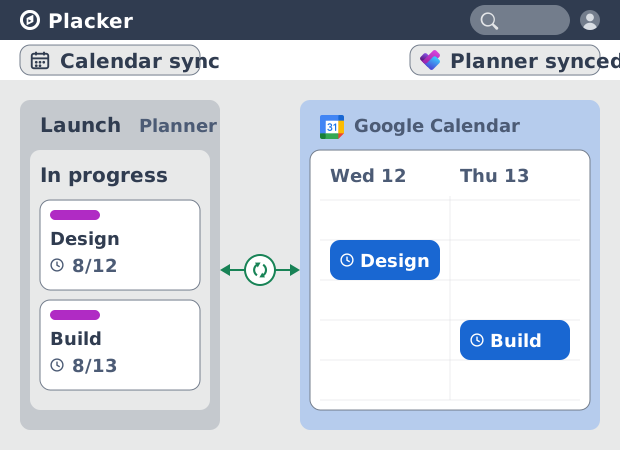
Microsoft Planner Google Calendar sync (2-way)
Microsoft Planner has no native Google Calendar sync. Placker syncs your tasks to Google Calendar, both ways, in minutes. Start free trial.
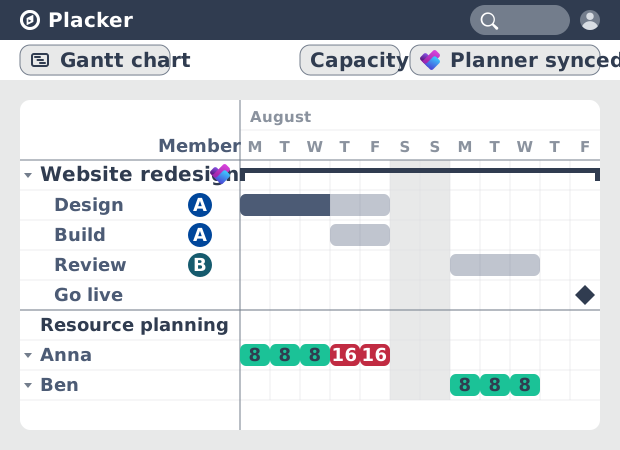
Resource Planner for MS Planner: Workload
See committed hours across Planner plans, not just task distribution. Placker adds FTE reports, overallocation alerts, and capacity planning to MS Planner.
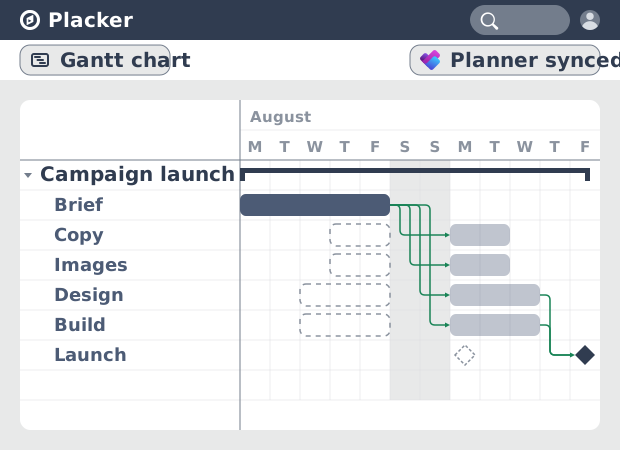
Auto-scheduling for MS Planner: Full Dependencies
Add auto-scheduling to MS Planner without Planner Premium. Placker gives M365 teams full task dependencies and Gantt scheduling. See how it works.
Ready to get started?
Easy to setup, no credit card required, start your trial today!